Wine 11.14 Released with W 21 Bug-fixes

Don’t like the snap packages? Here’s the step by step guide shows how to completely remove and block them in Ubuntu 26.04 LTS.
Snap is an universal Linux package format developed by Canonical, the company behind Ubuntu. Similar to the Flatpak competitor, it runs applications in isolated sandbox environments, improving security and making possible to run most recent software in old Linux Distributions without worrying about dependency issues.
Snap itself is an open-source software, however the backend of the official Snap Store (aka App Center or Ubuntu Software) is proprietary. And, Ubuntu since 22.04 has some apps installed as Snap packages out-of-the-box.
What will be missing after removed Snap
There’s no security concern after removed all snap packages in Ubuntu, but you’ll miss some core applications, though there are a few workarounds.
After removed Snap, you’ll miss:
- Security Center – to manage Ubuntu Pro, disk encryption.
- Firefox web browser.
- firmware-updater – utility to check & install hardware firmware updates.
- App Center for install/uninstall applications.
Some have workarounds, you may use command line tool instead to manage Ubuntu Pro, install Firefox via Deb or Flatpak package, and use GNOME Software instead to install/uninstall applications.
Step 1: Remove Snap App Packages
To remove your snap app packages, press Ctrl+Alt+T on keyboard to open terminal, and run commands below one by one:
- Firstly, run command to list snap packages:
snap list
- Then, remove apps one by one according to package names. For example, remove firefox via command:
snap remove --purge firefox
- Or, remove multiple apps at once by adding more package names in the last command. For example:
snap remove --purge firefox firmware-updater desktop-security-center
Tips: it does NOT allow to remove “snapd” until you removed all others. To make things simple, you may run the single command below to remove all except snapd.
sudo snap remove --purge $(snap list | awk 'NR>1 && $1!="snapd" {print $1}')
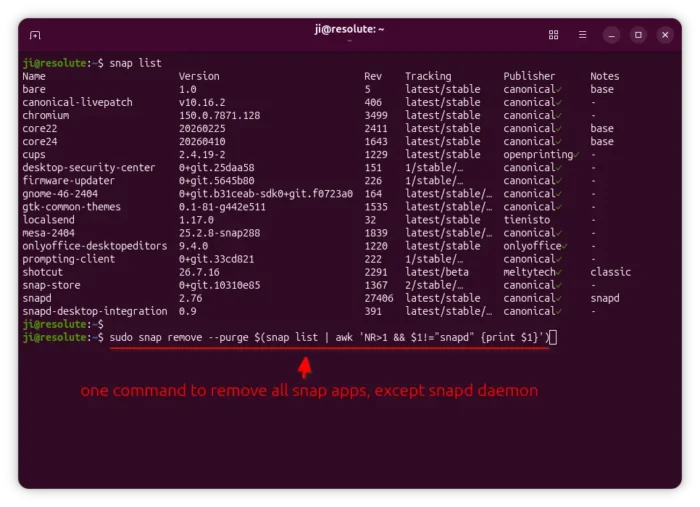
Finally, remove snapd daemon package:
sudo snap remove --purge snapd
After that, re-run snap list to verify, and delete the ‘snap’ cache folder in user home.
Step 2: Block Snap
Snap packages can be automatically installed back, when you trying to install Firefox, Chromium, Thunderbird etc even via native .deb packages. Because, Ubuntu built them as empty packages that automatically download & install the Snap versions.
To prevent snap from being installed back, simply remove the snapd daemon (Deb version) which provides the executable for installing snap packages, then add rule to block it.
1. First, open terminal (Ctrl+Alt+T) and run command to remove the snapd deb package:
sudo apt remove snapd
Don’t worry if you see that it will also remove Firefox, Chromium. They are empty wrappers redirect to the snap versions.
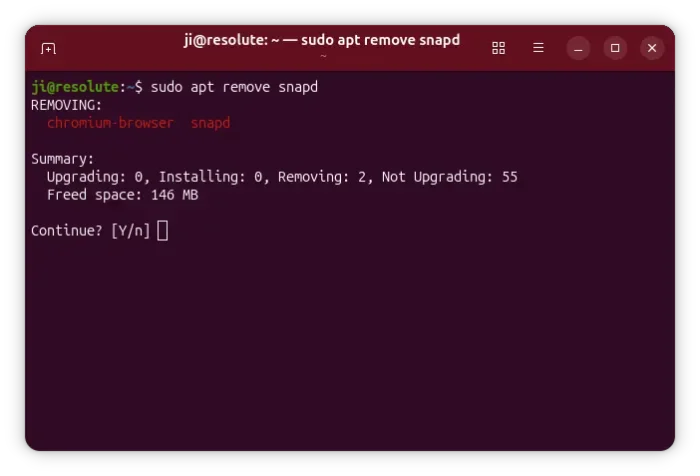
2. Then, run command to create an apt config file and edit via nano command line text editor:
sudo nano /etc/apt/preferences.d/snapd
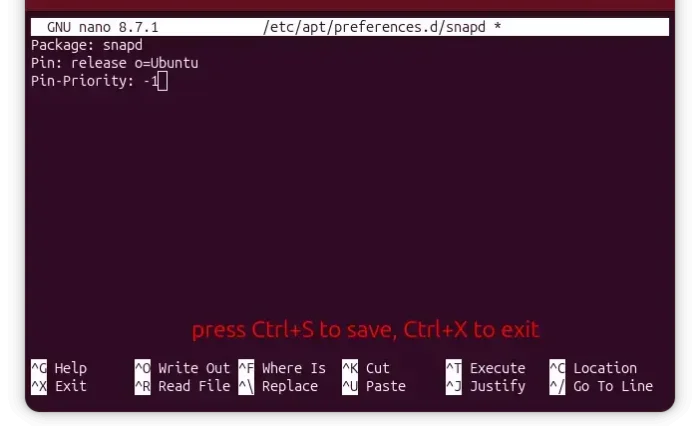
When file opens (in command line), add the lines below to set the snapd package priority to -1, so it won’t be automatically installed back.
Package: snapd
Pin: release o=Ubuntu
Pin-Priority: -1
After that, press Ctrl+S to save file and Ctrl+X to exit.
Finally, run sudo apt update to apply change. And, you may try to manually install snapd to see if it’s properly blocked.
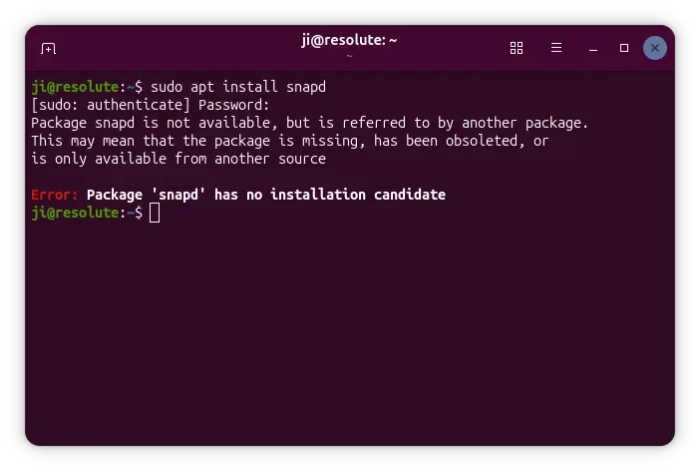
Since apt v3.1, a new exclude method is added, so you can alternatively do the steps below to block (exclude from index) snap daemon.
- First, run command to edit the official sources:
sudo nano /etc/apt/sources.list.d/ubuntu.sources
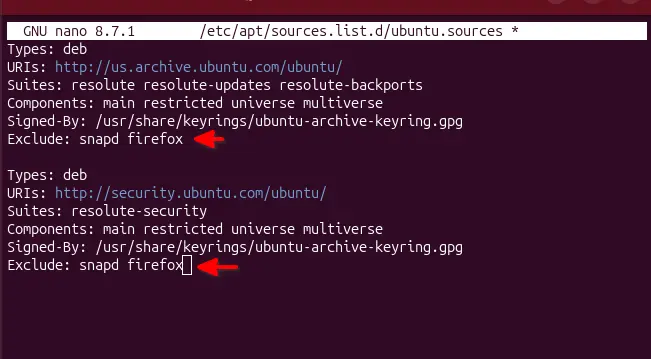
- When file opens (in terminal), add the line below in both sections:
Exclude: snapd
In case you want to install Deb version of Firefox, use
Exclude: snapd firefoxto also block the empty firefox wrapper package.
Finally, save file (Ctrl+S, then Ctrl+X) and run sudo apt update to apply change.
Step 3: Clean up
After completely remove and block Snap, you may remove the caches to free up disk space.
They include snap folder in user home that contains user app data, /var/lib/snapd directory that contains the main system data used by snap daemon, and /var/cache/snapd that the snap daemon used for caches.
To remove them, open terminal and run the commands below one by one:
rm -rf ~/snap
sudo rm -rf /var/lib/snapd
sudo rm -rf /var/cache/snapd
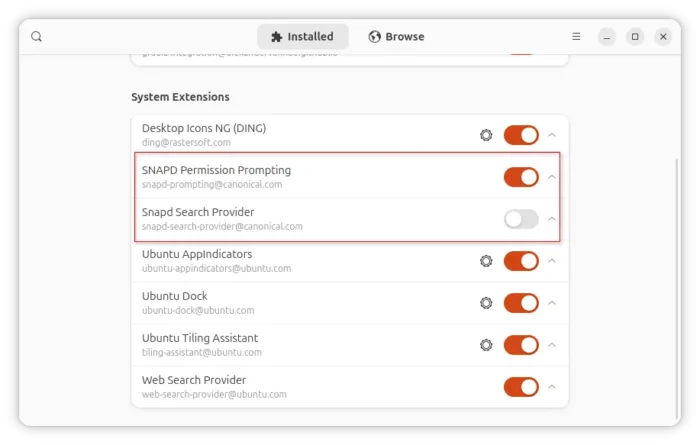
There’s also Snap related extensions provided by the gnome-shell-ubuntu-extensions package.
You can’t remove them, as the package is associated with core Ubuntu package, but you may disable them by using Extension Manager (run command below to install if you don’t have it).
sudo apt install gnome-shell-extension-manager
Step 4: Workarounds for missing Firefox, Ubuntu Pro, App Center
Firefox:
Firefox now provides official .deb package for Debian/Ubuntu, and, there’s a well-known Mozilla Team PPA maintains most recent Firefox .deb package.
However, both require Ubuntu-provided Firefox to be blocked. See this step by step how to install guide for details.
If you’re OK with Flatpak package, Firefox is also available to install from the flathub repository.
Ubuntu Pro:
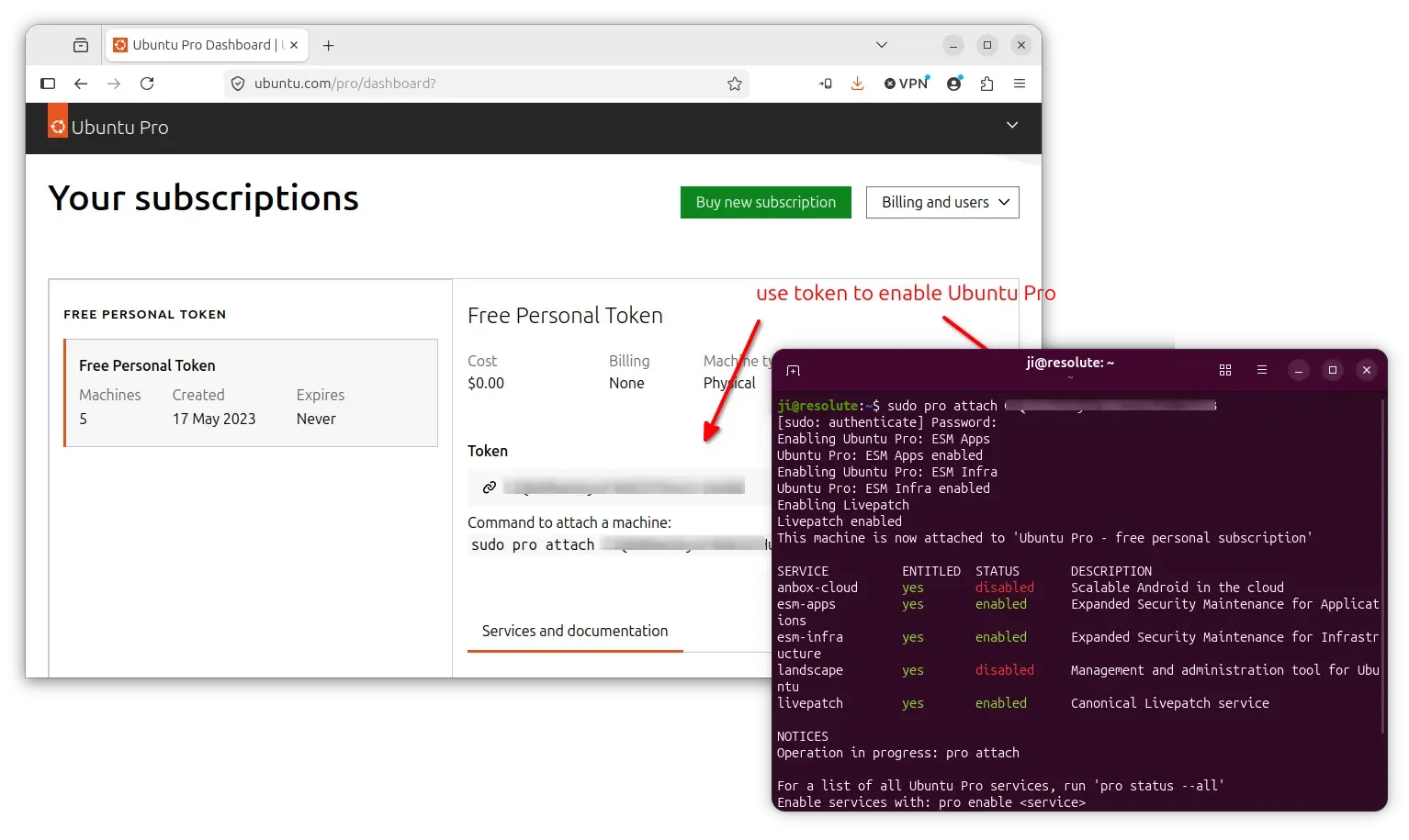
For Ubuntu Pro, you may first visit ubuntu.com/pro/dashboard, then log in (create free account if you don’t have one), finally copy the token, and run the command below to enable Ubuntu Pro:
sudo pro attach TOKEN_HERE
And, you may run pro disable command to disable any service (esm-apps, esm-infra, or livepatch) you don’t want. For example, disable livepatch service via command:
sudo pro disable livepatch
Or, use pro enable to enable any service. And, use sudo pro detach to disable all Ubuntu Pro services.
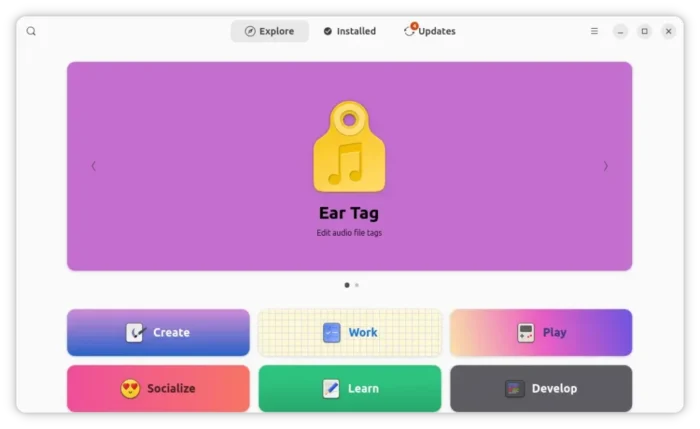
For an alternative to the App Center and firmware updater, run the command below to install the Gnome Software as well as its firmware plugin:
sudo apt install gnome-software gnome-software-plugin-fwupd
And for Chromium user, either install the Flatpak package or follow this guide to install native DEB from other sources.
Source: UbuntuHandbook