How to Install Chromium Browser (DEB Package) in Ubuntu 26.04, 24.04

Chromium user but don’t like running app in sandbox environment? Here’s how to install the native DEB package for this popular web browser in Ubuntu 26.04 and 24.04 LTS.
Ubuntu since 20.04 has Chromium browser built as Snap package that runs in sandbox. It may be great for security and auto update, but lacks a choice for those who don’t like it.
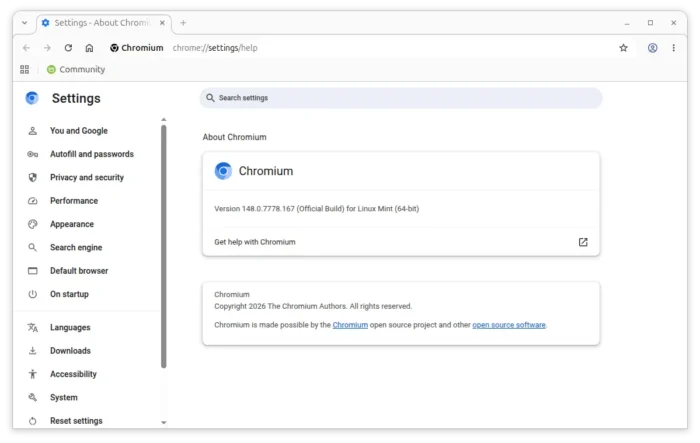
Chromium Deb edition built by Linux Mint
If you prefer the native .deb package, here I’m going to show you how to install it via:
- Linux Mint package – trustworthy, but a little bit hard to install for beginners.
- Ubuntu PPA – easy to install, but a bit less trustworthy.
Debian upstream also builds the latest Chromium as DEB package, which is however available in the Unstable repository and it may break dependency.
Option 1: Install Chromium browser from Linux Mint repository in Ubuntu 26.04
Linux Mint, the top popular Ubuntu based distribution, dislikes snap package. It blocks all snap packages and maintains some popular app packages as DEB, including Chromium and Firefox, that are no longer available in Ubuntu.
The apt package manager in Ubuntu 26.04 features Include and Exclude options, allowing to only index certain packages from a repository. Meaning it can be safe to add Linux Mint repository in Ubuntu without breaking anything.
NOTE: The steps below only work for Ubuntu 26.04 on modern Intel/AMD platform.
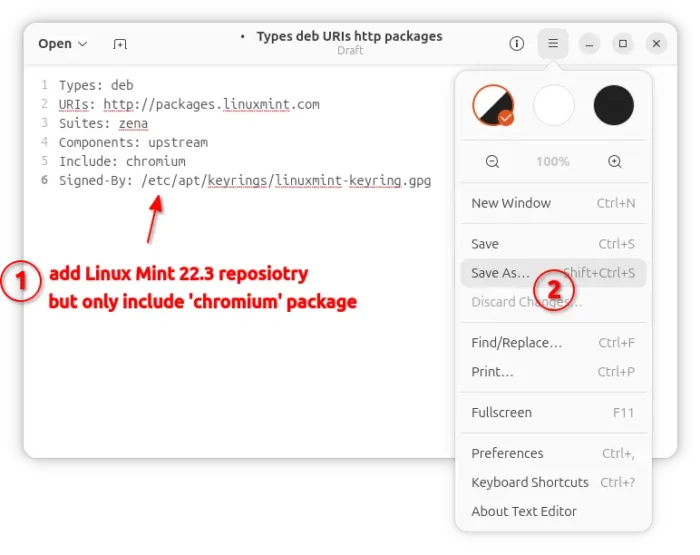
1. First launch text editor and write the following content in an empty document.
Types: deb
URIs: http://packages.linuxmint.com
Suites: zena
Components: upstream
Include: chromium
Signed-By: /etc/apt/keyrings/linuxmint-keyring.gpg
It tells to add the Linux Mint repository but only include the chromium package, while all others are blocked.
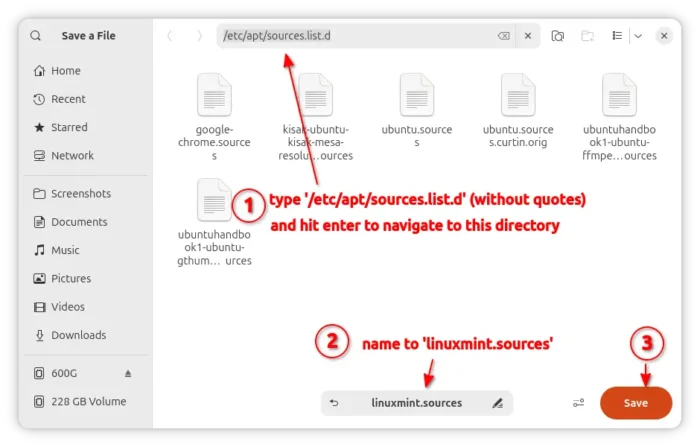
2. Next, press Ctrl+Shift+S to open the save file dialog. Click the address bar, type /etc/apt/sources.list.d and hit Enter to navigate to that directory. Name the file as linuxmint.sources and finally click Save it.
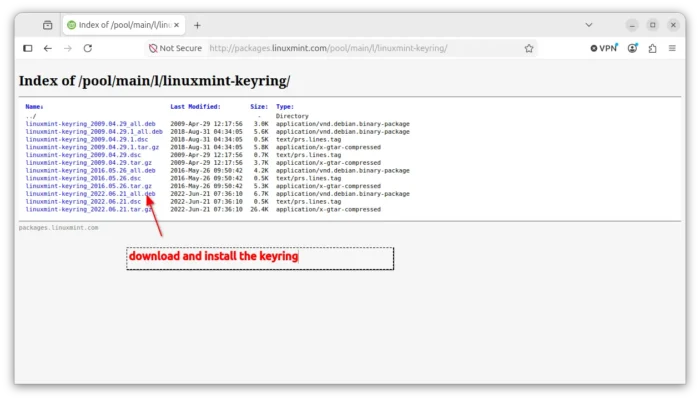
3. After created the .sources file, go to link below and click download the latest key file:
Select download the latest deb package, e.g., “linuxmint-keyring_2022.06.21_all.deb”, then click open with App Center and install.
4. For security reason, press Ctrl+Alt+T to open terminal, and run command to move the key file to the /etc/apt/keyrings directory:
sudo mv /etc/apt/trusted.gpg.d/linuxmint-keyring.gpg /etc/apt/keyrings/
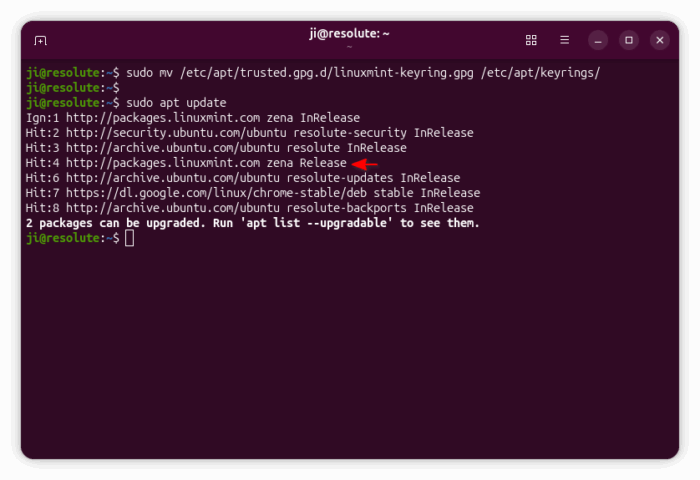
5. Finally, run the command below to refresh package cache:
sudo apt update
If everything goes well, it will show you a line that looks like ‘Hit/Get x http://packages.linuxmint.com …’.
After that, run the command below to install chromium browser:
sudo apt install chromium
It will start downloading the deb package from mint repository and then install it on your system.
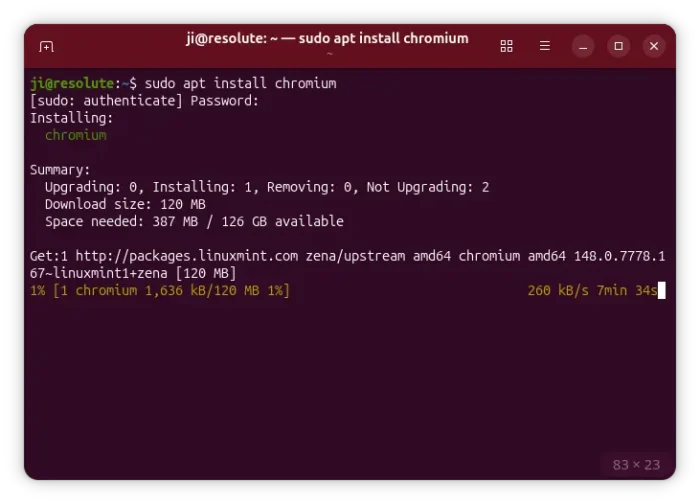
For future chromium updates, check & install via Software Updater along with system package updates.
Option 2: use Ubuntu PPA
If you’re OK with third-party Ubuntu PPAs, then, there’s xtradeb apps PPA that maintains the most recent Chromium DEB packages for a few years.
The PPA so far supports Ubuntu 22.04, Ubuntu 24.04, Ubuntu 25.10 and Ubuntu 26.04 on modern Intel/AMD, ARM device (e.g., RasPi, Snapdragon X), and 64-bit PowerPC devices. And, it supports amd64v3 architecture type for Ubuntu 26.04 LTS.
1. To add the PPA, open terminal (Ctrl+Alt+T) and run command:
sudo add-apt-repository ppa:xtradeb/apps
Type user password when it asks and hit Enter to continue.
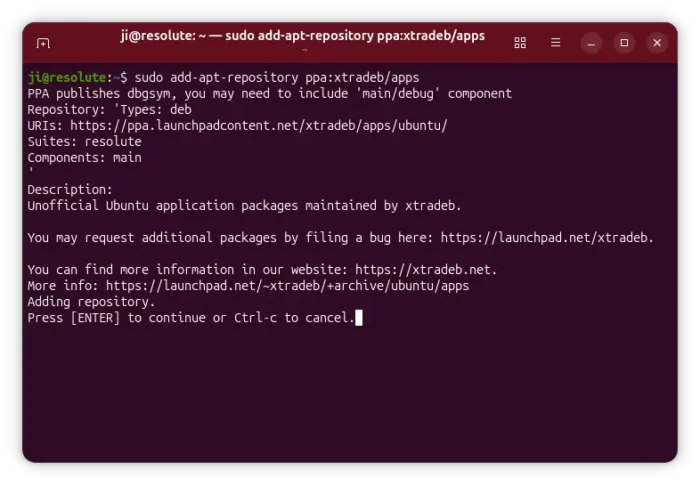
2. Then, refresh package cache, though the last command should do it automatically.
sudo apt update
3. Finally, install chromium deb package:
sudo apt install chromium
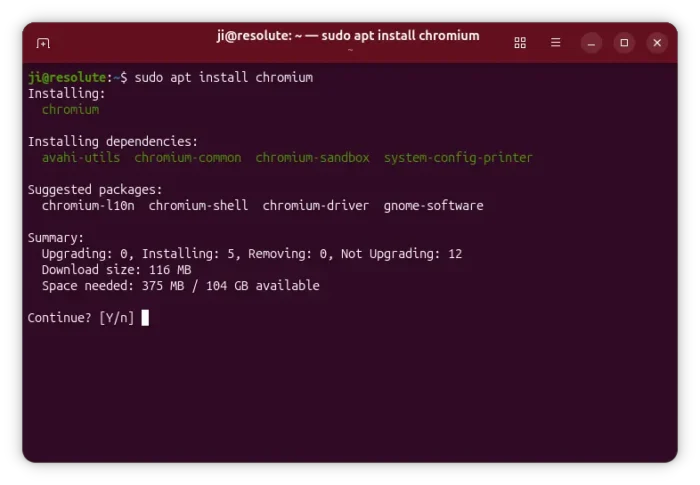
Also, you may use Software Updater to check and install updates for the browser package afterward.
Uninstall:
To uninstall the chromium deb package, open terminal (Ctrl+Alt+T) and run command:
sudo apt remove --autoremove chromium
To remove the xtradeb apps PPA, use command:
sudo add-apt-repository --remove ppa:xtradeb/apps
And, if you installed the browser from Linux Mint repository, then just delete the key and sources files by running command:
sudo rm /etc/apt/keyrings/linuxmint-keyring.gpg /etc/apt/sources.list.d/linuxmint.sources
Finally run sudo apt update to refresh cache.
Source: UbuntuHandbook