How to Install Claude Desktop App in Ubuntu 26.04/24.04, Linux Mint 22

This is a step by step guide shows how to install the Claude Desktop App in Debian, Ubuntu, Linux Mint, and their based Linux Distributions.
The Claude Desktop for Linux is so far a Beta app that provides the same Chat, Cowork, and Claude Code experience as on macOS and Windows.

Supported Hardware & OSes:
The Claude Desktop app has an official apt repository, allowing to install and keep the app package up-to-date in the following Linux Distributions:
- Debian 12/13, Ubuntu 22.04, Ubuntu 24.04, and Ubuntu 26.04.
- And, Linux Mint 22.x, ZorinOS 18.1, etc distributions that based on the Debian/Ubuntu releases above.
Not only for the modern Intel/AMD computers, it also works on arm64/aarch64 devices, such as Raspberry Pi and Snapdragon X laptops.
Install Claude Desktop App
This is a re-write of the official guide that follows the Debian policy to use the new debian.sources format, while sources.list format is likely to be deprecated in future.
1. First, press Ctrl+Alt+T or launch terminal from your system application launcher.
When terminal opens, run command to install the curl tool:
sudo apt install curl
2. Run command to download the key file:
sudo curl -fsSLo /etc/apt/keyrings/claude-desktop-archive-keyring.asc https://downloads.claude.ai/claude-desktop/key.asc
The /etc/apt/keyrings is the preferred directory in Ubuntu for storing third-party key files. It exists out-of-the-box in recent Ubuntu releases. Just in case, you may run the command below to create the directory first:
sudo mkdir -p /etc/apt/keyrings
After running the curl command, you may run ls /etc/apt/keyrings to make sure the key is properly saved into that directory.
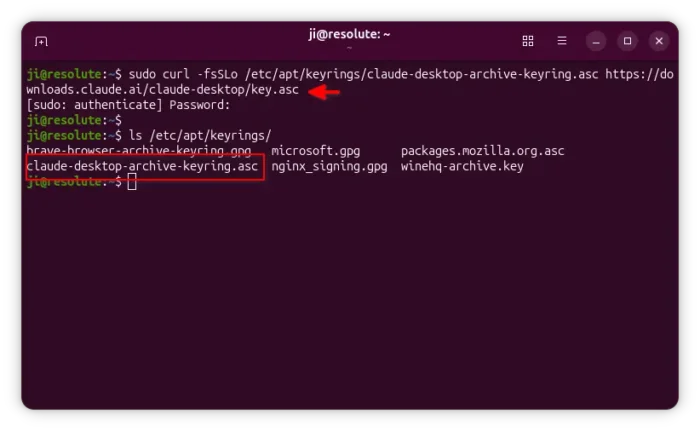
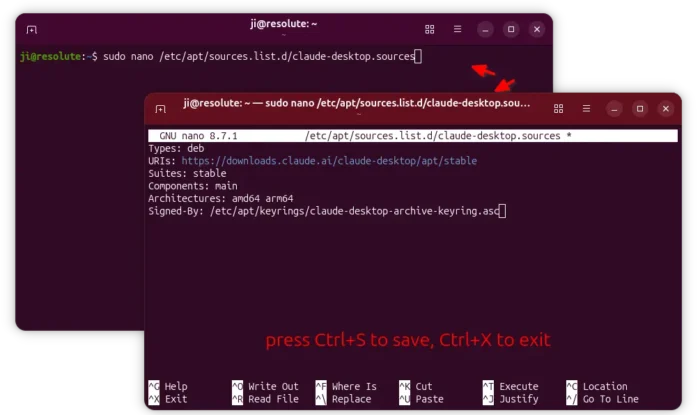
3. Next, run command to create a config file for Claude apt repository using the new debian.sources format.
sudo nano /etc/apt/sources.list.d/claude-desktop.sources
Here I use the nano command line text editor that works in most desktop environments, you may replace it with your favorite text editor.
When file opens (in terminal), paste the content below:
Types: deb
URIs: https://downloads.claude.ai/claude-desktop/apt/stable
Suites: stable
Components: main
Architectures: amd64 arm64
Signed-By: /etc/apt/keyrings/claude-desktop-archive-keyring.asc
Finally, press Ctrl+S to save, and Ctrl+X to exit.
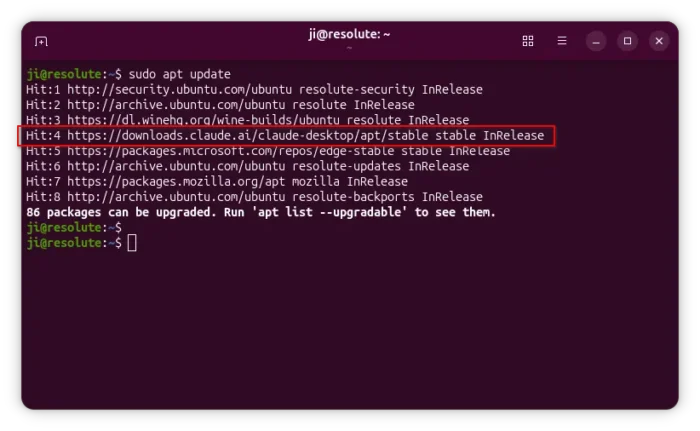
4. Finally, refresh system package cache via command:
sudo apt update
In the output, it should include something looks like “Get/Hit https://downloads.claude.ai/claude-desktop ..”.
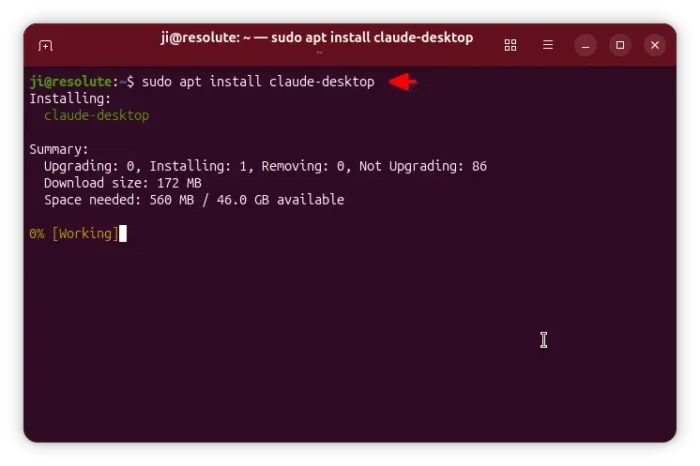
5. If everything goes well, install the Claude Desktop app via command:
sudo apt install claude-desktop
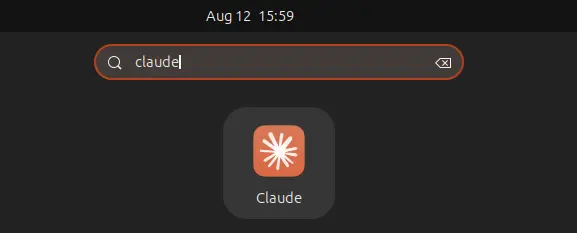
Finally launch the app from your system application launcher and enjoy!
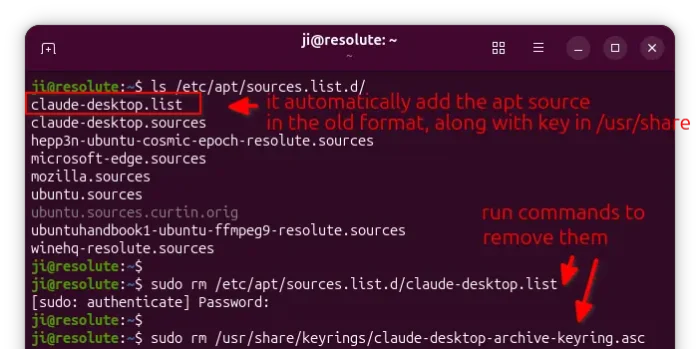
NOTE: The last apt install command will try to create the old .list apt source during installation. To avoid conflict, it’s better to remove it afterward via commands below:
sudo rm /etc/apt/sources.list.d/claude-desktop.list
sudo rm /usr/share/keyrings/claude-desktop-archive-keyring.asc
Uninstall:
To uninstall the app, simply launch terminal and run command:
sudo apt remove claude-desktop
And, you may remove the apt repository by deleting the source and key files.
sudo rm /etc/apt/sources.list.d/claude-desktop* /etc/apt/keyrings/claude-desktop-archive-keyring.asc
After that, run sudo apt update to refresh cache.
Source: UbuntuHandbook