The PR adds Native Validity Fingerprint Sensors Support to Linux

For those who have computers or laptops with Synaptics / Validity fingerprint sensors, there’s a new pull request contains the driver for libfprint, the default fingerprint library in most Linux Distributions.
As you might know, libfprint has a list of unsupported devices. It includes many Lenovo Thinkpad and HP laptops with 138a and 06cb sensors.
For these fingerprint sensors, there’s an open-source python-validity project making them work in Linux. And, I’ve written a step by step tutorial telling how to install and use the driver in Ubuntu.
It’s however NOT beginner friendly, and lacks native integration as it requires to remove the default libfprint library.
With the new pull request, these fingerprint sensors will work natively in most Linux distributions through libfprint.
And, so far it supports following devices:
138a:0090used in ThinkPad T460s, T460p, X1 Carbon Gen 4, Yoga 260, P50.138a:0097used in ThinkPad T470, T470s.06cb:009aused in ThinkPad T480/T480s, X1 Carbon 6th gen, X1 Yoga 3rd gen, X280, P52, L390138a:009dused in ThinkPad X380 Yoga.138a:00abused in HP ZBook Studio G5, HP EliteBook 840/850 G5.06cb:00cbused in HP Pavilion 14.06cb:00b7used in HP EliteBook 840 G6, HP EliteBook x360 1040 G6, HP Elite x2 G4.
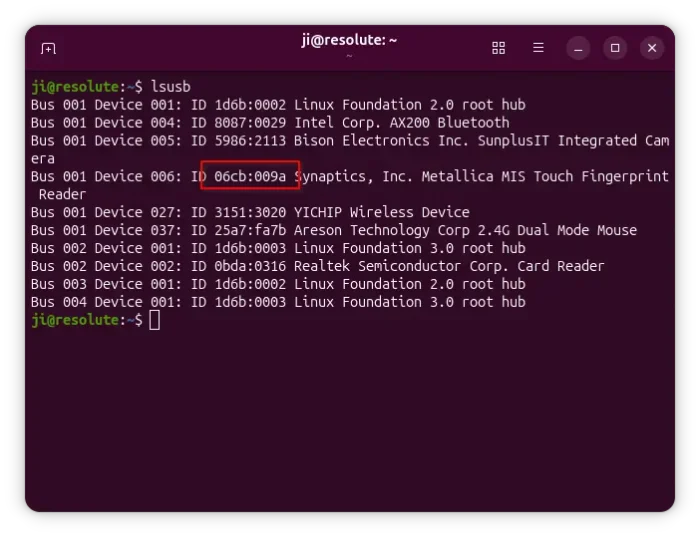
NOTE: If your laptop model is not listed above, try running lsusb command to check the ID (see screenshot above).
Install it for Ubuntu 26.04
The pull request is NOT merged at the moment of writing! If you can’t wait, then you need to manually build it.
For Ubuntu 26.04 LTS, someone has rebuilt libfprint with that PR in patch into this PPA for AMD/Intel platform.
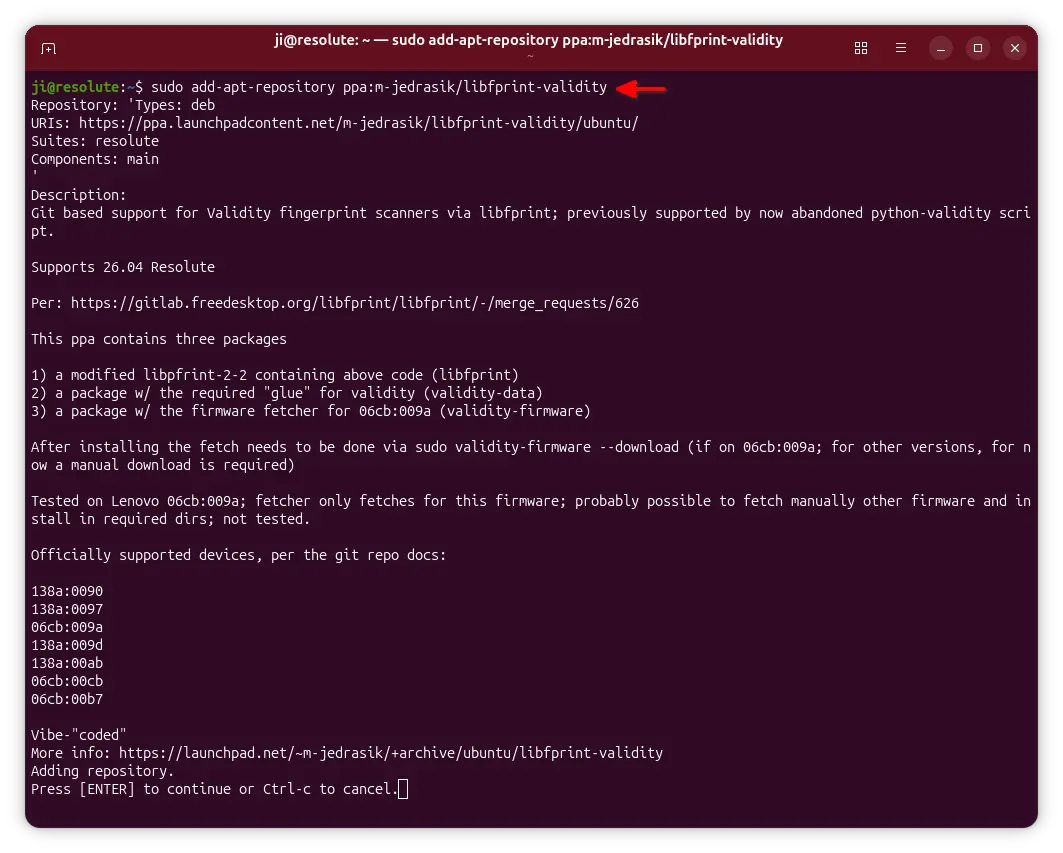
According to the PPA description, it targets 06cb:009a sensors and works very well in my case in ThinkPad T480s, while other sensors need to manually download the firmware.
1. First, press Ctrl+Alt+T to launch terminal. Then run command to add the PPA:
sudo add-apt-repository ppa:m-jedrasik/libfprint-validity
2. Next, run command to refresh cache. Useful for Linux Mint (upcoming 23.x), though the last command should do it automatically in Ubuntu:
sudo apt update
3. Finally, install the patched version of libfprint, as well as the firmware:
sudo apt install libfprint-2-2 libfprint-validity-firmware libfprint-validity-data
4. After that, run the command to automatically download the firmware (for 06cb:009a only).
sudo validity-firmware --download
Though don’t know why, it works in my case without running this command.
5. Finally, launch your desktop specific fingerprint management tool to enroll your fingerprint.
For default GNOME Desktop, go to “Settings -> System -> User”, and, click “Fingerprint Login” to add fingerprint. The LED light will be turning on once you start scan fingerprint, touch the fingerprint sensor repeatedly until it complete.
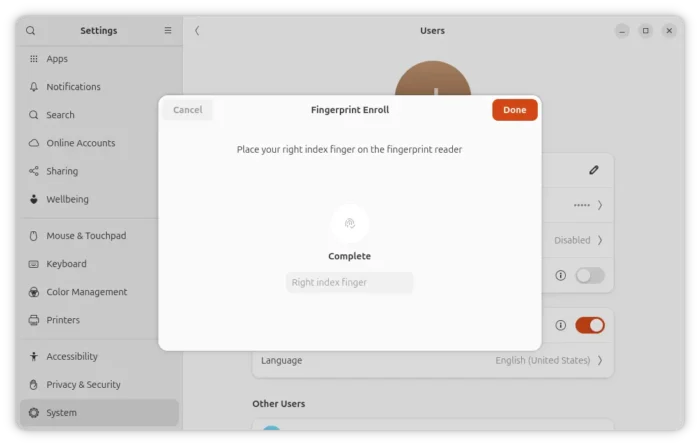
After that, you can use your fingerprint to log in the desktop.
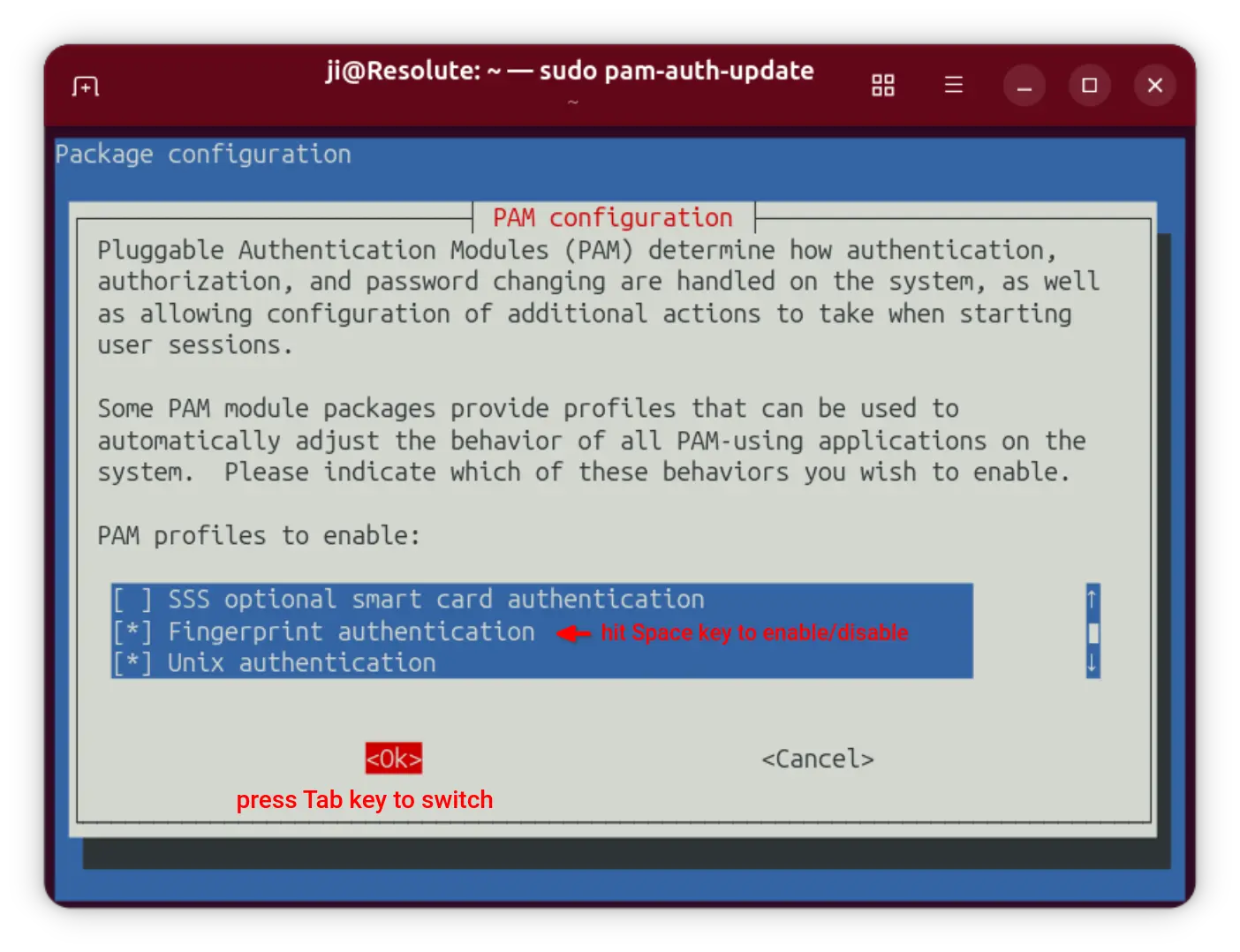
6. To enable fingerprint authentication for launching apps or commands that requires root permission, run the command below:
sudo pam-auth-update
Then, scroll up/down to highlight “Fingerprint authentication”, press Space to enable/disable, press Tab to switch to OK and hit Enter.
Uninstall:
The PPA packages work great in my case. If not for you, then you may run the commands below to purge PPA:
sudo apt install ppa-purge
sudo ppa-purge ppa:m-jedrasik/libfprint-validity
And, the ppa-purge will automatically downgrade the install libfprint library to the previous default version.
Source: UbuntuHandbook