Transmission issues and workarounds on (K)Ubuntu 26.04

Transmission, the default BitTorrent client does not work properly in Ubuntu 26.04. Here are a few workarounds.
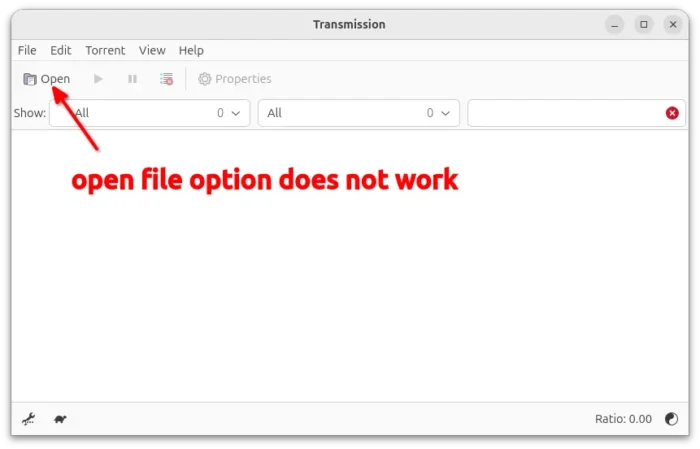
Due to new version of the AppArmor security module, some features in the Transmission BitTorrent client do not work properly in Ubuntu since 25.04.
It’s because AppArmor in new Ubuntu versions includes new profile that restricts file access, network usage, specific commands execution etc permissions for Transmission. That profile is however NOT perfectly defined, so some features stop working!
Option 1: Switch profile to complain mode
The easiest way to “fix” all the issues is simply stop the AppArmor protection for Transmission. In the case, the BitTorrent client will work the way just like in Ubuntu 24.04 and earlier, though, it may be less secure.
First, press Ctrl+Alt+T to open terminal, and run the command below to install the utilities to handle AppArmor profiles:
sudo apt install apparmor-utils
You may run sudo apt update to refresh cache first if the command above does not work.
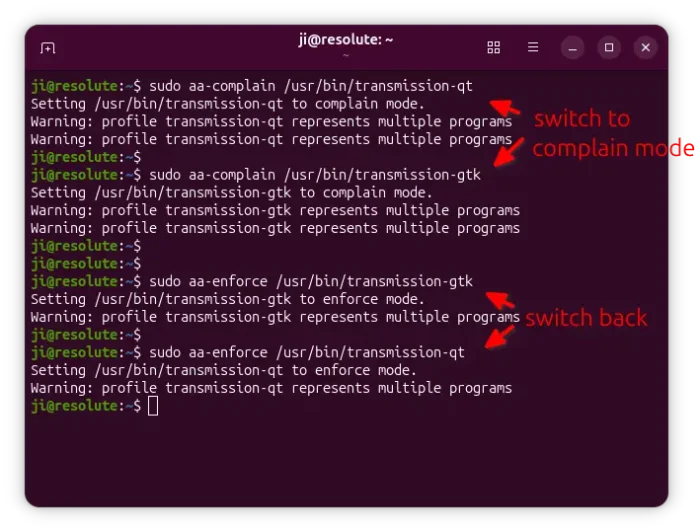
Then, run the command below to switch the Transmission profile to complain mode:
sudo aa-complain /usr/bin/transmission-gtk
Here you may replace transmission-gtk with transmission-qt or transmission-daemon for the Qt UI or the daemon. In the complain mode, the security policy is not enforced, but it will write access violations into system log.
Or, you may disable the profile, which works for all Transmission UIs.
sudo aa-disable /etc/apparmor.d/transmission
And, to switch back the enforce mode, use command:
sudo aa-enforce /usr/bin/transmission-gtk
Also replace transmission-gtk accordingly.
And, if you disabled the profile, then use the command below to switch back.
sudo aa-enforce /etc/apparmor.d/transmission
Option 2: Fix “Open” torrent dialog for Transmission-Qt in KUbuntu 26.04
NOTE: So far I do not figure out how to fix the “Open” button for GTK UI. But you may drag’n’drop .torrent file from Downloads folder to Transmission to workaround.
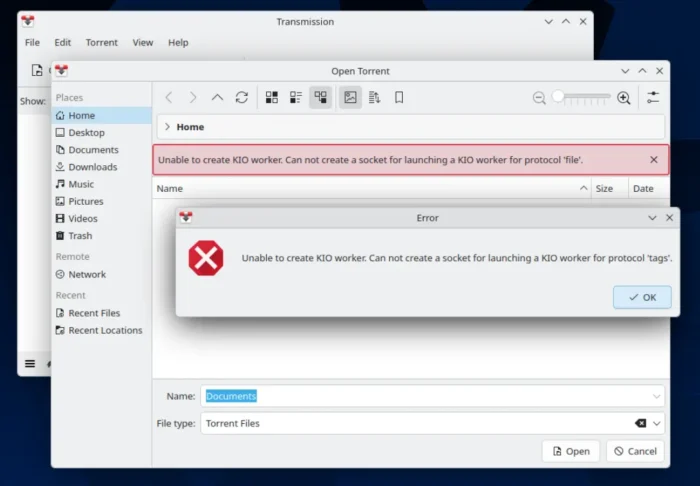
As the screenshot above shows you, the “Open” button (or Ctrl + O) open “.torrent” dialog does NOT work properly in the Qt UI. It shows error:
Unable to create KIO worker. Can not create a socket for launching a KIO worker for protocol ‘tags’.
To fix the issue, open terminal (konsole) and run command:
sudo nano /etc/apparmor.d/local/transmission-qt
This command will create a local configuration file for transmission-qt AppArmor profile, and edit via nano command line text editor.
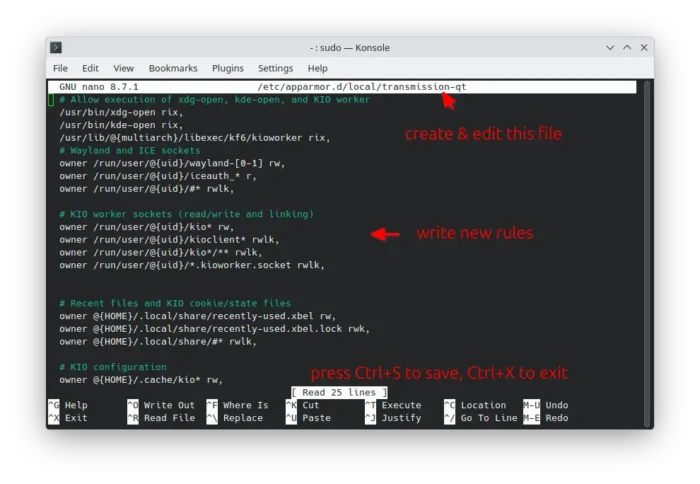
When file opens, paste the following content (Ctrl+Shift+V):
  # Allow execution of xdg-open, kde-open, and KIO worker
  /usr/bin/xdg-open rix,
  /usr/bin/kde-open rix,
  /usr/lib/@{multiarch}/libexec/kf6/kioworker rix,
  # Wayland and ICE sockets
  owner /run/user/@{uid}/wayland-[0-1] rw,
  owner /run/user/@{uid}/iceauth_* r,
  owner /run/user/@{uid}/#* rwlk,

  # KIO worker sockets (read/write and linking)
  owner /run/user/@{uid}/kio* rw,
  owner /run/user/@{uid}/kioclient* rwlk,
  owner /run/user/@{uid}/kio*/** rwlk,
  owner /run/user/@{uid}/*.kioworker.socket rwlk,


  # Recent files and KIO cookie/state files
  owner @{HOME}/.local/share/recently-used.xbel rw,
  owner @{HOME}/.local/share/recently-used.xbel.lock rwk,
  owner @{HOME}/.local/share/#* rwlk,

  # KIO configuration
  owner @{HOME}/.cache/kio* rw,
  owner @{HOME}/.cache/kcookies* rw,
  owner @{HOME}/.local/share/kio/** rw,
Here owner meaning the rule applies for the user when running the transmission-qt (usually your login account), r meaning read permission, i means inherit, x = executable permission, w write permission, and k or lk means allow file locking.
See the bug report page for the original transmission-qt profile.
After added the rules above, press Ctrl+S to save file and Ctrl+X to exit. Finally, restart AppArmor service to apply change.
sudo systemctl restart apparmor.service
Option 3: Add Read/Write Access to Other Folders
With the AppArmor profile, transmission in (K)Ubuntu 26.04 has only read & write access to user’s Downloads directory by default!
If you want to load torrent file from other directories, or save download in another folder, then you need to add the similar rules below.
1. First, open terminal (or konsole) and run command to create (if not exit) and edit the config file:
sudo nano /etc/apparmor.d/local/transmission
Here I use transmission that works for all UIs, you may replace it with transmission-qt for Qt UI only, transmission-gtk for the GTK UI, or transmission-daemon for the webUI.
2. When the file opens (in command console), add the lines below and edit accordingly:
owner @{HOME}/** r,
owner @{HOME}/Videos/ r,
owner @{HOME}/Videos/** rw,
Here the rules:
owner @{HOME}/** r,add ability to load torrent file from any folders or sub-folders in user HOME.owner @{HOME}/Videos/** rw,– allow read and write downloads to user’s Videos folder and its sub-folders.owner @{HOME}/Videos/ r,– allow read the “Video” folder itself, you may skip it whileowner @{HOME}/** r,covers it.
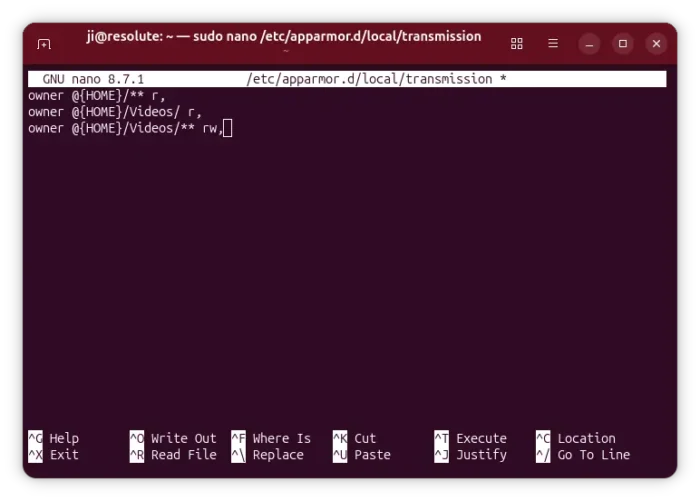
3. Edit the rules according you need, then press Ctrl+S to save and Ctrl+X to exit nano command line text editor.
Finally, run the command below to restart the AppArmor service:
sudo systemctl restart apparmor.service
It’s better to run systemctl status apparmor.service to verify if it’s running properly as any mis-configuration may break the service.
Source: UbuntuHandbook