How to Type Special or Diacritical Characters in Ubuntu
Want to insert special characters (e.g., e.g., ©, ®, æ, ß, ¼, º) and/or diacritical characters (e.g., á, ä, é, ẽ) in your Ubuntu desktop?
Without coping from web or using an app (e.g., Gnome Characters), you can type them directly via your physical keyboard. And, below I’m going to show you how to do the job step by step.
NOTE: This tutorial is for Ubuntu 22.04, Ubuntu 24.04, and Ubuntu 26.04 with default GNOME Desktop. It works on other desktops and old Ubuntu versions, but the setting options may vary across desktop environments.
Option 1: Use Alternate Character Key
As you know, we can hit on keyboard keys to insert first-level keys, such a, b, c, d, 1, 2, 3, 4, or, press and hold Shift then hit these keys for second-level keys, such as A, B, C, D, !, @, #, $.
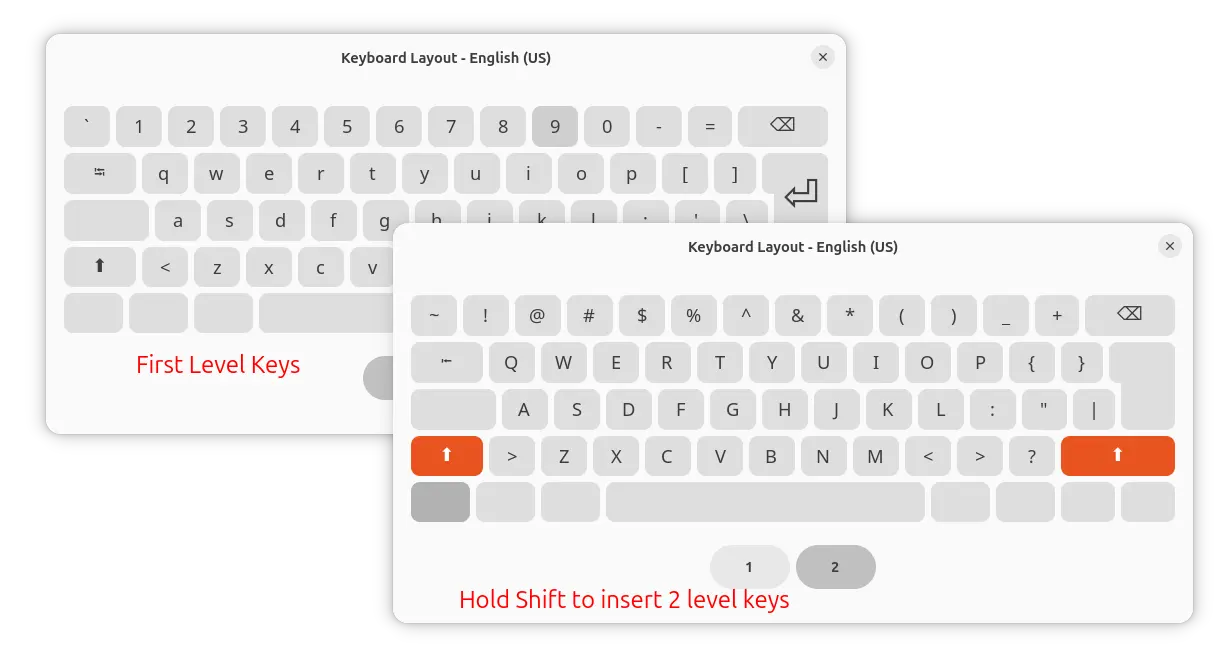
For many keyboard layouts, there are as well level 3 and 4 keys. And, you can type them by using Alternate Character Key (aka AltGr).
1. First, launch Settings and navigate to “Keyboard” page. Under “Input Sources”, open the 3 dots menu for your keyboard layout and click “View Keyboard Layout” to check if it supports level 3 and 4 keys.
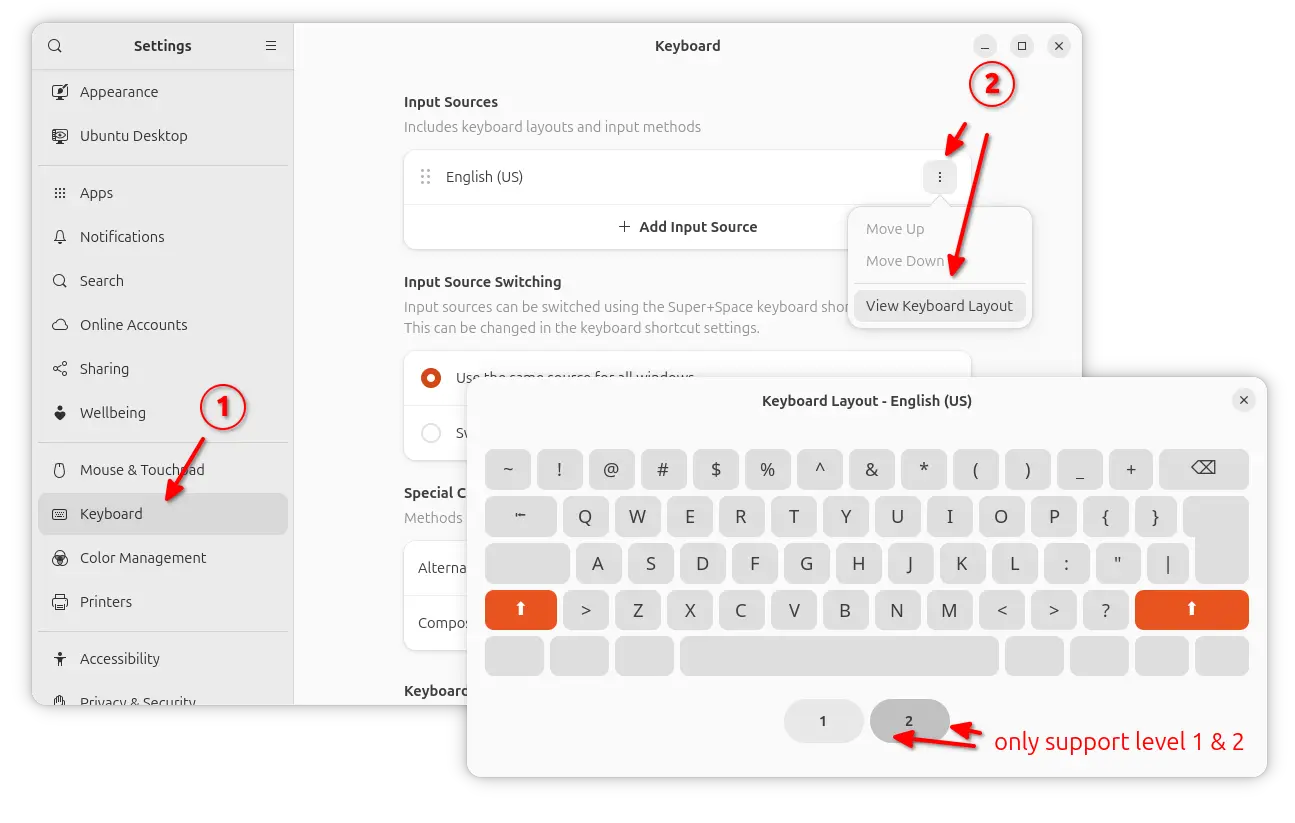
If NOT, then either add another input source that support level 3 and 4 key input, or, use Compose key instead (See Option 2).
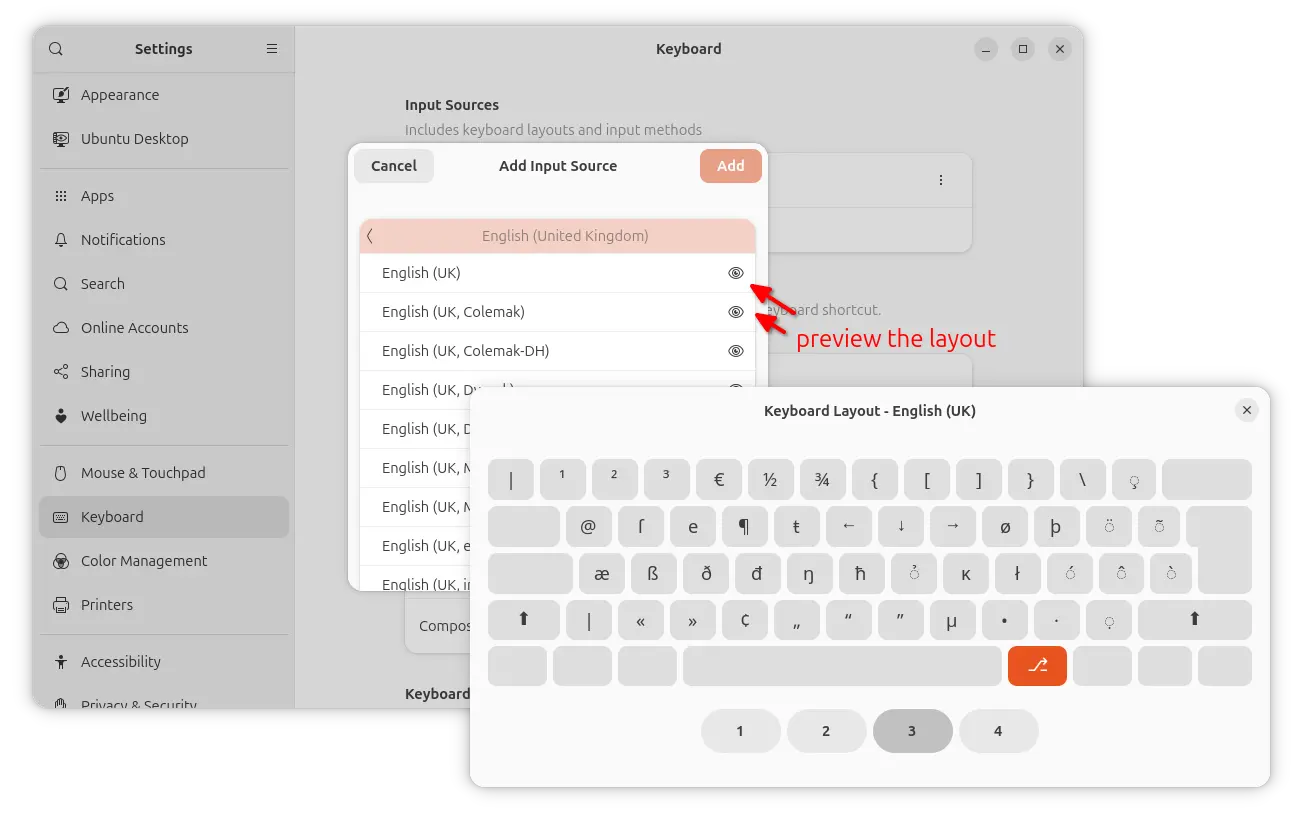
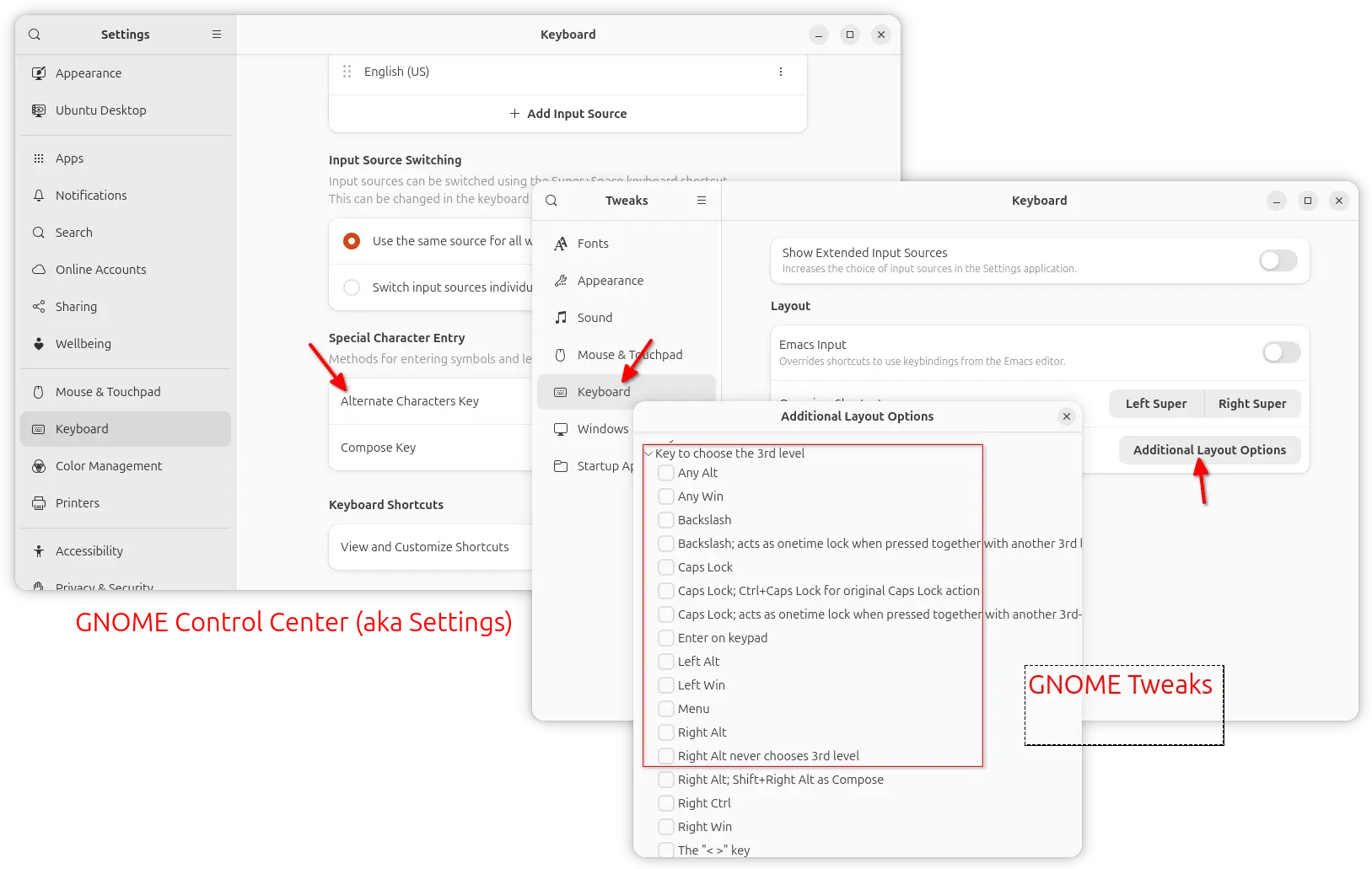
2. If you keyboard layout support 3-level and 4-level keys or you switched to one that support them, then you may set an Alternate Character Key by navigating to Settings -> Keyboard -> Special.
For more choices, install and launch GNOME Tweaks from App Center, then navigate to Keyboard -> Additional Layout Options -> Key to choose the 3rd level.
3. After set Alternate Character Key (AltGr), use:
- hold AltGr to type 3-level keys,
- hold AltGr and Shift to type 4-level keys.
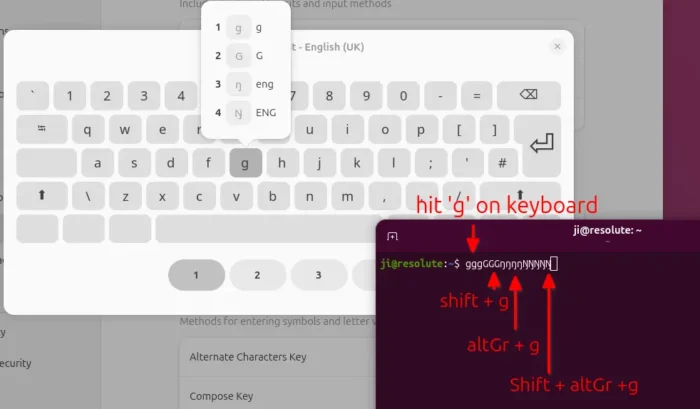
For example, English (UK) keyboard layout user may hit ‘g’ on keyboard to type ‘g’, hit ‘Shift + g’ to type ‘G’, ‘AltGr’ (the Alternate Character key) + ‘g’ for ‘ŋ’, or use ‘Shift + AltGr + g’ for ‘Ŋ’.
Option 2: Use Compose key
Compose key is another way to type special or diacritical characters using physical keyboard keys.
1. To enable Compose key, go to Settings -> Keyboard -> Special Character Entry -> Compose Key, then turn on the toggle and choose a key from the list.
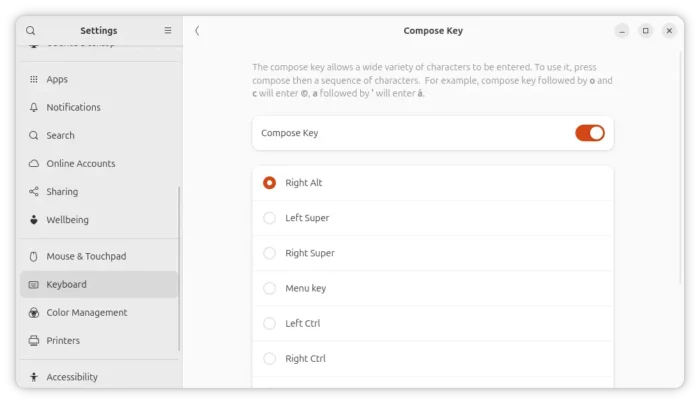
NOTE: You have to set a compose key that’s different to the Alternate Character Key. For old Ubuntu, install GNOME Tweak from Ubuntu Software, then launch the tool and navigate to Keyboard & Mouse to enable and set Compose key.
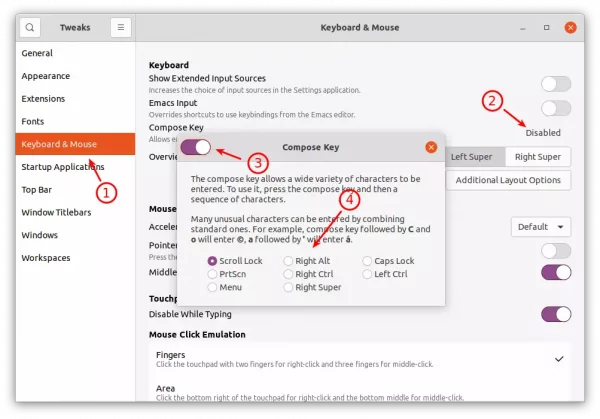
use Ubuntu Tweak to enable Compose key in old Ubuntu
2. After that, log out and back in to apply change.
3. Finally, hit Compose key (normal press and release) then follow key combinations to type special or diacritical characters. For example:
- Compose key + c + a = ǎ
- Compose key + o + c = ©
- Compose key + a + e = æ
- Compose key + 1 + 4 = ¼
NOTE: You don’t need to hold any key. Just type as usual, though for old Ubuntu versions you need to type them quickly (within about 1 second) after you pressed and released the compose key. But for Ubuntu 26.04, there’s no time restriction.
For more Compose Key combinations, see the table below (you may replace ‘a’ with ‘e’, ‘u’, ‘o’, ‘s’, ‘E’, ‘A’, ‘S’ etc keys) or visit this Wikipedia page for more.
| Press | For | Press | For | Press | For | Press | For |
| ‘ + a | á | a + e | æ | < + < | « | – + L | £ |
| ” + a | ä | A + E | Æ | > + > | » | ^ + 0 | ⁰ |
| ` + a | à | o + e | œ | / + / | \ | ^ + 1 | ¹ |
| ~ + a | ã | O + E | Œ | / + C | ₡ | ^ + 2 | ² |
| ^ + a | â | d + h | ð | / + o | ø | ^ + 3 | ³ |
| c + a | ǎ | D + H | Ð | / + O | Ø | ^ + _ + a | ª |
| < + s | š | o + o | ° | ? + ? | ¿ | ^ + _ + o | º |
| o + a | å | o + x | ¤ | ‘ + < | ‘ | _ + 0 | ₀ |
| – + a | ā | o + c | © | ‘ + > | ’ | _ + 1 | ₁ |
| , + a | ą | o + r | ® | , + c | ç | _ +2 | ₂ |
| b + a | ă | s + o | § | . + C | Ç | _ + 3 | ₃ |
| ? + a | ả | s + s | ß | ” + < | “ | ~ + n | ñ |
| . + a | ȧ | S + S | ẞ | ” + > | ” | | + c | ¢ |
| . + ^ | · | t + h | þ | ! + ! | ¡ | = + y | ¥ |
| – + D | Đ | T + H | Þ | – + – + – | — | = + c | € |
| t + m |  |
– + – + . | – | 1 + 2 | ½ | ||
| x + x | × | – + : | ÷ | 1 + 4 | ¼ | ||
| . + . | … | – + d | đ | 3 + 4 | ¾ |
Source: UbuntuHandbook