Add ‘My Computer’ / ‘This PC’ in Ubuntu 26.04 File Manager
For users switching from Windows, this tutorial shows you how to enable the Windows style “My Computer” (it’s now “This PC”) navigation item in the left pane of Ubuntu 26.04 default file manager.
Nautilus (aka GNOME Files) used to have a “Other Locations” item in left pane, allowing to take a quick glance at local disk volumes on your computer, access network drives, and connect remote sources.
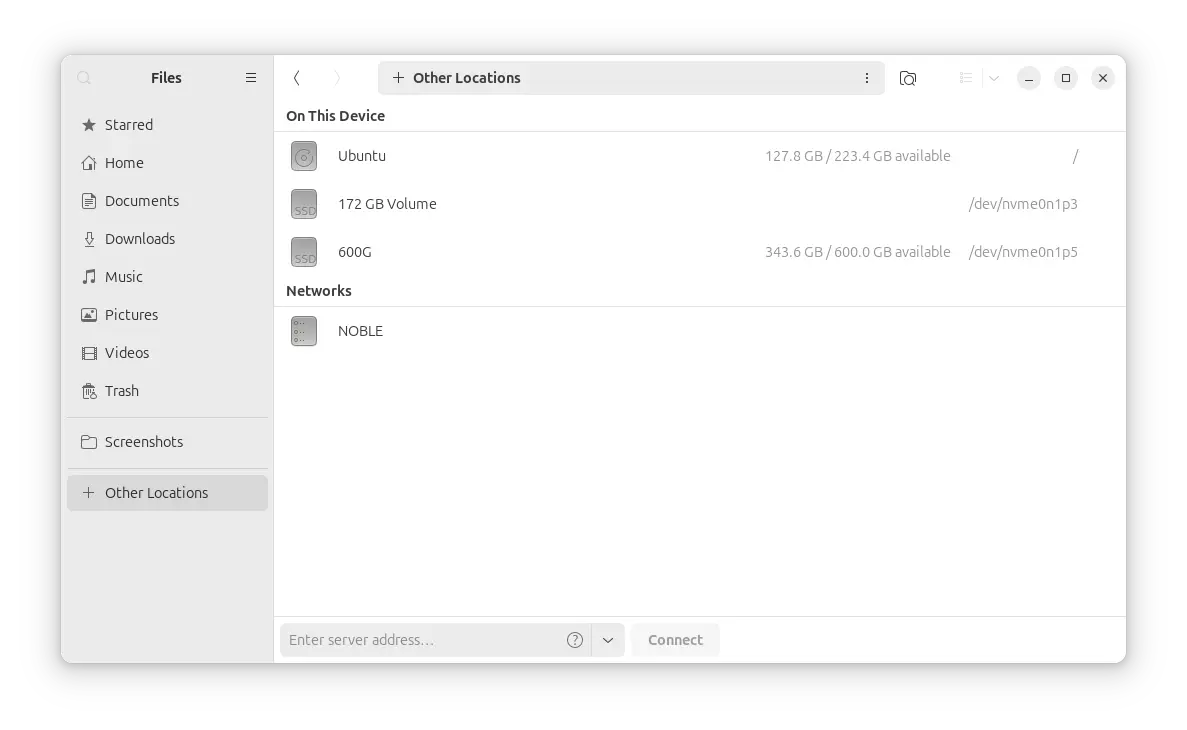
“Other Locations” in Ubuntu 24.04 with old GNOME 46
The feature was however removed, not by Ubuntu, but the developer team of the GNOME Desktop.
Thus, Ubuntu 26.04, Fedora 44, and other Linux Distros with recent GNOME Desktop do NOT have a visible way for beginners to find out how much disk space is left on computer.
Network drives and remote sources can be accessed through a new “Network” bookmark in the left pane, and, non-system volumes are listed in the bottom left. But, the system volume is no longer visible.
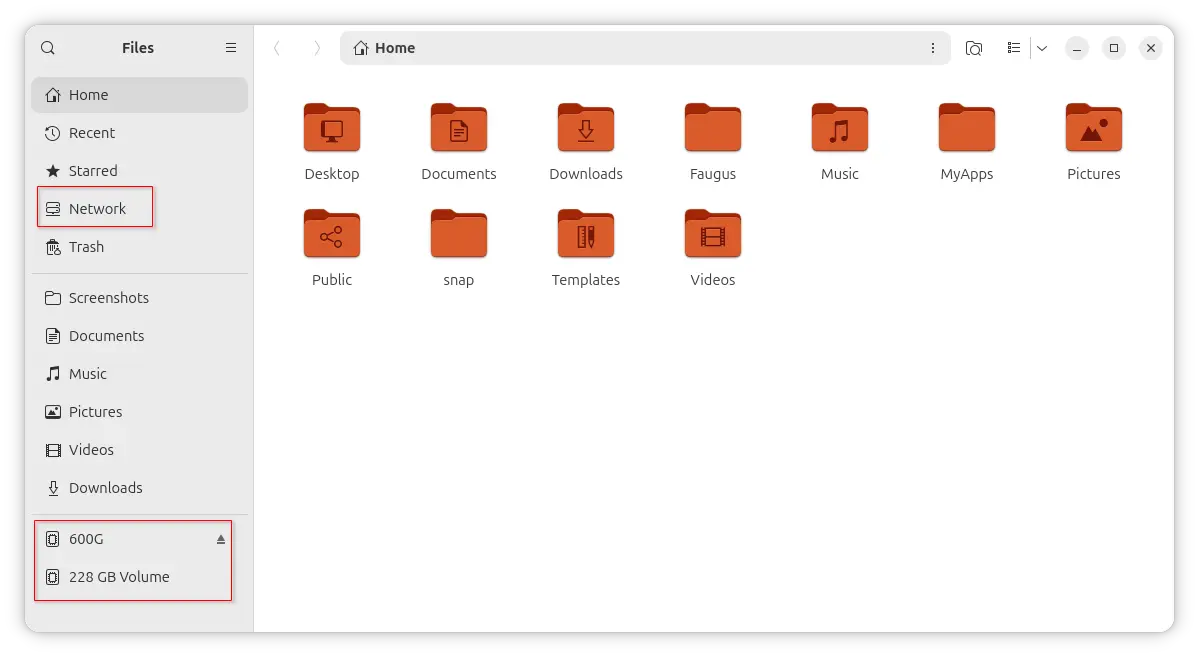
Experienced users can workaround by typing / in address bar to access root of system volume, and view its properties to see how much disk space is left. It’s however NOT friendly for those who are new to Linux!
To make life easier, a free open-source extension nautilus-my-computer was born for GNOME Files.
It added My Computer label in the left pane of Nautilus. Like the one in Windows File Explorer, it displays user folders, network drives, as well as system volume and other volumes on computer with quick view of the total size and how much space is free.
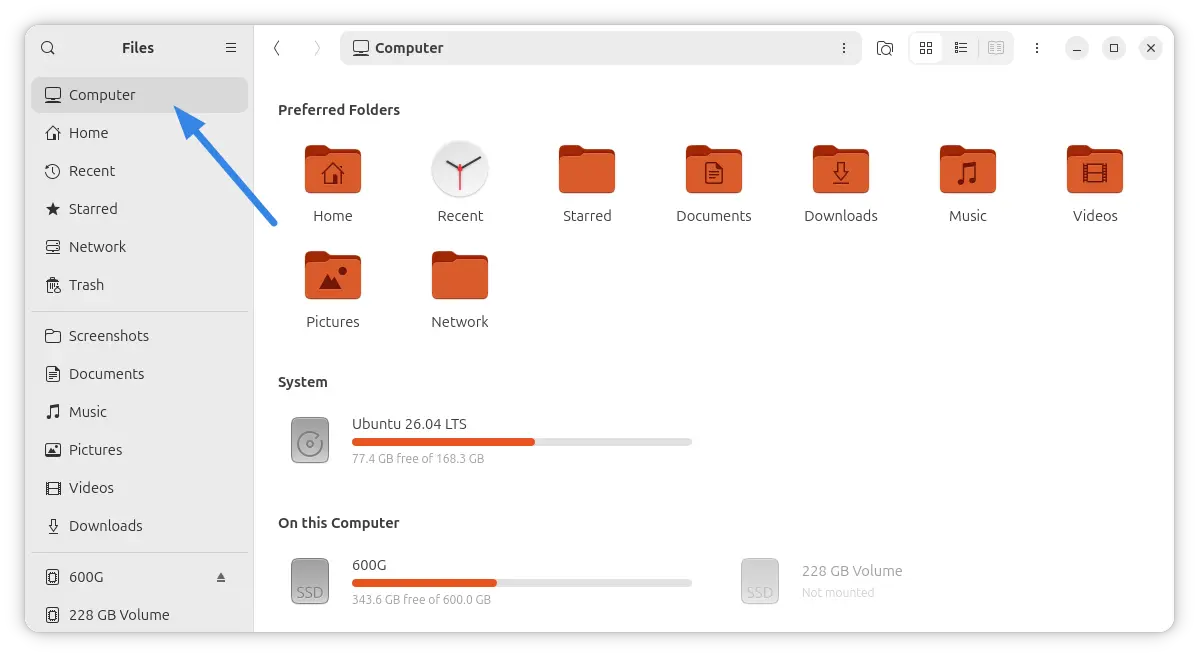
Nautilus with “Computer” navigation item in left pane
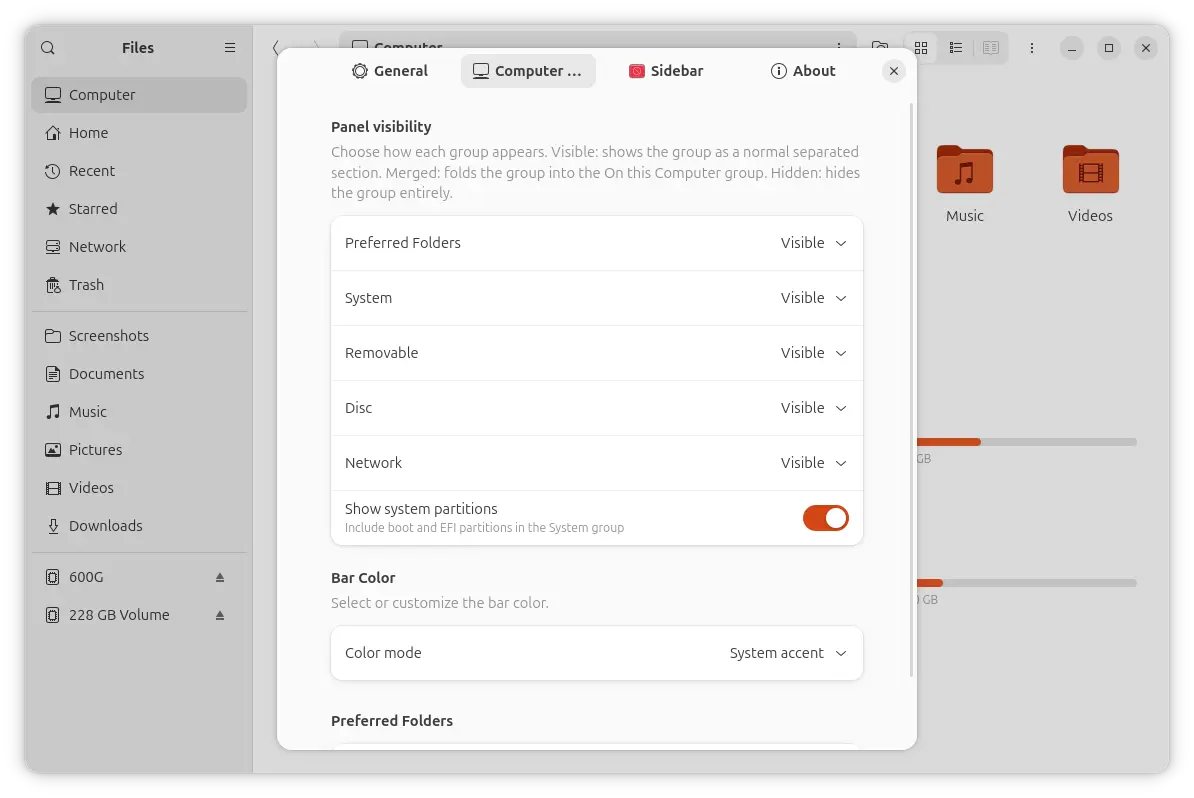
The extension as well provides a setting dialog (right-click on “Computer” in left pane to access), allowing to toggle the visibility of My Computer page items, hide left pane locations (e.g., Home, Recent, Starred, Network, Trash), and change the color of volume bar.
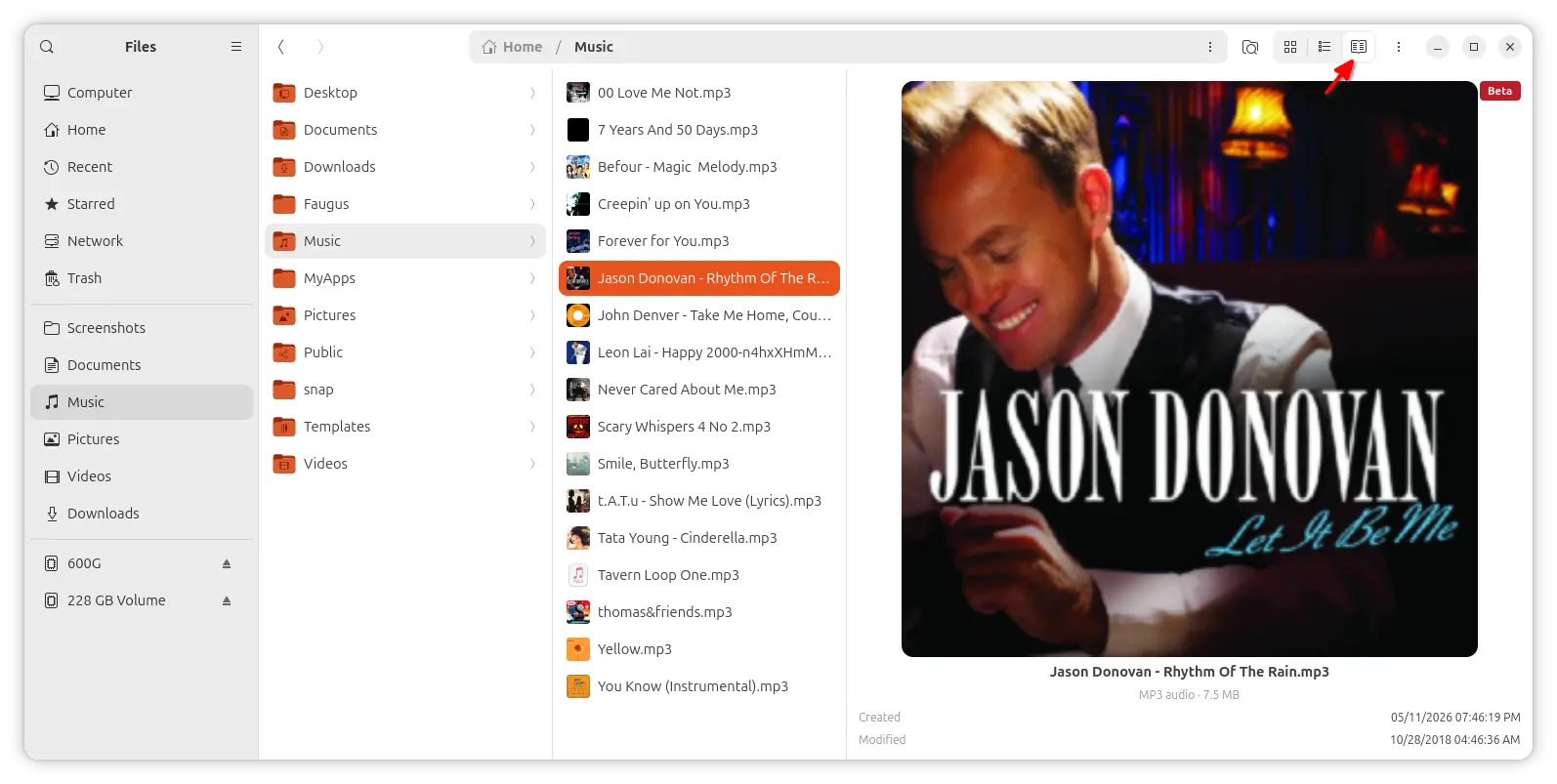
It as well added Column View mode support, allowing you to browser files and folders in multiple vertical columns, though the feature is so far in Beta stage.
Other features of the extension include:
- Live refresh when removable drives connected or disconnected.
- Custom icons support for bookmarks in left pane.
- Support adding custom folders as Preferred Folders.
- Right-to-left (RTL) layout support.
- Support English, Arabic, Catalan, French, German, Hungarian, Italian, Korean, Portuguese, Russian, Spanish, Turkish languages.
How to Install the Extension to Enable My “Computer” in Files
NOTE: The extension is targeted for GNOME Files, especially GNOME 50. It does NOT work for Ubuntu 26.04 with non-default desktop environment.
The developer team provides an official PPA that contains the Nautilus extension for Ubuntu 26.04.
To install it, press Ctrl+Alt+T on keyboard to open terminal, and run the commands below one by one:
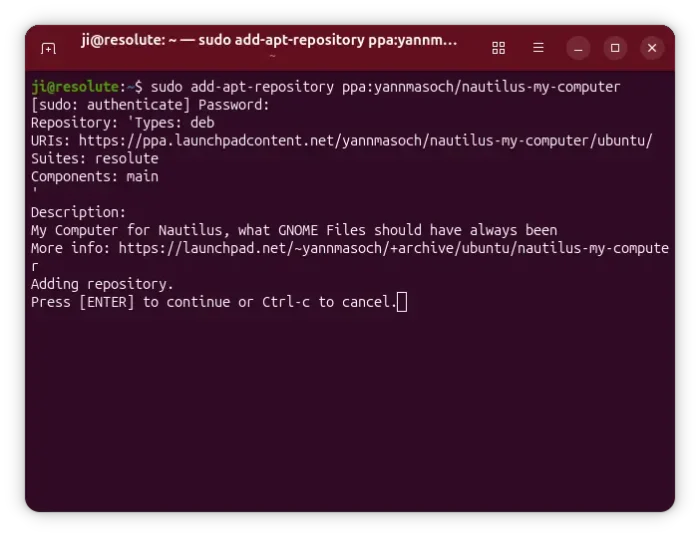
- 1. Add PPA:
sudo add-apt-repository ppa:yannmasoch/nautilus-my-computer
- 2. Refresh cache (optional, as the last command will do it automatically):
sudo apt update
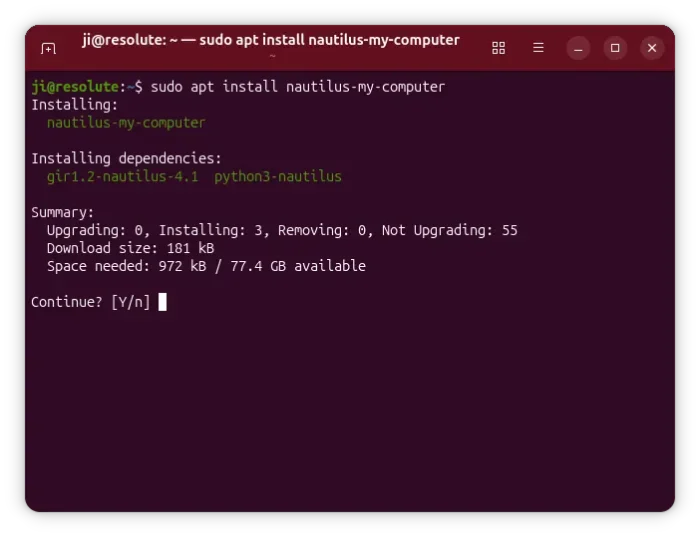
- 3. Finally, install the Nautilus extension:
sudo apt install nautilus-my-computer
To apply change, run nautilus -q command and re-launch GNOME Files (aka Nautilus). And, other Linux can see the official installation guide.
Uninstall:
For any issue, you may open terminal (Ctrl+Alt+T) and run the command below to remove the extension:
sudo apt remove nautilus-my-computer
And, remove the command below to remove the PPA:
sudo add-apt-repository --remove ppa:yannmasoch/nautilus-my-computer
Also run nautilus -q command to apply change.
Source: UbuntuHandbook