Remapping the Useless AI Slop Copilot Key in Linux
I recently bought an external Dell keyboard that came with a dedicated Copilot key. Since I don’t use Microsoft’s Copilot, the key was doing nothing useful.
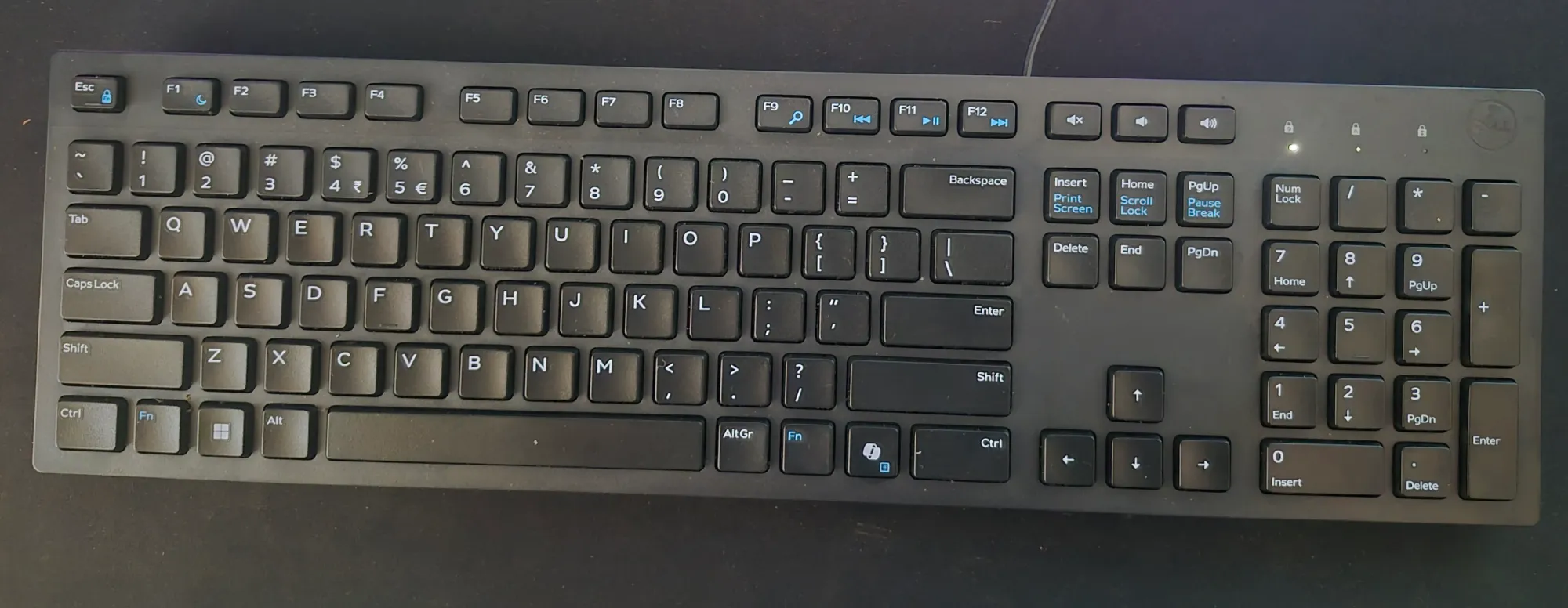
So, I decided to map it to the YouTube Music web app. There is no such app, but I created it as a PWA using Vivaldi.
In theory, it seems like a trivial thing, but making the Copilot key launch that web app came up as a decent challenge. And hence this tutorial.
My first attempt was using KDE’s System Settings → Keyboard → Shortcuts. I created a shortcut for the YouTube Music PWA and tried assigning the Copilot key to it.
Unfortunately, KDE only detected the key as Meta+Shift and completely ignored the function key that was part of the key combination.
After a bit of searching, I came across a Reddit post that suggested using the keyd utility to remap the key at a lower level. That turned out to be exactly what I needed.
Instead of trying to use the original key combination, I remapped the Copilot key to Ctrl+Alt+Shift+F12. It is a key combination that is rarely used, making shortcut conflicts highly unlikely.
Why KDE Can’t Detect the Copilot Key
On my keyboard, pressing the Copilot key actually sends Meta+Shift+F23.
The problem is that KDE’s shortcut recorder only captures the Meta+Shift modifiers and ignores the F23 key entirely. As a result, it is impossible to assign the Copilot key directly through the graphical settings.
The solution is to intercept the key before KDE receives it and translate it into another shortcut that KDE can recognize normally. This is exactly what keyd does.
Install keyd
On Arch Linux, install keyd using:
sudo pacman -S keyd
It is also available in the official repositories of Ubuntu 26.04 and above.
Enable and start the service:
sudo systemctl enable --now keyd
Verify that it is running:
sudo systemctl status keyd
Identify Your Keyboard
First, identify the vendor and product ID of your external keyboard.
Run:
sudo keyd monitor
Locate your external keyboard in the output and note its vid:pid value. Make sure you choose the external keyboard instead of your laptop’s built-in keyboard.
device added: aaaa:bbbb:cccccccc Dell KB216 Wired Keyboard Consumer Control (/dev/input/event9)
device added: aaaa:bbbb:cccccccc Dell KB216 Wired Keyboard System Control (/dev/input/event8)
device added: aaaa:bbbb:cccccccc Dell KB216 Wired Keyboard (/dev/input/event7)
device added: dddd:eeee:ffffffff Keychron Keychron K8 Pro Keyboard (/dev/input/event6)
Verify the Copilot Key
To see what the Copilot key actually sends, run:
sudo keyd monitor
Now press the Copilot key.
You should see output similar to:
leftmeta down
leftshift down
f23 down
f23 up
leftshift up
leftmeta up
This confirms that the key sends the combination:
Meta + Shift + F23
Create the keyd Configuration
Create a configuration file for your external keyboard.
sudo mkdir -p /etc/keyd
sudo nano /etc/keyd/externalKeyboard.conf
Replace the keyboard ID with your own vid:pid.
[ids]
aaaa:bbbb:cccccccc
- [main]
leftshift+leftmeta+f23 = C-A-S-f12
Here’s what each part does:
The [ids] section limits the remapping to the selected keyboard, leaving your built-in keyboard and other input devices untouched.
- C, A, S, and M represent Ctrl, Alt, Shift, and Meta.
- The left side specifies the key combination received from the keyboard.
- The right side defines the new shortcut that will be sent to the system.
Apply the Configuration
Reload keyd:
sudo keyd reload
Normally, you do not need to log out or reboot.
If this is your first time installing keyd and the remap does not work immediately, a reboot is worth trying.
Verify the Remapping
Run the monitor again:
sudo keyd monitor
Press the Copilot key once more.
This time, you should see the newly assigned shortcut (Ctrl+Alt+Shift+F12) instead of the original Meta+Shift+F23.
keyd virtual keyboard   0fac:0ade:bea394c0      leftalt down
keyd virtual keyboard   0fac:0ade:bea394c0      leftshift down
keyd virtual keyboard   0fac:0ade:bea394c0      leftcontrol down
keyd virtual keyboard   0fac:0ade:bea394c0      f12 down
keyd virtual keyboard   0fac:0ade:bea394c0      f12 up
keyd virtual keyboard   0fac:0ade:bea394c0      leftalt up
keyd virtual keyboard   0fac:0ade:bea394c0      leftshift up
keyd virtual keyboard   0fac:0ade:bea394c0      leftcontrol up
Assign the Shortcut in KDE
Now that the Copilot key sends a standard shortcut, KDE can detect it correctly.
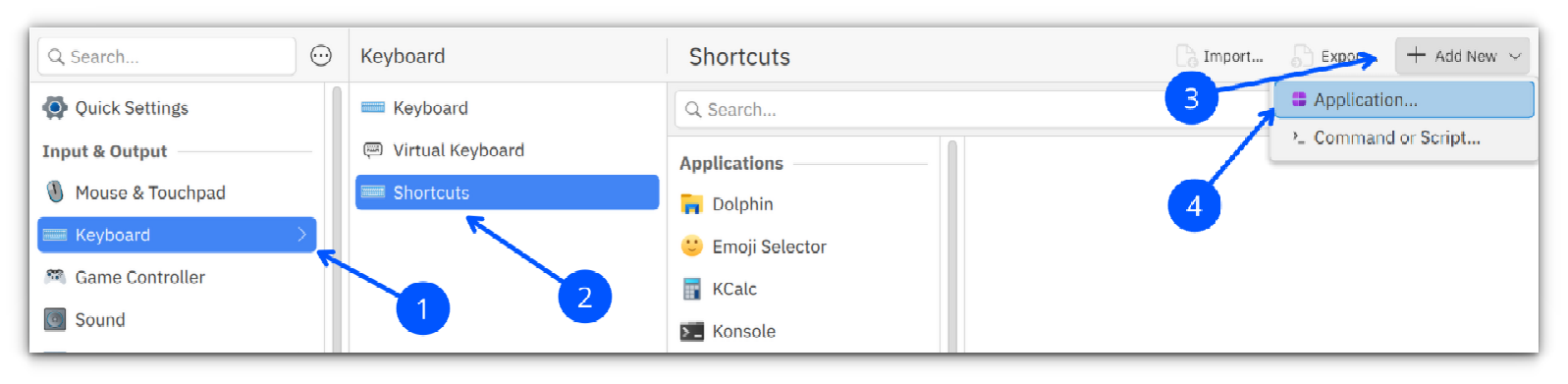
Open System Settings → Shortcuts. Here, click on the Add New button on the top-right and select Application.
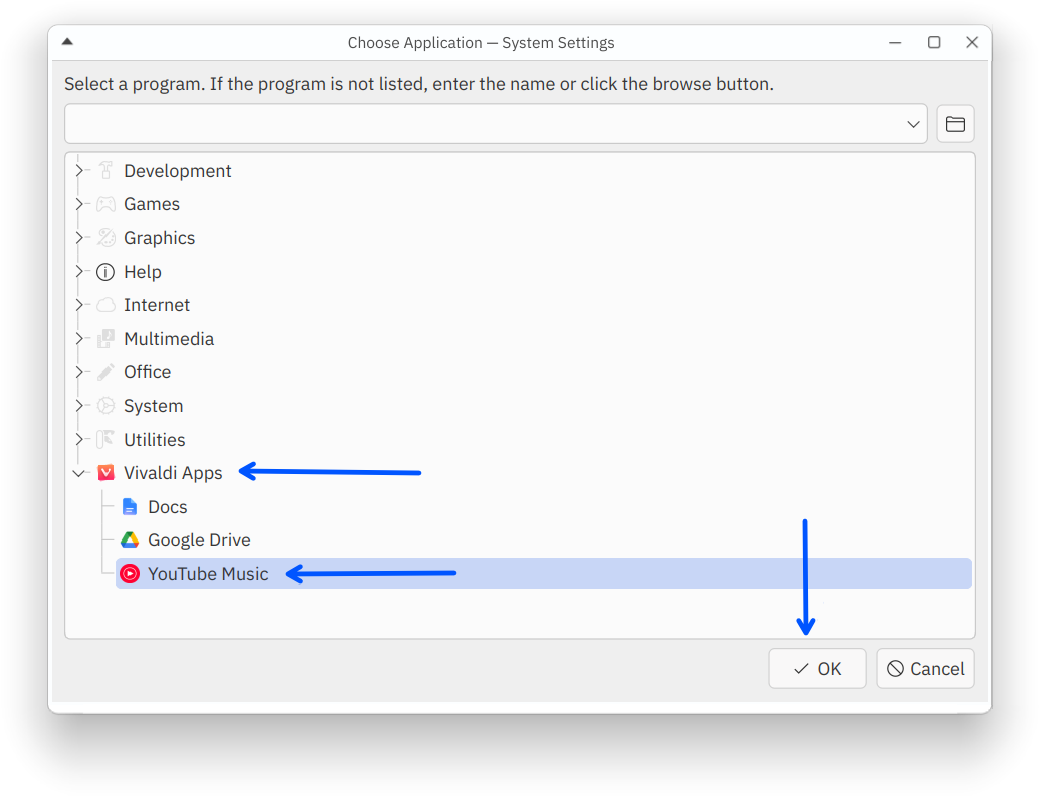
From the list of sections, select Vivaldi Apps (or other apps of your choice) and then YouTube Music.
Locate the application shortcut you want to configure, click the shortcut field, and press the Copilot key or CTRL+ALT+SHIFT+F12.
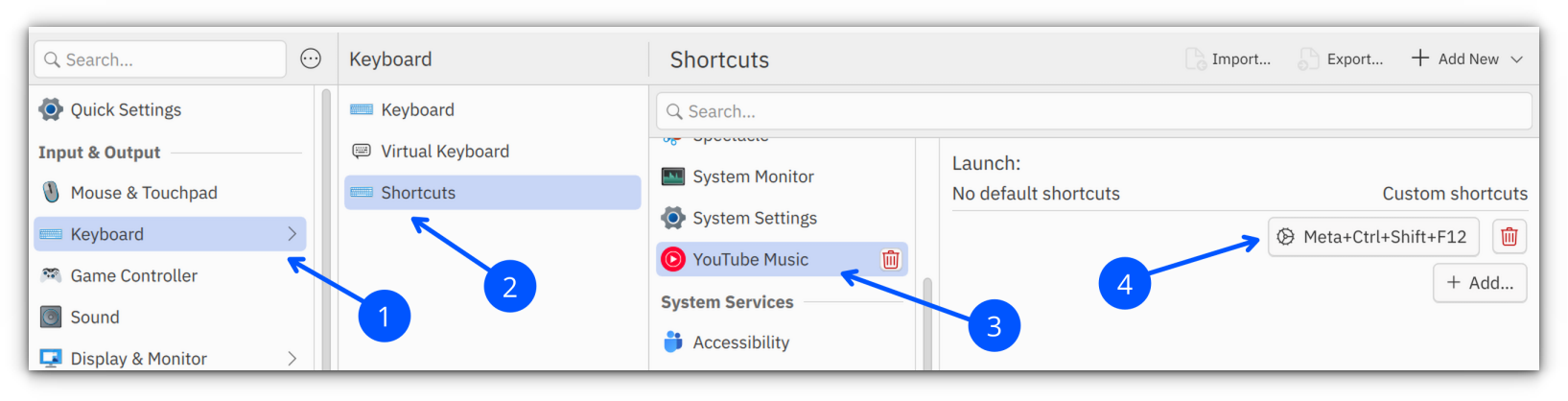
Since keyd is now emitting Ctrl+Alt+Shift+F12, KDE records the shortcut without any issues.
Check for Shortcut Conflicts
Before deciding on a shortcut, it’s worth checking whether KDE or KWin already uses it.
For example, whether Ctrl+Alt+Shift+F12 toggles the KWin compositor in X11 sessions.
You can search for existing shortcuts by running:
grep -i "F12\|F13\|F14" ~/.config/kglobalshortcutsrc
A Few Things to Keep in Mind
Before I end this this tutorial, let me share a few things that you should know about using this method.
Hot plugging: keyd automatically detects when the keyboard is connected or disconnected through udev. You don’t need to restart the service after plugging in the keyboard.
Mouse remapping: keyd only handles keyboard input. If you need to remap mouse buttons, consider tools such as input-remapper or xremap.
Disable the remapping: If you want to temporarily restore the original keyboard behavior, simply stop the service:
sudo systemctl stop keyd
With that, you should be able to make some good use of CoPilot key on Linux.

Source: It's FOSS