Control Touchpad Scroll Speed in Ubuntu 26.04 | 24.04 [The Easy Way]

Want to adjust the touchpad 2-finger scrolling speed in Ubuntu 26.04, Ubuntu 24.04, Ubuntu 22.04 with default GNOME Desktop on Wayland?
There’s now a free open-source application that provides a graphical user interface to do the things as easy as a few mouse clicks.
GNOME, the popular desktop environment, that’s default in Ubuntu, Fedora, and optional in Debian, Arch, etc Linux Distributions, so far does NOT have touchpad scroll speed setting.
I’ve written about how to adjust it manually, which is however a bit difficult for beginners, and, some even reported it does not work.
With Wayland Scroll Factor, a new GTK4 application, there’s finally a graphical UI to do the job!
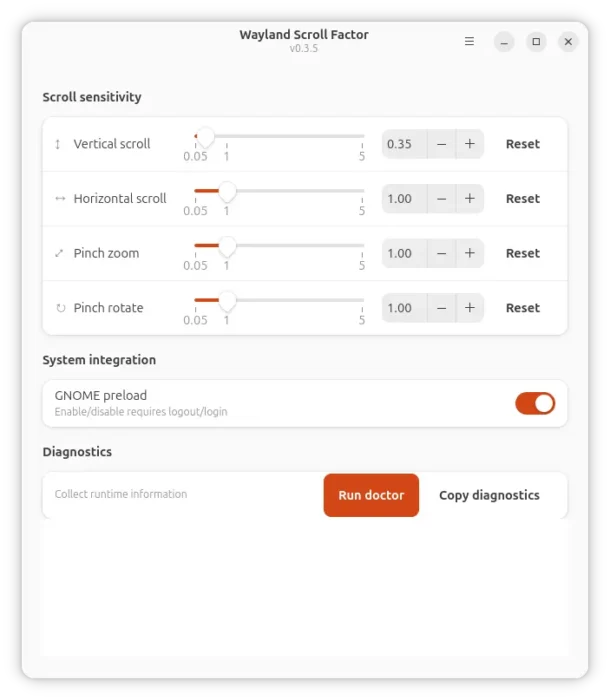
Wayland Scroll Factor GUI to adjust touchpad scroll speed
As you see in the screenshot above, it supports adjusting the vertical and horizontal scroll, as well as, pinch zoom and rotate sensitivity in very small steps (0.01 increments). Each option has reset support. And, a diagnostics section is available for troubleshooting purpose.
The app so far support:
- GNOME on Wayland – default in Ubuntu since 22.04.
- Hyprland.
Install Wayland Scroll Factor
NOTE: as mentioned the app is designed for GNOME, though Hyprland is also supported. Not only Ubuntu, it also works on Debian, Fedora Workstation, and Arch etc distributions.
To install the application, simply go to its github releases page via the link below:
For Debian/Ubuntu on Intel/AMD platform, select download the “wayland-scroll-factor_xxx-1_amd64.deb” package under Assets section.
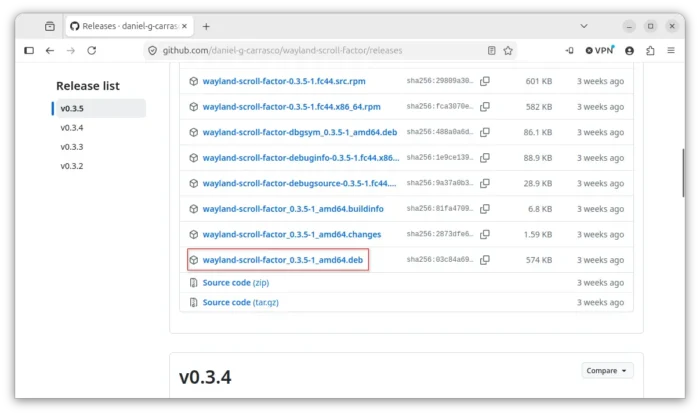
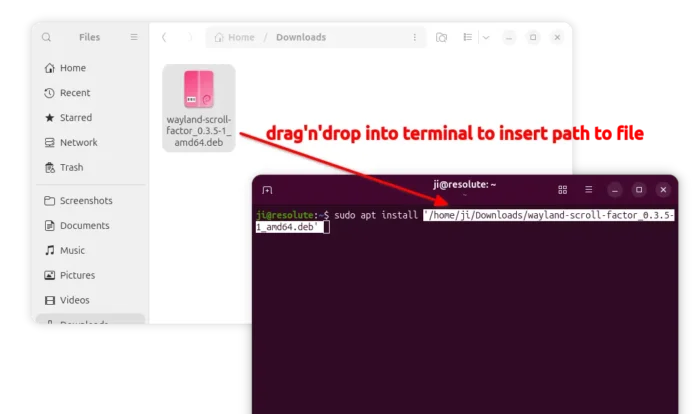
Then, either click open with App Center (or Ubuntu Software) and install, or press Ctrl+Alt+T to open terminal and run command to install:
sudo apt install ~/Downloads/wayland-scroll-factor*.deb
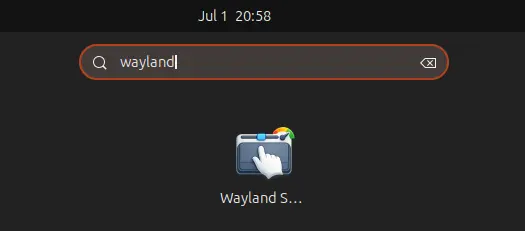
After installed the application, launch it from either by searching in GNOME overview or app grid.
Then, it’s highly recommended to enable GNOME preload option, and log out and back in. After that, the touchpad scroll speed will change immediately after you made a change!
Per App Basis Touchpad Scroll Speed Control
The two-finger scrolling is uncontrollably fast in Firefox and Chrome, but slow down the global scroll speed causing GTK4 apps (such as Nautilus and Ptyxis terminal) scroll too slowly. In the case, you may use an extension to adjust scroll speed on per app basis.
1. First, you need to have Wayland Scroll Factor installed. Then, enable it (if not) via wsf enable.
2. Then, search and install “Extension Manager” in App Center (filter via Debian Package) or Ubuntu Software.
3. Launch “Extension Manager”, navigate to Browse tab, search & install “Touchpad Speed Control” extension.
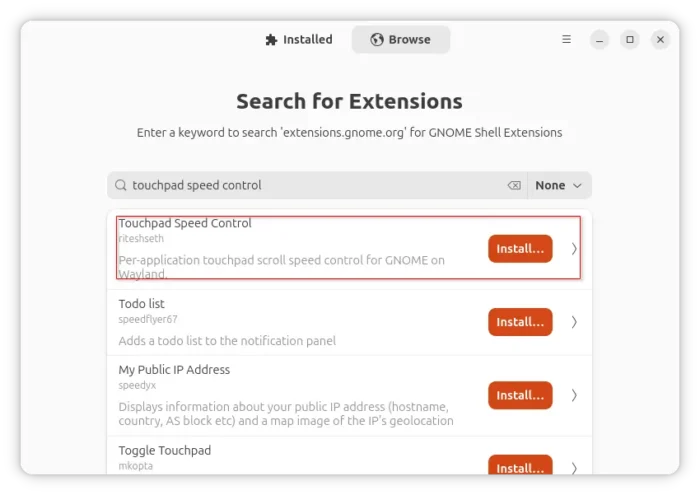
NOTE: The extension so far supports GNOME 46 ~ 50, meaning you need at least Ubuntu 24.04.
4. After installed the extension, switch back to “Installed” tab in “Extension Manager”, and click on the gear icon for that extension to open the preferences dialog.
Finally, navigate to Vertical or Horizontal tab, browse or search for the target application, then adjust its touch scroll speed individually.
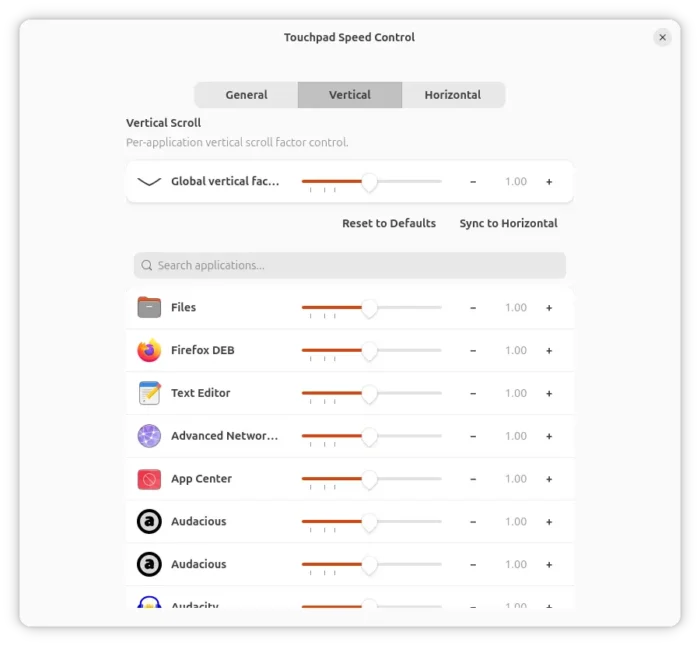
For more about the extension, see it in extensions.gnome.org.
Source: UbuntuHandbook