Install Fish Shell & Set Default in Ubuntu 26.04
This tutorial shows how to install the latest version of fish shell, and set it as default in Ubuntu. Though the title says for Ubuntu 26.04, it also works on Ubuntu 24.04 and 22.04.
Fish, stands for Friendly Interactive SHell, is an extremely popular command line interpreter that reads your text input, interprets and tells OS what to run, and returns the output.
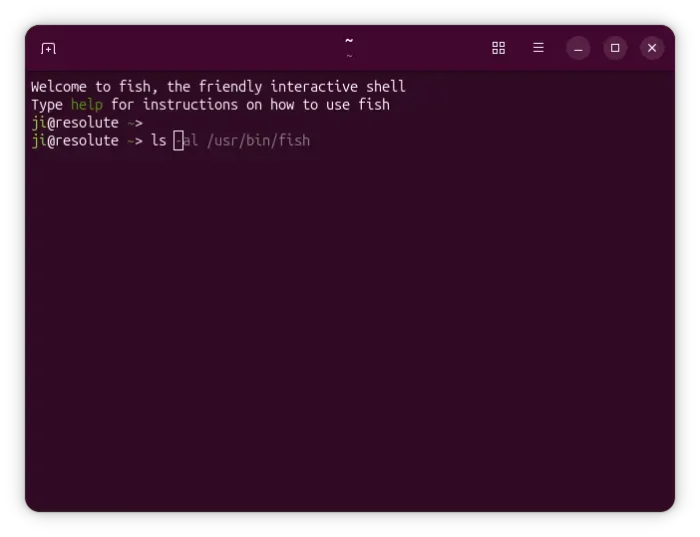
Compare to the default bash shell, Fish provides a faster and smoother user experience. It features smart auto-suggestion that displays predictions based on history and PATH, in a muted gray color directly after your cursor.
It has out-of-the-box syntax highlighting that colorizes commands, flags, variables, and errors as you type. As well, it features modern and clean syntax, and ships with thousands of completions for tools like git, docker, and kubectl.
How to Install The Latest Fish shell in Ubuntu:
Fish is available in Ubuntu repository, but always old!
For the latest version, it’s available to install through the official PPA (4.x series so far). And, so far it supports Ubuntu 22.04, Ubuntu 24.04, and Ubuntu 26.04 on AMD/Intel and ARM64 (e.g., Snapdragon X and RasPi) platforms.
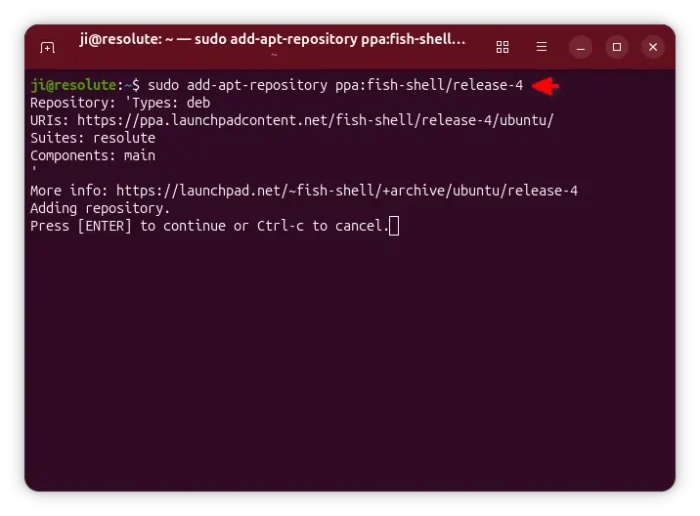
1. First, press Ctrl+Alt+T on keyboard to open terminal, then run command to add the PPA:
sudo add-apt-repository ppa:fish-shell/release-4
For Ubuntu Server, you probably need to refresh cache and install the software-properties-common package first for being able to use the add repository command:
sudo apt update; sudo apt install software-properties-common
2. For Linux Mint, refresh cache, while Ubuntu does it automatically during adding PPA:
sudo apt update
3. Finally, install fish shell via command:
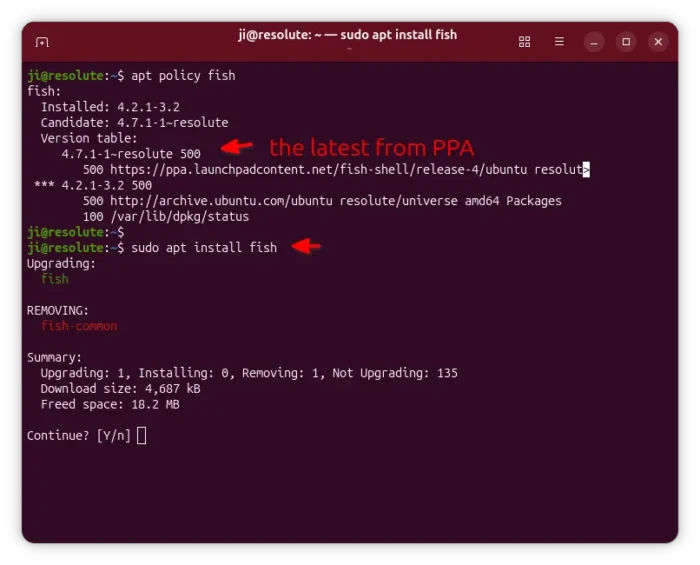
sudo apt install fish
The last command usually selects install the latest version. Just in case, you may run apt policy fish to check if the one from PPA is available, and no other versions with a higher priority (larger than 500).
Configure Fish Shell
Fish shell provides a web based UI, allowing to change its color scheme and prompt, as well as managing functions, history, variables, and bindings.
To start the config UI, simply run fish command to switch to the shell, and then run fish_config command to start the web server. It will automatically open the UI in your default web browser:
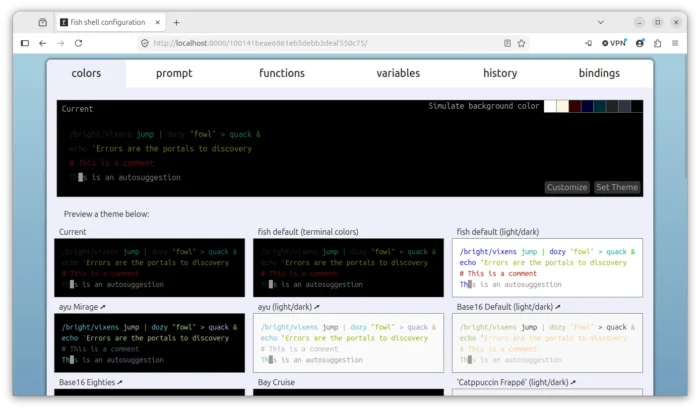
For Ubuntu server without a graphical desktop environment, then either edit config files under .config/fish (see the documentation for details) directory, or, connect to your server with port forwarding:
ssh -L 8000:localhost:8000 user@your-server
Finally run fish_config and open localhost:8000 in your local web browser.
Set Fish as Default Shell
After installed the package, you may run fish command every time to switch to the fish shell, and run exit to exit, or set it as default either for your terminal app only or login shell.
Set Fish as default for your Terminal app
For Ubuntu 26.04 with default Ptyxis terminal, simply open the terminal preferences dialog from its hamburger menu (≡). Then switch to Profile and click edit the current profile.
In the pop-up profile editing dialog, turn on “Use Custom Command” toggle under Shell section and input fish.
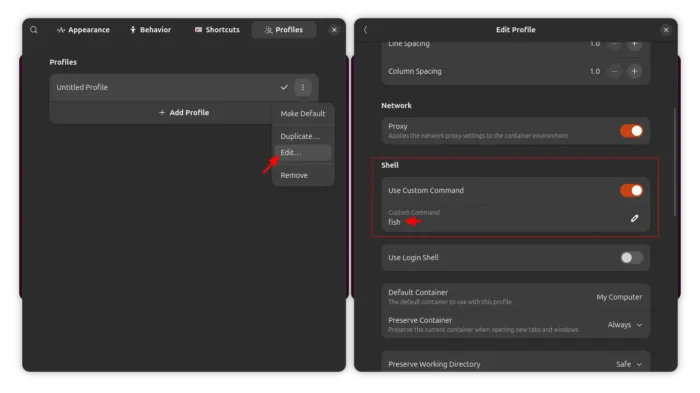
For Ubuntu 24.04/22.04, open terminal preferences and navigate to Profiles (Unnamed by default) -> Command -> Run a custom command instead of my shell, and input fish.
After that, every time you launch the terminal app, it automatically switches to the fish shell.
Set Fish as default for all command consoles
If you want to set fish as default shell for all terminals, tty console, SSH remote connection, then you may set it as login shell.
NOTE: Setting fish as your login shell may cause issues, such as an incorrect PATH!
1. First, open terminal and run command below to list all the valid shells in your system:
cat /etc/shells
If ‘fish’ is not in the list, run command -v fish | sudo tee -a /etc/shells command to add it.
2. Next, run the command below to change login shell to fish:
chsh -s "$(command -v fish)"
Note this only works for the current user that you execute the last command.
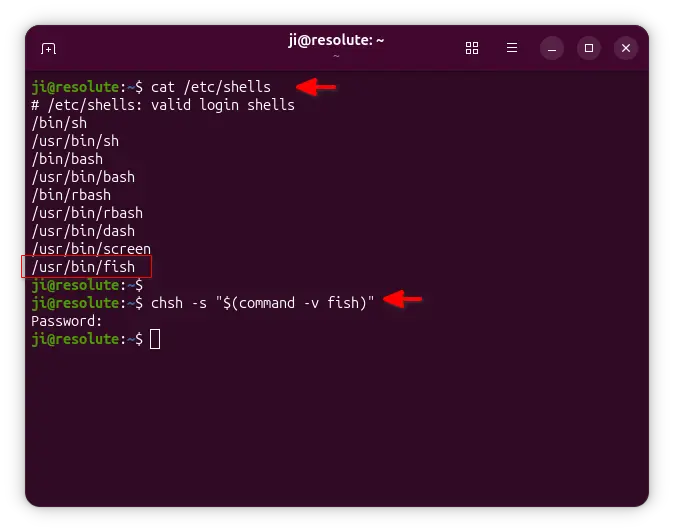
After that, you may re-launch terminal, switch to TTY console (Ctrl+Alt+F1~6), or re-start your SSH connection, it should automatically switch to fish shell.
(Optional) As mentioned, changing the login shell may cause issues. If something goes wrong, use the command below to switch back to bash shell:
chsh -s "$(command -v bash)"
Source: UbuntuHandbook