Ptyxis Terminal Emulator Released 49.3 with APX Containers Support

Ptyxis, the free open-source container-oriented terminal emulator, released new 49.3 version few days ago.
As you may know, Ptyxis is a GTK4 terminal emulator that’s default in Ubuntu since 25.10. It features first-class container integration with automatic discovery, direct spawning, and context preservation support for Podman, Toolbox, Distrobox, and JHBuild.
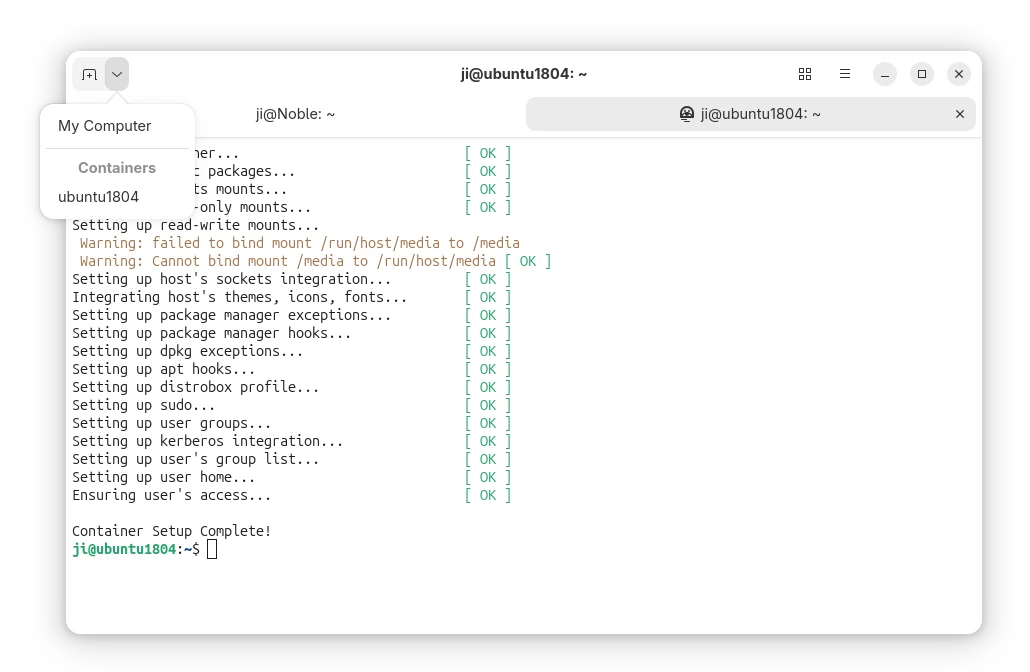
It also features smart process tracking and dynamic theming, that automatically adjust header bar color according to terminal sessions and/or user privilege, as well as searchable tab overview, integrated developer tool, and GPU acceleration.
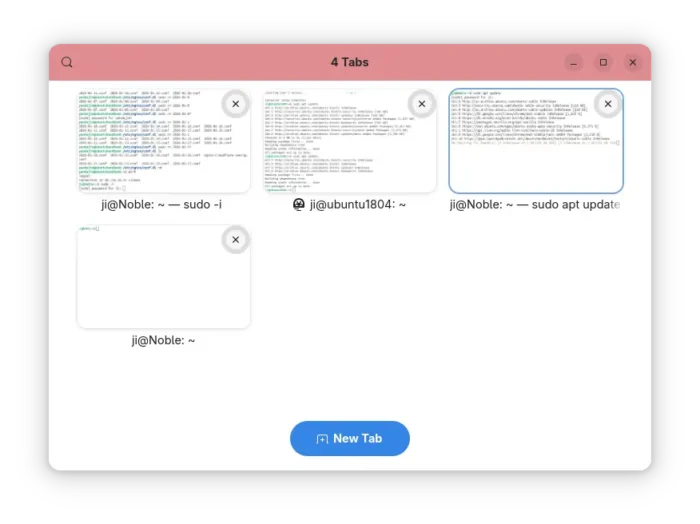
By releasing version 49.3, the terminal now also support APX containers. APX is the default package manager for Vanilla OS that supports installing packages from multiple sources inside containers without altering the root file-system.
The APX containers basically works with earlier versions of Ptyxis, but they use the label manager:apx instead of manager:distrobox which cause unintended behavior, such as starting new terminal session as root by default rather than normal user account.
Now, the terminal has updated with official APX containers support, and everything should work as same as others.
Besides that, Ptyxis 49.3 improved force-quit fallback priority and tab focus handling when creating new tabs and windows. And, it now automatically clear X11 urgency hint (the notify of needing attention) when window becomes active.
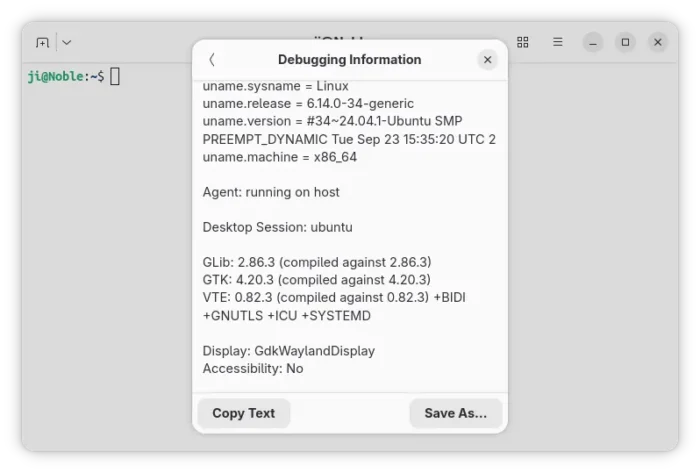
It also added Norwegian Nynorsk translation, improved agent handling of --no-tty/--tty flags for distrobox containers, and added DESKTOP_SESSION info in the debugging information dialog, as well fixed some bugs.
For those who are interested in the next version 50 to be default in Ubuntu 26.04 LTS, the Ptyxis 50 alpha added a logout inhibitor when tabs have active programs running that are not the shell process, which can be disabled by changing the inhibit-logout key value via gsettings command.
And, it added dialog to change profile on per tab basis, new cell-width-scale profile option, as well as ability to set primary/system-accent colors for user palettes. For more about the terminal, see the NEWS file in source page.
How to Install Ptyxis terminal emulator
Ptyxis provides official installer package through Flatpak package, which runs in sandbox environment.
Linux Mint and Fedora Workstation (with 3rd party repository enabled) can search & install it from either Software Manager or GNOME Software.
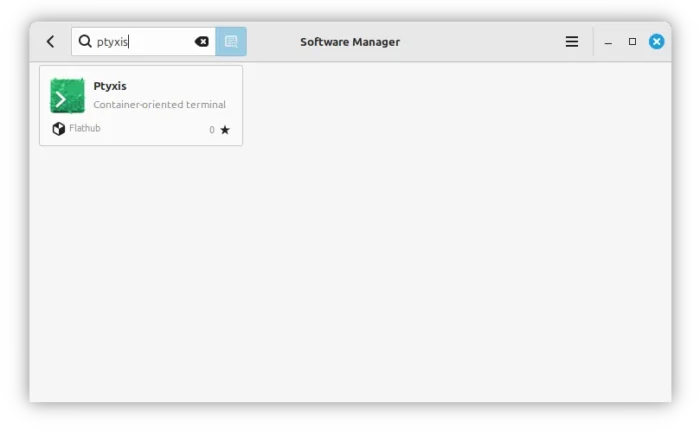
Ptyxis in Linux Mint Software Manager
For Debian, Ubuntu, and other Linux, do the steps below one by one to install the terminal package:
- First, open terminal (Ctrl+Alt+T) and run command to install Flatpak daemon:
sudo apt install flatpak
Other Linux may follow this setup guide to enable Flatpak support.
- After that, run the command below to install the Flatpak package:
flatpak install https://dl.flathub.org/repo/appstream/app.devsuite.Ptyxis.flatpakref
- And, for those who’ve already installed an earlier version, run this command to check & install updates:
flatpak update app.devsuite.Ptyxis
After installed the terminal, log out and back in if you don’t see it in start menu.
NOTE: Install Ptyxis Flatpak package in Ubuntu 25.10 and 26.04 won’t override the default one. If you want to set the flatpak as default, see this tutorial and set app.devsuite.Ptyxis.desktop in the config file.
Uninstall:
To uninstall the Flatpak package, use command:
flatpak uninstall --delete-data app.devsuite.Ptyxis
Also run flatpak uninstall --unused to remove useless run-times.
Source: UbuntuHandbook