Notepad Next – Notepad++ Replication for Linux & Mac Released 0.13

Notepad Next, the free open-source Notepad++ re-implementation with native Linux, Windows, and macOS support, released new 0.13 version few days ago.
In case you don’t know about the app, it’s a Qt6-based text editor that replicates the Notepad++ functionality and user interface with cross-platform support.
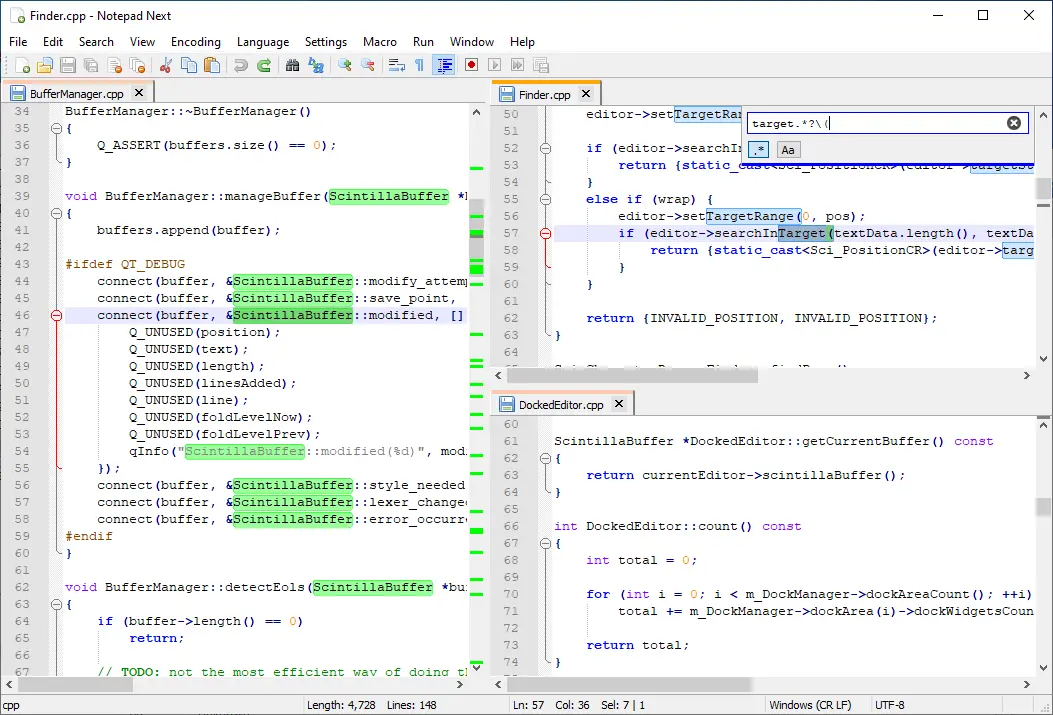
The text editor is now more than 6 years old, and it promotes itself: “Though the application overall is stable and usable, it should not be considered safe for critically important work.”
The latest version so far is v0.13 that was tagged 2 days ago. It added syntax highlighting support for Abaqus input files, improving code readability for editing .inp files.
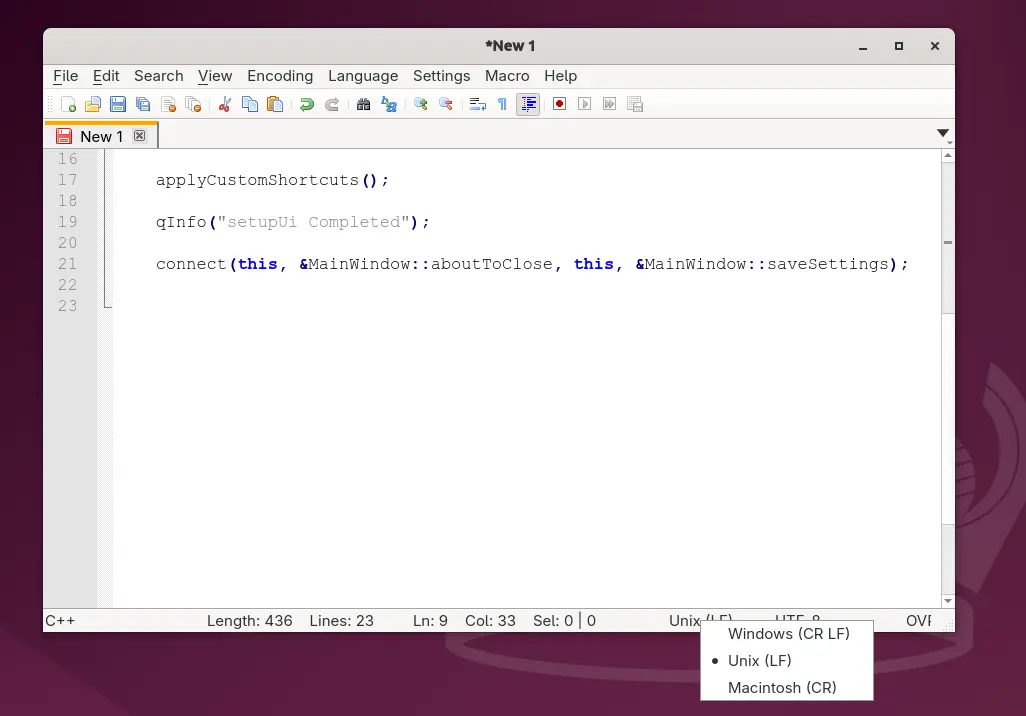
And, it added ability to click edit on EOL (End of Line) label in bottom status bar, so that user can quickly change the line-ending character between Unix LF (\n), Windows CRLF (\r\n), and Macintosh CR (\r, ASCII 13), without launching preferences dialog.
When current opened and focused file is changed externally (e.g., edited via another text editor), Notepad Next will now pop-up a dialog asking to either reload or keep current file content.
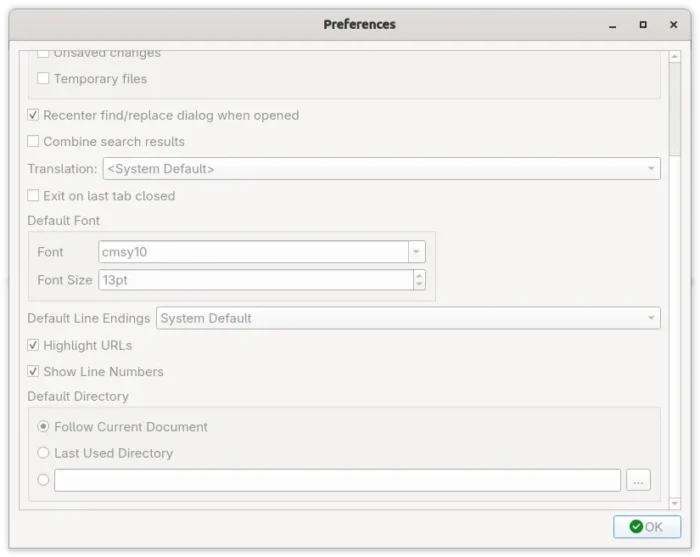
The preferences dialog has been updated with some new options. They include options to toggle line numbers and URL highlights visibility, and configure default directory for file saving.
Other changes include new --workspace option to launch the text editor with specified folder as a workspace, fix that app tried to open file from wrong location when a window already exist with another working directory.
There are as well fix for the search results fonts that are not the same as the main window, new translations, dependency updates, and more.
How to Install Notepad Next Text Editor
The text editor provides official Linux package through Flatpak package, which can be installed directly from either Linux Mint’s Software Manager or Fedora GNOME Software.
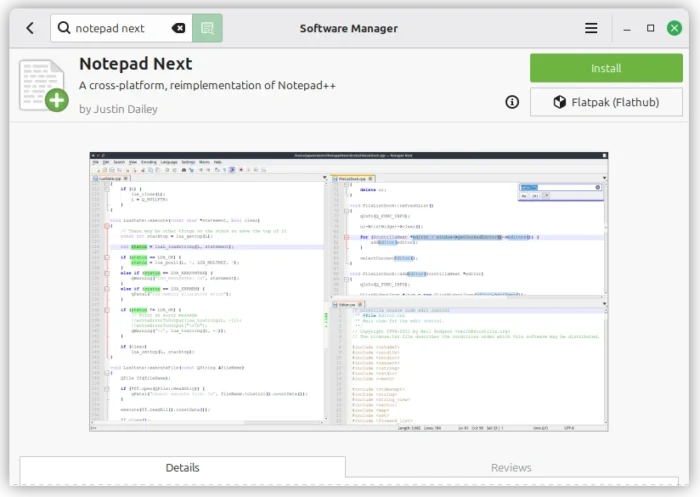
While Debian/Ubuntu and other Linux may do the steps below one by one to get it from flathub repository.
- Open terminal (Ctrl+Alt+T) and run the command below to install flatpak daemon:
sudo apt install flatpak
For other Linux, follow the setup guide to enable Flatpak support.
- Next, run the command to install the Flatpak package:
flatpak install https://dl.flathub.org/repo/appstream/com.github.dail8859.NotepadNext.flatpakref
And for future updates, run the command below to check & install:
flatpak update com.github.dail8859.NotepadNext
For choice, it also provides AppImage for Linux, which is available to download in Github releases page, along with Windows and macOS packages as well as source tarball:
Uninstall
To uninstall the Flatpak package, run command:
flatpak uninstall --delete-data com.github.dail8859.NotepadNext
Also run flatpak uninstall --unused to remove useless runtime that may free up some disk spaces.
Source: UbuntuHandbook