“Fix” Giant Cursor Issue for Flatpak Apps in Ubuntu 24.04 | 22.04

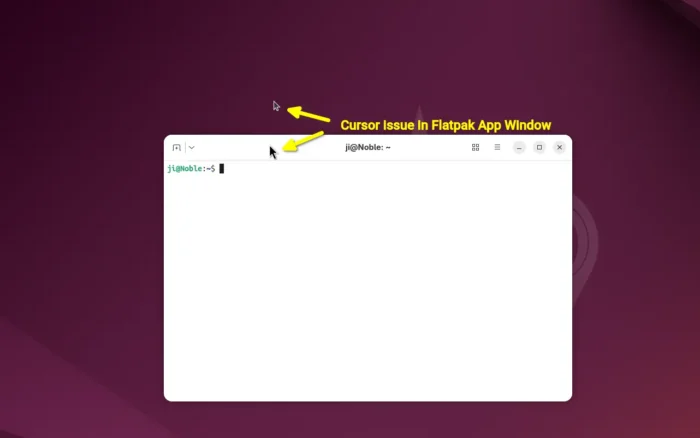
For Ubuntu 24.04 and Ubuntu 22.04 LTS with default GNOME desktop, here’s a quick fix for unusual cursor issue in some Flatpak app windows.
This is Gnome upstream bug which has been fixed, but not backported for current Ubuntu LTS releases with old Gnome desktop environments.
Why the issue?
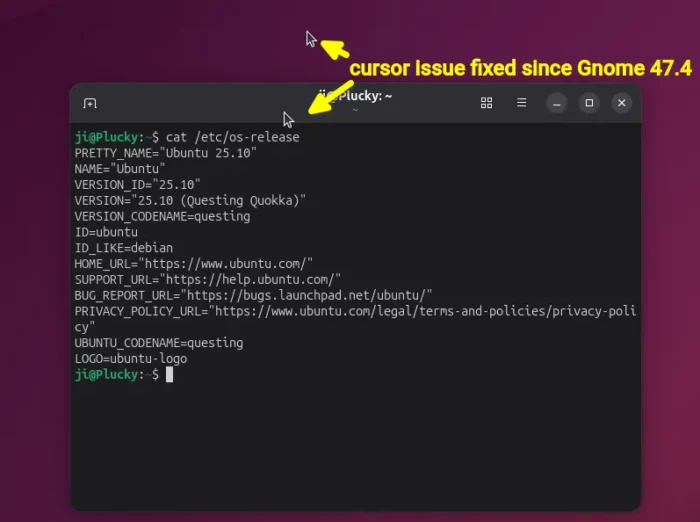
The giant mouse cursor issue for Flatpak apps using GNOME runtime was reported 7 months ago, which has been fixed in GNOME 48 by implemented wp_viewport support for cursor surfaces.
The fix has also been backported for GNOME 47.4, but NOT for GNOME 46 and earlier as they reached end of life. GNOME developer explained:
To clarify. This has been fixed in GNOME 47.4 and newer. Specifically its this Mutter Merge Request mutter!3859 (merged) and couple GTK fixes which you will be getting from the Flatpak runtime anyway.
There is nothing that we can do about it if a distribution chooses to ship an outdated version of GNOME. I would suggest you open issues against your distribution to fix/backport this on their end…
The Ubuntu side however cannot backport the wp_viewporter fixes for 24.04 (with Gnome/Muter 46), because it’s too large and has the potential to regress the LTS. The Ubuntu developer said:
I don’t think we can backport the wp_viewporter fixes to mutter 46, it’s too large: it took many iterations during the GNOME 48 cycle upstream to get it working correctly, and we’d risk regressing noble.
How to “Fix” (Workaround) the Flatpak cursor issue
The issue so far happens only on Ubuntu 24.04 and Ubuntu 22.04 with default GNOME when running Flatpak apps that use GNOME 49 run-time in sandbox.
Add icon theme permission access (~/.icons and /usr/share/icons) does not work in my case, while only disable Wayland windowing system (for Flatpak apps only) works.
NOTE: switch off Wayland might cause few performance loss and security issues.
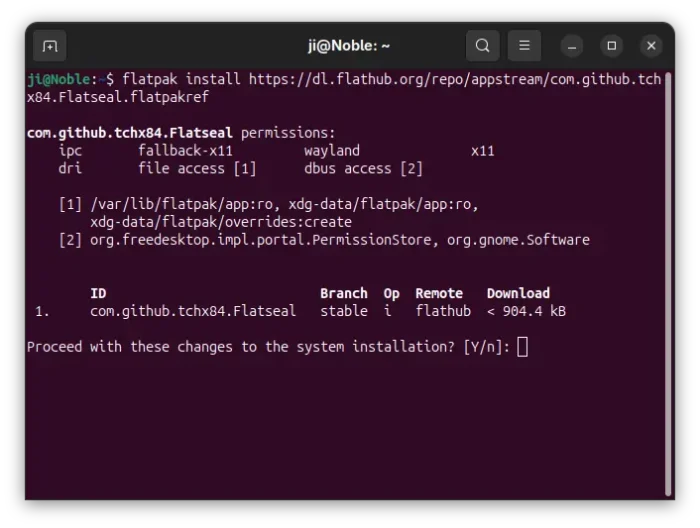
1. To do so, first open terminal (Ctrl+Alt+T) and run command to install Flatseal app, the graphical tool to manage Flatpak permissions.
flatpak install https://dl.flathub.org/repo/appstream/com.github.tchx84.Flatseal.flatpakref
2.Then, launch Flatseal. Choose the Flatpak apps that have unusual cursor issue, and then turn off “Wayland windowing system” option under Socket session.
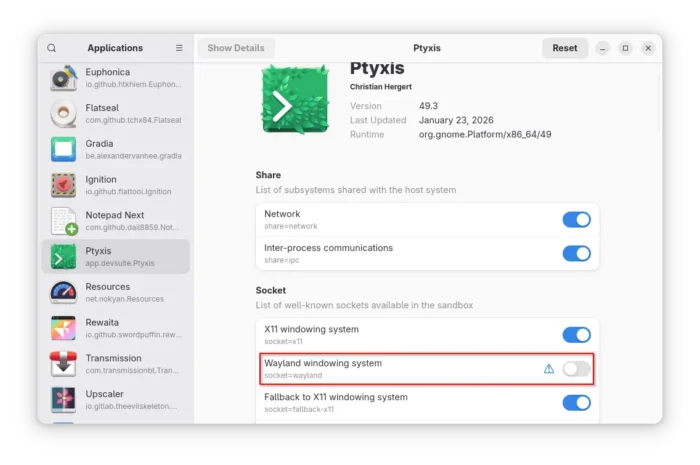
Finally, re-launch the Flatpak apps to apply changes.
For those who don’t want to install one more app for the job, run the commands below instead one by one:
- First, run command to list Flatpak apps, and copy the target App ID:
flatpak list --app
- Then, run the command below (replace
app.devsuite.Ptyxiswith yours App ID) to disable Wayland:sudo flatpak override --nosocket=wayland --socket=x11 app.devsuite.Ptyxis
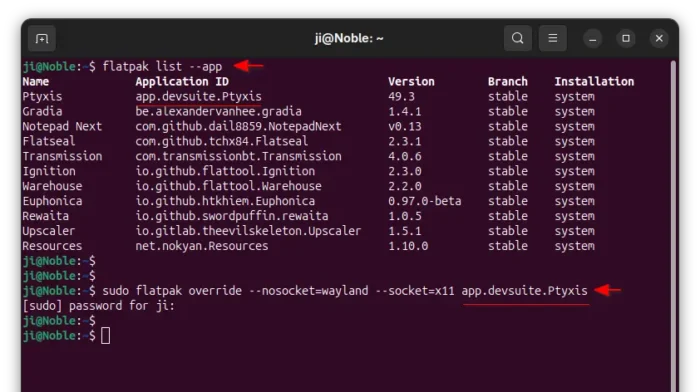
Source: UbuntuHandbook