Darktable Released 5.6.0 with Optional AI Support & HEIF Export
Darktable, the popular free open-source photography and raw developer application, released new major 5.6.0 version today!
The new version introduced optional AI sub-system, UI/UX and performance improvements, as well as many fixes and other changes.
The AI sub-system is disabled by default. If you build Darktable from source, then you need to configure with -DUSE_AI=ON option. After that, you may go to AI preferences tab to enable and download AI models.
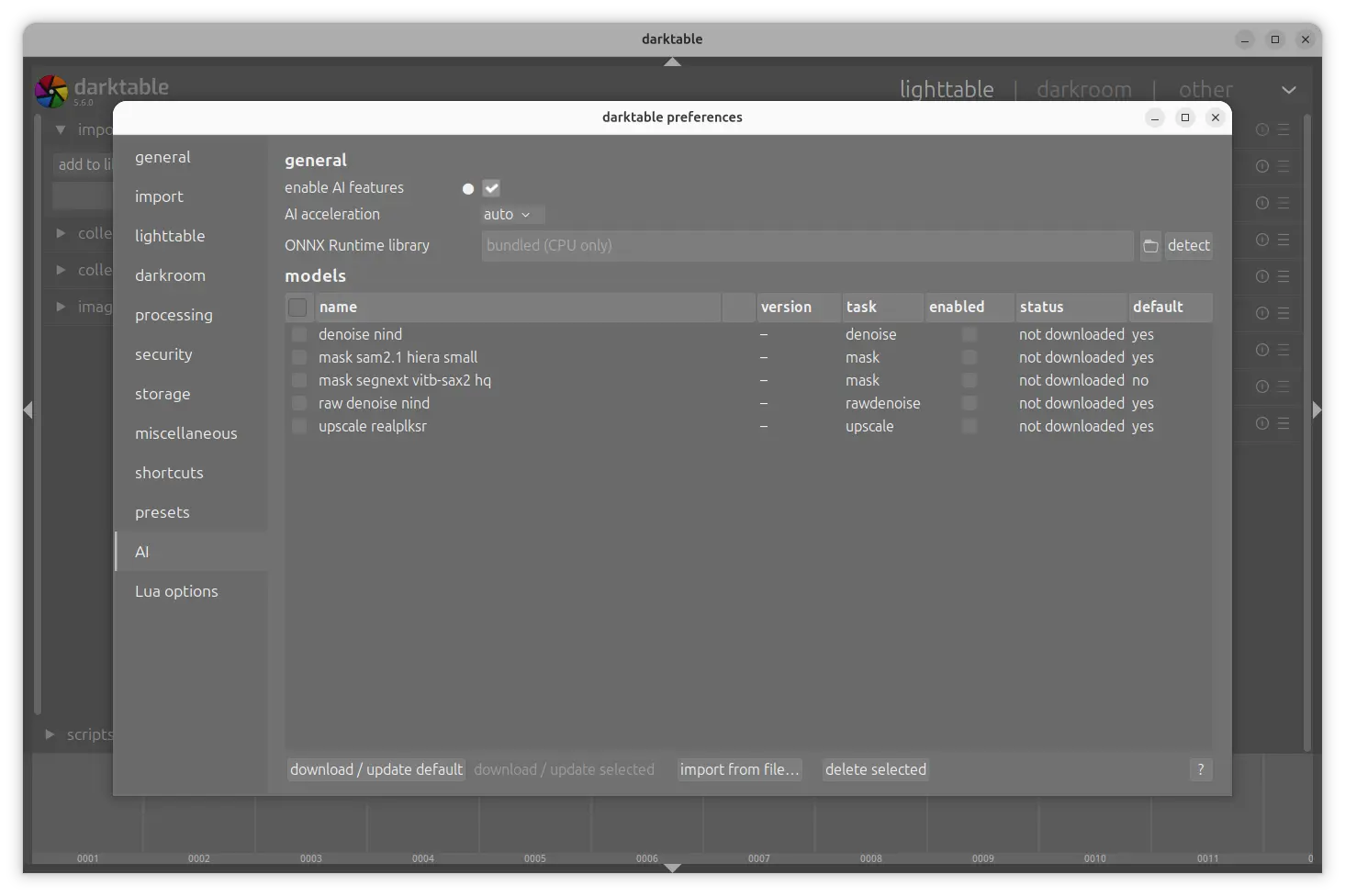
Darktable AI preferences
As you see in the screenshot above, you can one click download & install the following free and open source AI models:
- denoise NIND and raw denoise nind, to remove real‑world sensor noise from RAW photos with high detail retention using a neural network.
- mask sam2.1 hiera small, for mask generation (segmentation) on images and videos.
- mask segnext vitb-sax2 hq, high‑quality mask‑generation model.
- upscale realplksr, real‑world photo upscaling model designed to handle noise, blur, JPEG/WebP compression, and other real‑image artifacts.
It also supports loading local AI models in .dtmodel format. And, it has out-of-the-box support for using CPU hardware acceleration for AI inference, while GPU is also supported, though needs manual setup and external ONNX Runtime library in Linux.
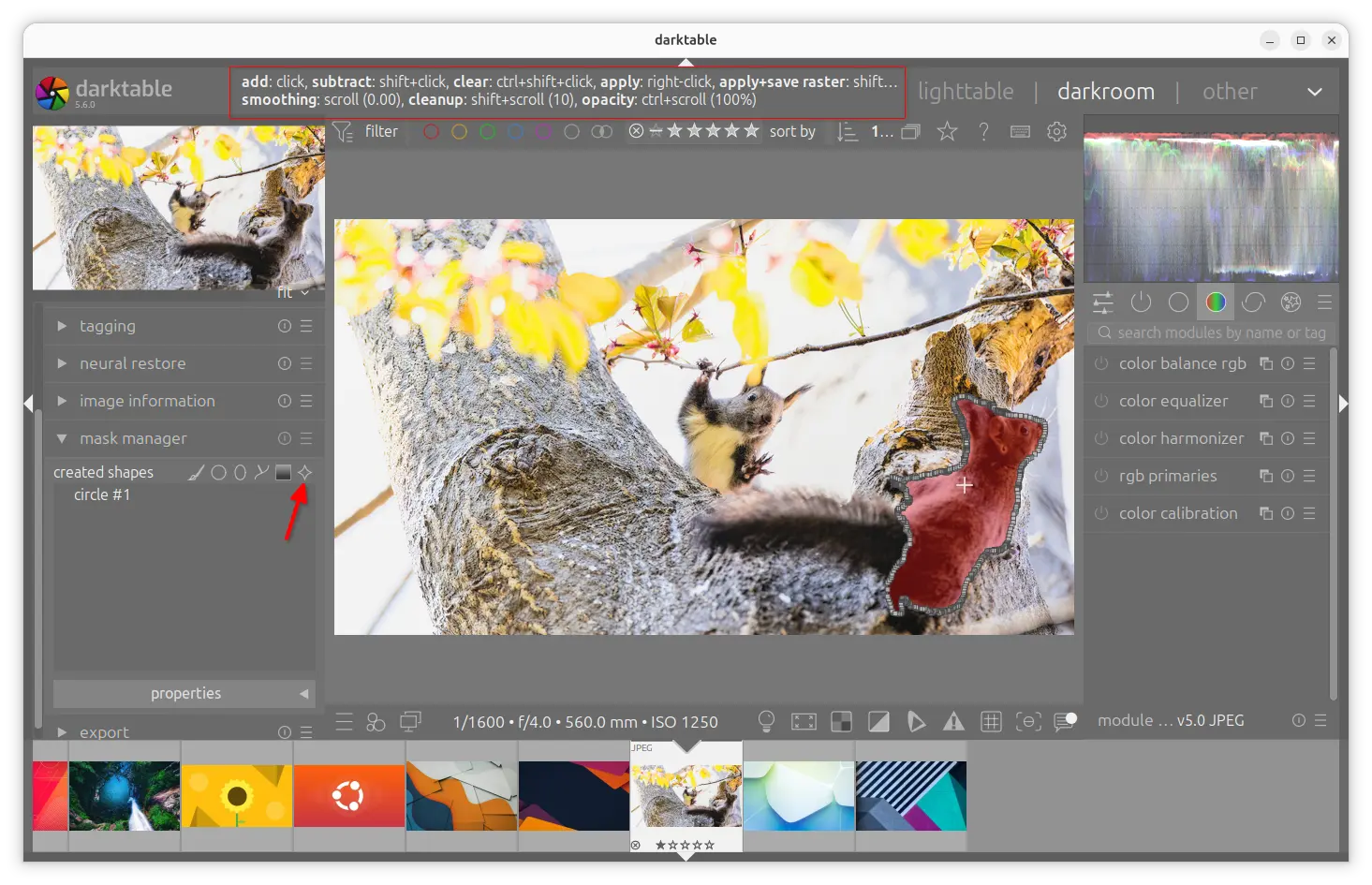
After enabled AI feature and downloaded the models, you can then go to darkroom mask manager to trigger either SAM2.1 or SegNext AI model (only one of them can be enabled at the same time). Then, click on an object to generate a precise mask, shift+click to subtract, scroll or Ctrl+scroll to adjust the smoothing or opacity. And, it supports saving the mask as a PNG for external use.
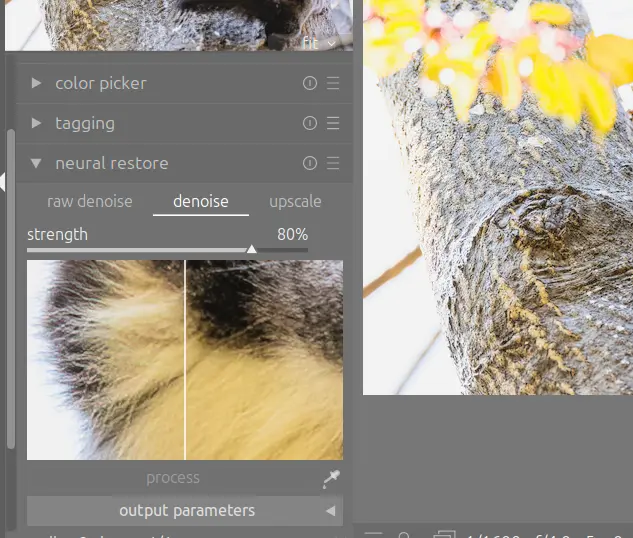
And, go to neural restore module in left side-bar for AI-based raw denoise, denoise, and upscale. Default models are NIND UNet (denoise), RawNIND UtNet2 (raw
denoise), and RealPLKSR 2x/4x (super-resolution), and all runs on the ONNX backend. While, additional models are available in the model repository and can be
installed manually.
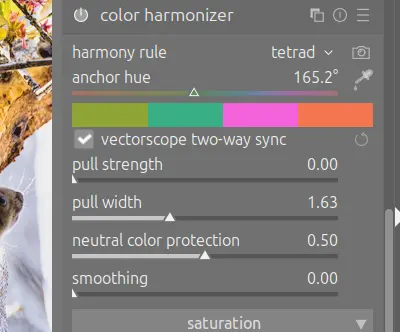
Besides the new AI features, this version also introduced new color harmonizer module with options to apply anchor hue, pull strength and width, protect neutral colors, and apply a Gaussian filter to smooth harsh transitions.
As well, it added support exporting to HEIF image format, lossy or lossless in 8/10/12 bit color depths with all supported color subsampling options.
Darktable 5.6.0 also features UI/UX improvements. It now has a welcome dialog allowing to set some configuration options at first launch. It now supports rendering and caching 6K or 8K thumbnail or full-screen preview images in lighttable view. And, the resolution of the darkroom view’s preview-resolution images has been increased from 720×450 to 1440×900.
It also added pinning images directly from the 2nd window, through either drag’n’drop from the the horizontal strip of thumbnails or keyboard shortcut, as well as touchpad gestures to darkroom and lighttable culling layouts, and smartphone-like simultaneous pinch zooming and two-finger panning for Linux and Windows.
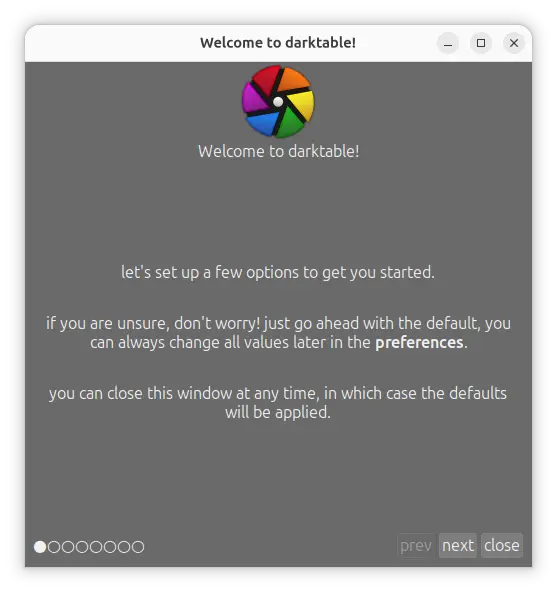
Darktable Welcome dialog
Other changes include:
- New
--library <path>command-line option. - Include lua-scripts.
- Lua AI API (darktable.ai) for scripting AI model inference.
- New cameras support.
- Translation updates.
There are also numerous improvements, bug-fixes, and other changes not mentioned in this post. See the Github release page for details.
How to Install Darktable 5.6.0
Darktable provide official installer packages for Linux, Windows, and macOS, which are available to download via the link below:
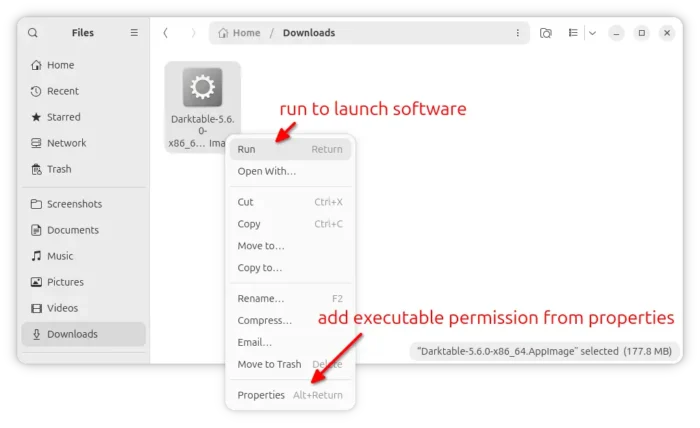
For Linux on modern Intel/AMD platform, select download the AppImage, add executable permission from its properties dialog, finally run to launch the photography software. Though, Ubuntu since 22.04 needs to install libfuse2 package for AppImage support.
For Ubuntu user who prefer native .deb package, keep an eye on this OBS repository (not updated at the moment of writing), or use the unofficial PPA so far supports Ubuntu 22.04, Ubuntu 24.04, and Ubuntu 26.04.
The AI feature in PPA package is only available for Ubuntu 26.04, while the package for Ubuntu 24.04 is on its way.
To add the PPA and install Darktable, open terminal (Ctrl+Alt+T) and run the commands below one by one:
sudo add-apt-repository ppa:ubuntuhandbook1/darktable
sudo apt update
sudo apt install darktable
NOTE: You need to also install libonnxruntime1.23 in Ubuntu 26.04 for ONNX Runtime library if you want GPU acceleration for AI inference. See the GPU acceleration setup guide.
To uninstall the PPA and darktable deb package, use commands:
sudo add-apt-repository --remove ppa:ubuntuhandbook1/darktable
sudo apt update
sudo apt remove darktable
Source: UbuntuHandbook