Concessio – Simple App to Help Understand Linux File Permissions

For beginners who want to learn about Linux file permissions, here’s a stupid simple application that can help.
It’s Concessio, a free open-source app designed for GNOME, though works in most Linux through Flatpak package.
As you know, every file and folder in Linux has a specific set of permissions. It controls the read, write, and execute permissions for user (who own the file/folder), group (group of users share access to the file/folder), and others (all other users in system).
Permissions can be represented by either numbers or a string of characters.
- Read only –
r--or 4 + 0 + 0. - Write only –
-w-or 0 + 2 + 0. - Execute only –
--xor 0 + 0 + 1. - Read and Write –
rw-or 6 (4+2+0) - Read and Execute –
r-xor 5 (4+0+1) - Write and Execute –
-wxor 3 (0+2+1) - Read, Write, and Execute –
rwxor 7 (4+2+1).
The permissions for a file/folder can be represented by a string of 10 characters, e,g., -rwxr-xr–. The first means directory (d) or not (–), the 2 ~ 4 characters for user, 5 ~ 7 for group, and the last 3 (8 ~ 10) characters for others.
It can also be represented by 3 numbers, e.g., 755. the first for user (owner), second for group, and the last for others. And, it can sometimes be 4 numbers due to special permissions.
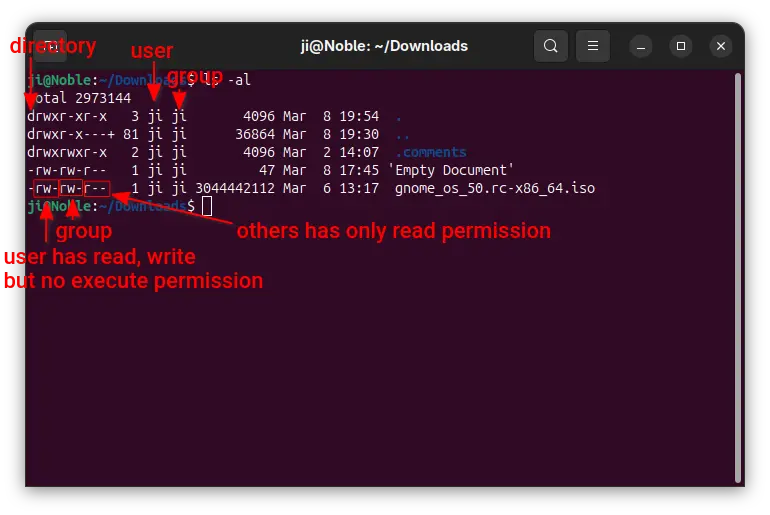
Understanding Linux file permissions is essential for all Linux administrators. But I often forgot the numerical representation.
To make it clearer to understand, the Concessio provides a simple interface that user can either click the book, pencil, play (execute) icons to set a permissions combination and see the numeric and symbolic representations, or input the permission numbers or characters and convent to each others.
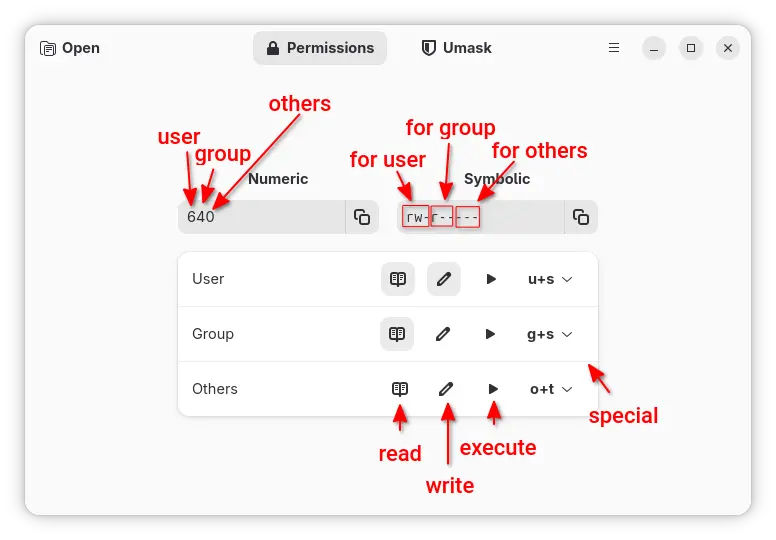
As you see, it can also show special permissions in numeric and symbolic representations. They include:
- SUID allows to execute file with the permission of the file owner not who run it,
- SGID to execute file with the permission of the group, or ensure new files created in the directory inherit the group permissions,
- and sticky bit (affect directory only) restricts file deletion, so that only owner (or root) can remove files within that directory.
With version 0.3.0, the app added support umask page, that can help to determine the default permissions for newly created files and directories.
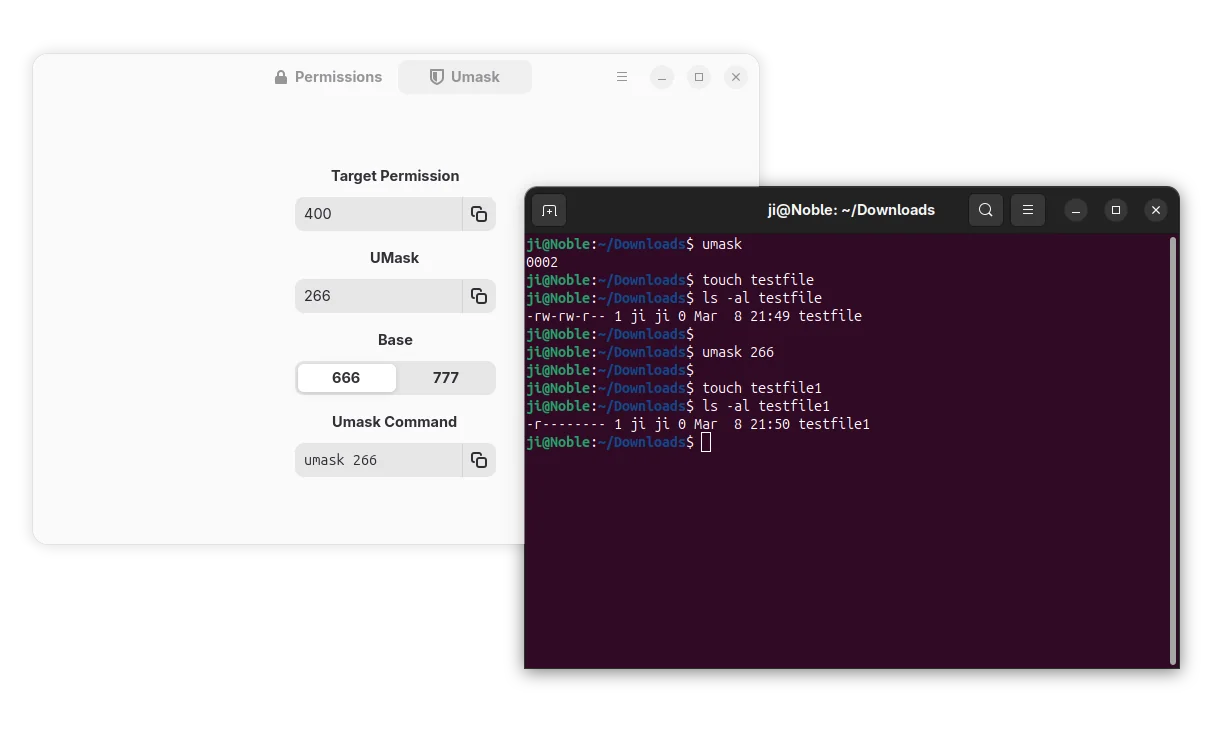
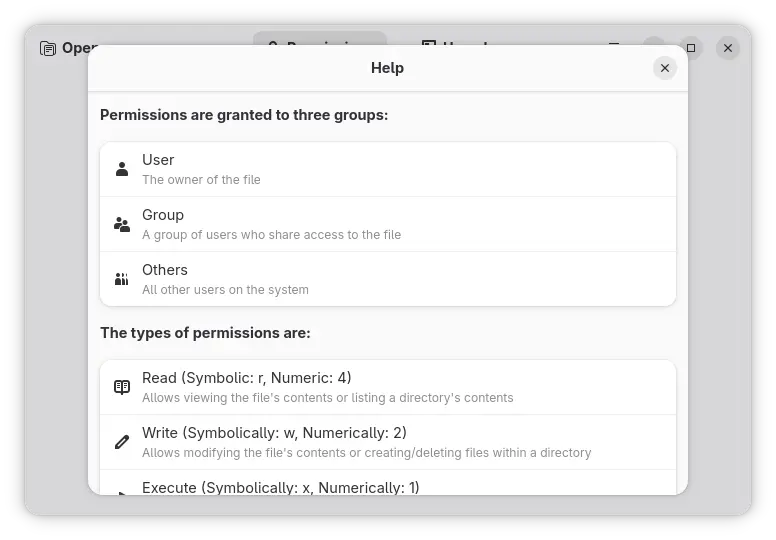
Besides umask, symbolic, and numeric representations, Concessio also support opening a file to see its permission and provides a help page that explains the Linux file permissions with text and examples.
Install Concessio
Concessio is available to install in most Linux through Flatpak package.
Fedora (with 3rd repository enabled) and Linux Mint since 21 can simply search & install it from either GNOME Software or Software Manager.
While other Linux can follow the steps below one by one to get it:
- First, enable Flatpak support. For Debian or Ubuntu, simply run command in terminal:
sudo apt install flatpak
- Then, run command to install the flatpak package:
flatpak install https://dl.flathub.org/repo/appstream/io.github.ronniedroid.concessio.flatpakref
If the app icon is not visible after installation, either log out and back in or run the command below to start from terminal:
flatpak run io.github.ronniedroid.concessio
(Optional) At any time, you may uninstall the package by running command:
flatpak uninstall --delete-data io.github.ronniedroid.concessio
Source: UbuntuHandbook