Add Custom Toggle Buttons to Top-right System Menu (Quick Settings)

Want to add custom ON/OFF toggle buttons to the top-right system menu (aka Quick Settings) in Ubuntu, Fedora Workstation and other Linux with recent GNOME desktop? Here’s an extension can do the job!
GNOME since 43 introduced a redesigned system status menu called Quick Settings, allowing to quickly change commonly used settings via ON/OFF toggle buttons.
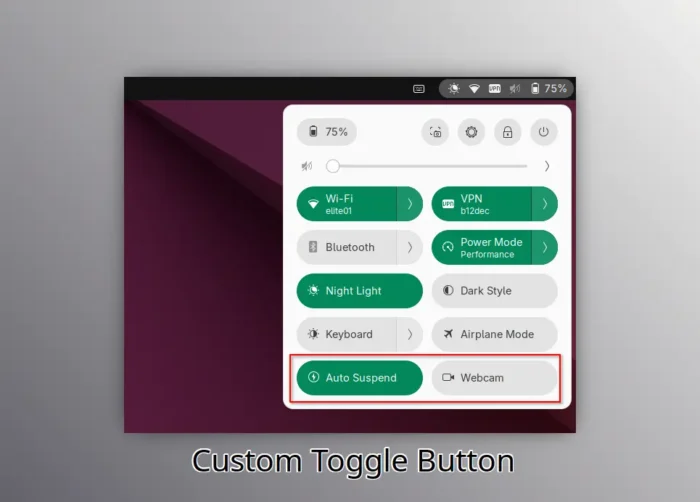
The menu by default includes the toggle buttons to change the network, bluetooth, night light, keyboard back-light, Light/Dark status, as well as CPU power mode.
If that’s not enough, then you can add more buttons for custom actions, such as automatic suspend and/or webcam toggles. And, here’s how to do the job step by step.
Step 1: Install the Custom Command Toggle extension
The extension so far supports GNOME from version 45 to 49, meaning for Ubuntu 24.04 ~ 25.10, all current supported Fedora Workstation, Debian 13, and Arch etc Linux distributions with GNOME.
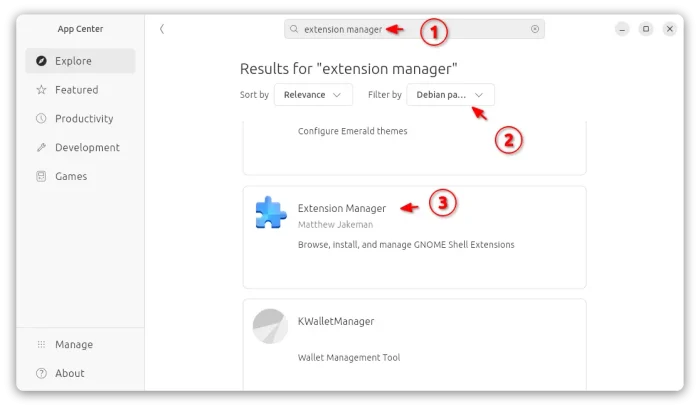
First, search and install “Extension Manager” app from your system software app, such as App Center or GNOME Software.
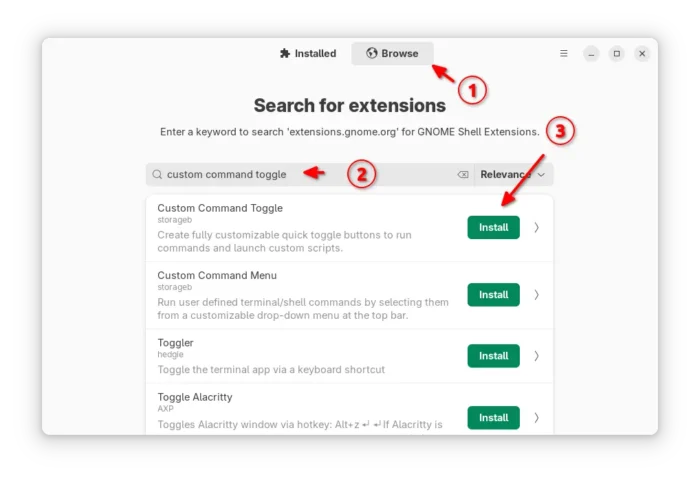
Then, launch Extension Manager and use it to search and install “Custom Command Toggle” extension under Browse tab.
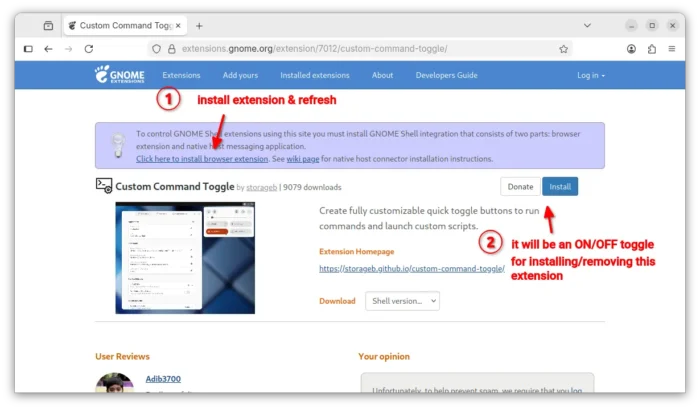
If your Linux Distribution does not have “Extension Manager” app in system repository, then visit the link below in web browser, and use the ON/OFF toggle to install it:
Though, you need to install the browser extension first and refresh to see the toggle. And, Debian/Ubuntu need to install agent package first by running the command below in temrinal:
sudo apt install chrome-gnome-shell
Step 2: Add/Configure Toggle Buttons to Quick Settings
After installed the extension, either go to Installed tab in Extension Manager then click the gear icon to open preferences.
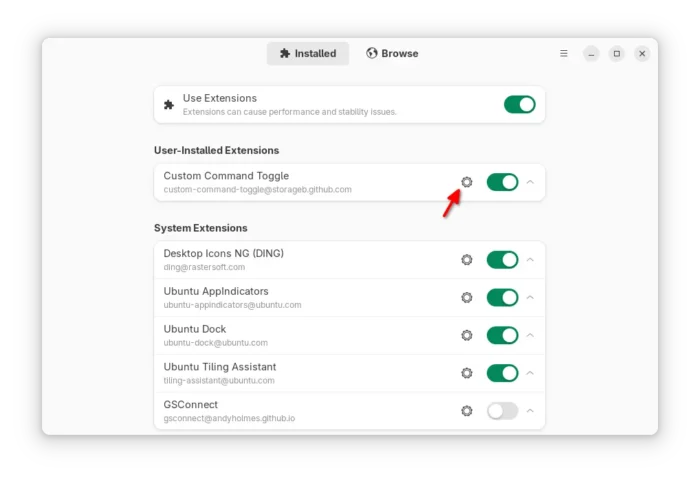
Or, run the command below to launch the preferences from terminal:
gnome-extensions prefs custom-command-toggle@storageb.github.com
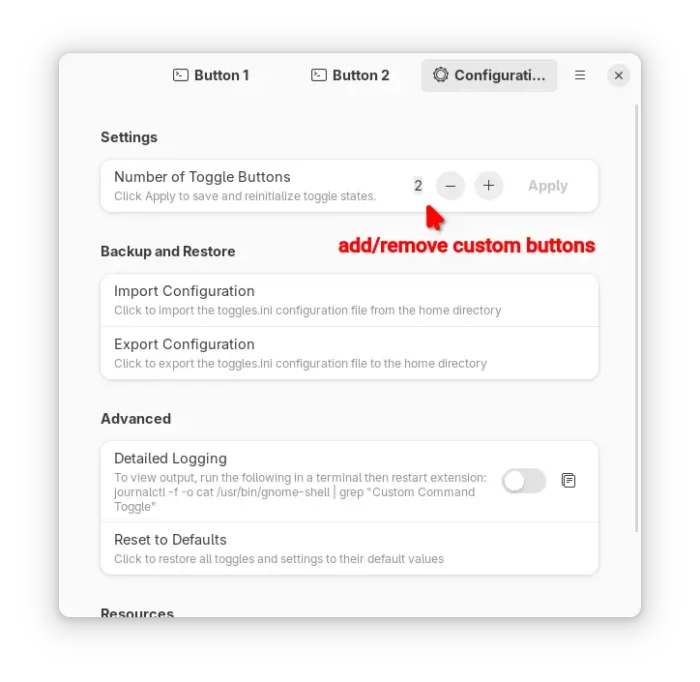
When the preferences dialog opens, you may switch to “Configuration” tab to increase the number of custom toggle buttons (up to 6). And, each button will has its own tab in the dialog.
Next, input the text and icon to be displayed on that button. For Ubuntu with default Yaru theme, see this page for all the available symbolic icon names. And, go to this page for Gnome default Adwaita icons.
And, type the commands for toggle ON/OFF actions. For example, use the command below to enable automatic suspend for both battery and AC mode, for button ON.
gsettings set org.gnome.settings-daemon.plugins.power sleep-inactive-battery-type suspend && gsettings set org.gnome.settings-daemon.plugins.power sleep-inactive-ac-type suspend
And, use the command below to disable automatic suspend for button OFF state.
gsettings set org.gnome.settings-daemon.plugins.power sleep-inactive-battery-type nothing && gsettings set org.gnome.settings-daemon.plugins.power sleep-inactive-ac-type nothing
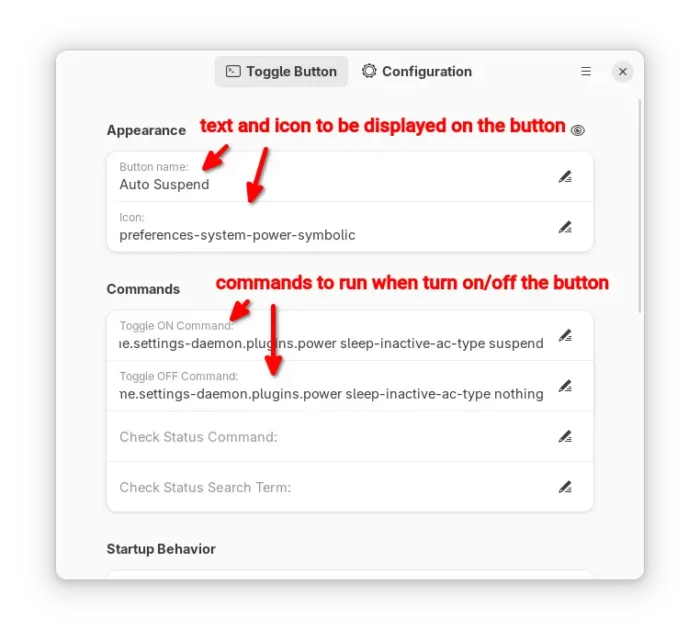
As you see, you may use && to connect multiple commands into one. And, use pkexec for command that need root permission.
For example, use the command below to disable webcam/camera for button OFF:
pkexec modprobe --remove uvcvideo
And use the command below instead to re-enable for button ON:
pkexec modprobe uvcvideo
NOTE: the modprobe kernel module load/remove commands only work when the module is not in use. If your webcam/camera is being opened by an application, then the commands won’t work.
The initial button state at start up (after login) is by default set to previous state. Advanced users may set it to “Command output”, so it will run the “Check Status Command” automatically at login, and set button state automatically according if that command output matches the “Check Status Search Term”.
For more about the extension, see the official wiki.
Source: UbuntuHandbook