Install Driver for XBox One Controllers in Ubuntu 26.04

Got a Xbox One controller? It works in Linux out-of-the-box, but only for basic use and you need to connect through a USB cable.
If you want to use your Xbox One controller in Linux wirelessly through bluetooth or wireless adapter, and want more features for better experience, then you need to install a third-party driver.
And in this tutorial I’m going to show you two free open-source choices:
- xpadneo – supports Xbox One controllers through Bluetooth.
- Xone – that supports connecting via USB or Wireless Adapter.
Option 1: xpadneo
Xpadneo is a free open-source (GPL-3.0) Linux Driver for Xbox One Wireless Controller.
It supports Xbox One, Xbox Series X|S, or Xbox Elite 2 controllers on Linux via Bluetooth.
Xpadneo features include:
- Connect via Bluetooth.
- Trigger force feedback – pressure-dependent vibration on both triggers.
- Battery reporting.
- Low Latency.
To install xpadneo driver in Ubuntu, press Ctrl+Alt+T on keyboard to open up a terminal window, and run the commands below one by one.
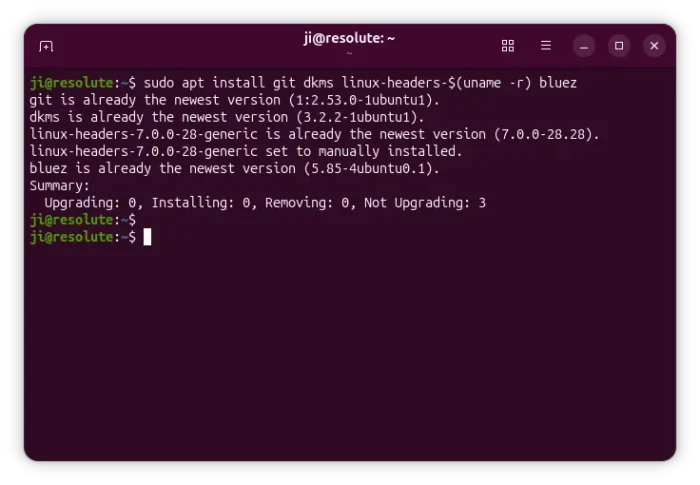
1. First, run command to install dkms, kernel headers, and bluz:
sudo apt install git dkms linux-headers-$(uname -r) bluez
You may run sudo apt update first to refresh cache, if the command above does not work.
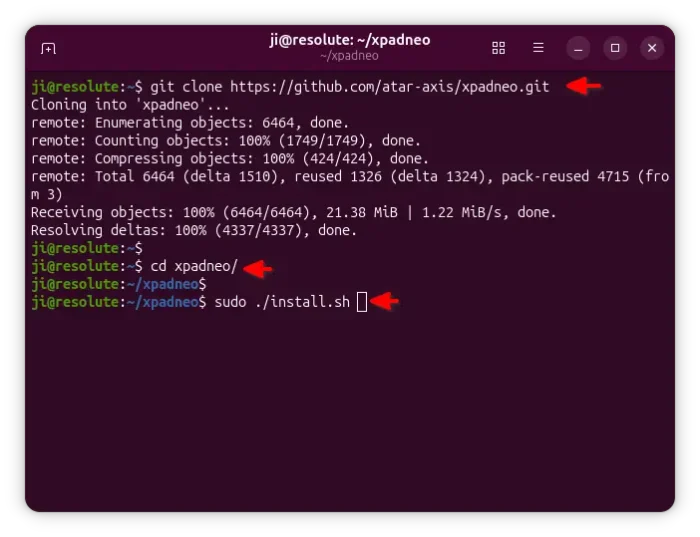
2. Next, run command to clone the source code from github:
git clone https://github.com/atar-axis/xpadneo.git
3. After that, navigate to the source folder, and run the installer script to build and install the driver as kernel model:
cd xpadneo && sudo ./install.sh
Tips: the source folder also contain uninstall.sh, which is useful in case you want to uninstall the driver afterwards.
After installed the driver, restart your computer. It will automatically load the driver at the next boot.
4. To connect your Xbox controller over Bluetooth, press and hold the small connect button on top of the XBox controller (next to the USB port) until the Xbox logo starts flashing rapidly.
Then, run commands below in Ubuntu terminal to connect:
- First, run command to start the bluethooth CLI utility:
sudo bluetoothctl
- Next, run
scan onto searching for nearby Bluetooth devices. It will print something look like “[NEW] Device C8:3F:26:XX:XX:XX Xbox Wireless Controller” once it found your controller.scan on
- Then, run
scan offto stop searching. - And, run the command below to start pairing (replace the ID accordingly):
pair C8:3F:26:XX:XX:XX
- Finally, the run commands below one by one to trust and connect the device (also replace ID with yours):
trust C8:3F:26:XX:XX:XX
connect C8:3F:26:XX:XX:XX
If everything goes well, it will output “Connection successful”. After that, run exit to quit the utility.
Now, you can start any game and the controller should be detected automatically. For steam games, go to Settings -> Controller -> General Controller Settings and make sure “Xbox Configuration Support” is enabled.
See xpadneo.net for more about Xpadneo kernel driver.
Option 2: Xone
If you want to connect your controller through Wireless Adapter, or with USB wired as well as full experience, then try Xone.
Xone supports Xbox One, Xbox Series X|S, Xbox Adaptive controllers, as well as headsets connected through either USB or wireless dongle. It features:
- Connect via USB or Wireless Adapter.
- Input and force feedback (rumble)
- Battery reporting.
- LED Control.
- Audio capture/playback.
- Lowest Latency.
To install Xone, offpen terminal (Ctrl+Alt+T) and run the commands below one by one:
NOTE: Xone is sadly in maintenance mode now, that will receive only occasional minor fixes! Installing it will replace the built-in xpad driver useful for Xbox / Xbox 360 peripherals.
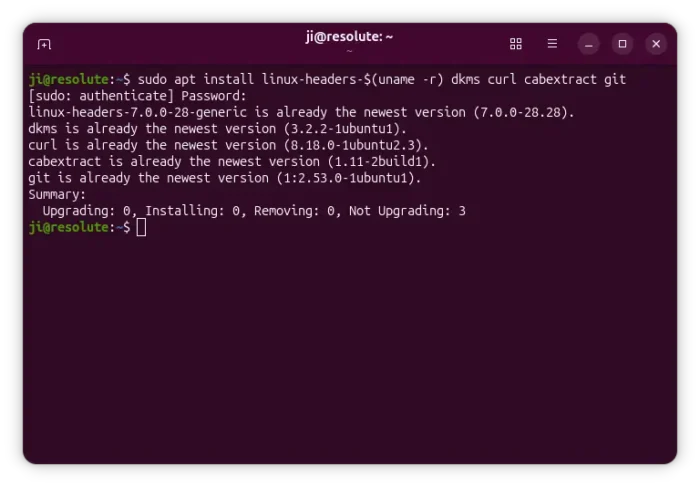
1. First, run command to install the kernel header, dkms, curl etc tools:
sudo apt install linux-headers-$(uname -r) dkms curl cabextract git
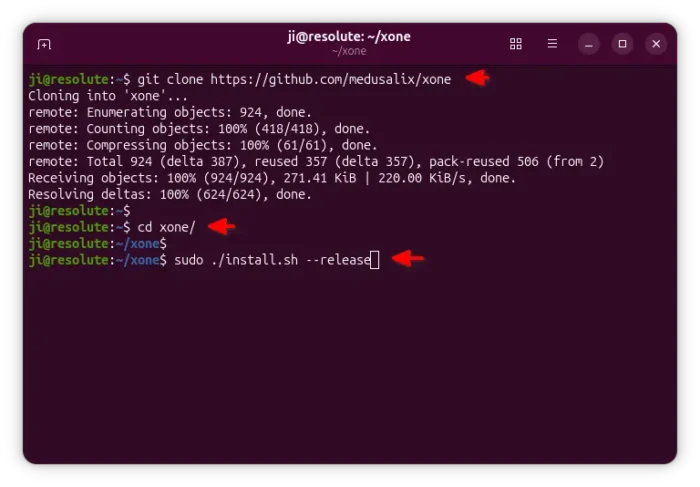
2. Then, clone the source code by running the command below:
git clone https://github.com/medusalix/xone
3. Next, navigate to the source folder and run the installer script to build the kernel model:
cd xone && sudo ./install.sh --release
4. And, download the firmware for the wireless dongle
sudo xone-get-firmware.sh
Finally, connect your controller either via USB or wireless adapter (see the official guide if you don’t know how), and enjoy.
Uninstall:
Both Xpadneo and Xone kernel models include an uninstall script in the source folder. If you have already removed the source from your file manager, simply re-run the git clone command above to re-download.
For Xpadneo, you may then run the command below to navigate to the source folder and run the uninstall script:
cd xpadneo && sudo ./uninstall.sh
Or run the command below instead after grabbed the xone source:
cd xone && sudo ./uninstall.sh
Finally, remove the source folders to clean up.
Source: UbuntuHandbook