Getting Windows-Like "My Computer" Feel on Linux File Manager
People who used Windows 7 and earflier version would remember “My Computer”. It’s called “This PC” now a days but does the same job.
You click on the icon, and it opens the file explorer and shows you the meta folders (Documents, Pictures, Downloads, etc.) and all the drives on the system and any other mounted devices.
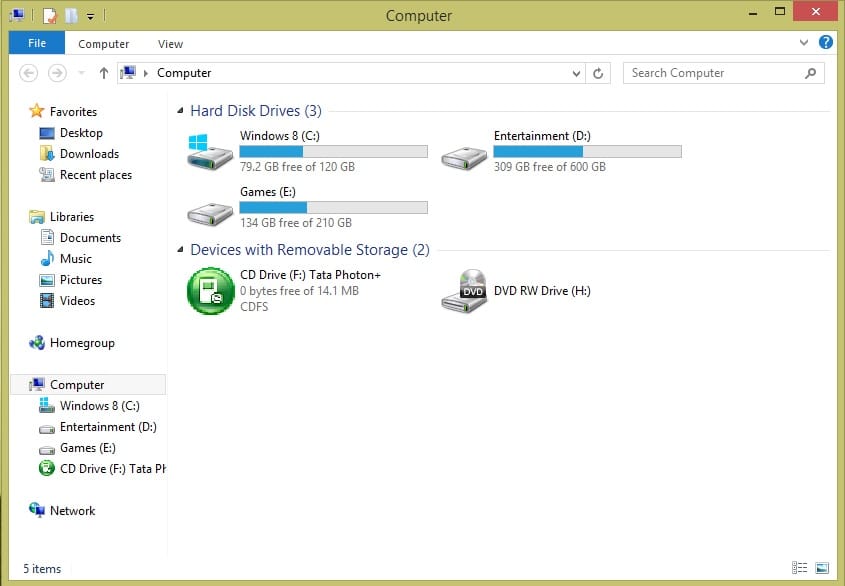
This is useful for many people to see all the locations in the system at a glance.
On the Linux side, GNOME used to have Other Locations page in Nautilus file manager. It served as a central place where you could access network shares, cloud storage such as Google Drive, removable drives, and even your root partition.
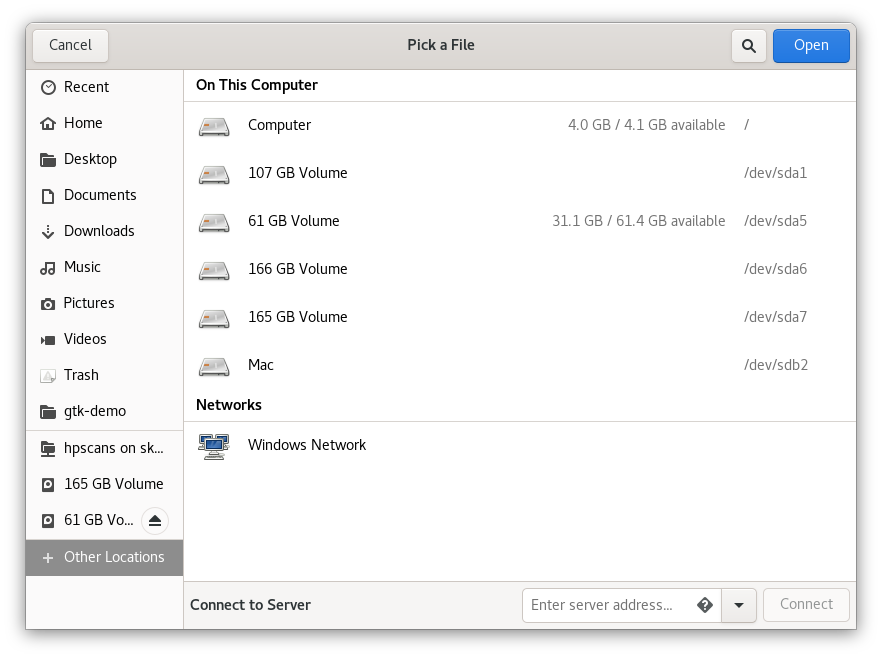
Starting with GNOME 47, that page was removed. In its place, Nautilus introduced a dedicated Network folder, while local drives and partitions were moved directly into the sidebar.
This makes sense for systems with only a few drives, but some users still prefer to have a dedicated page that shows everything in one place.
Meet My Computer for Nautilus
My Computer for Nautilus is an extension for GNOME Files (Nautilus) that brings back a dedicated computer view.
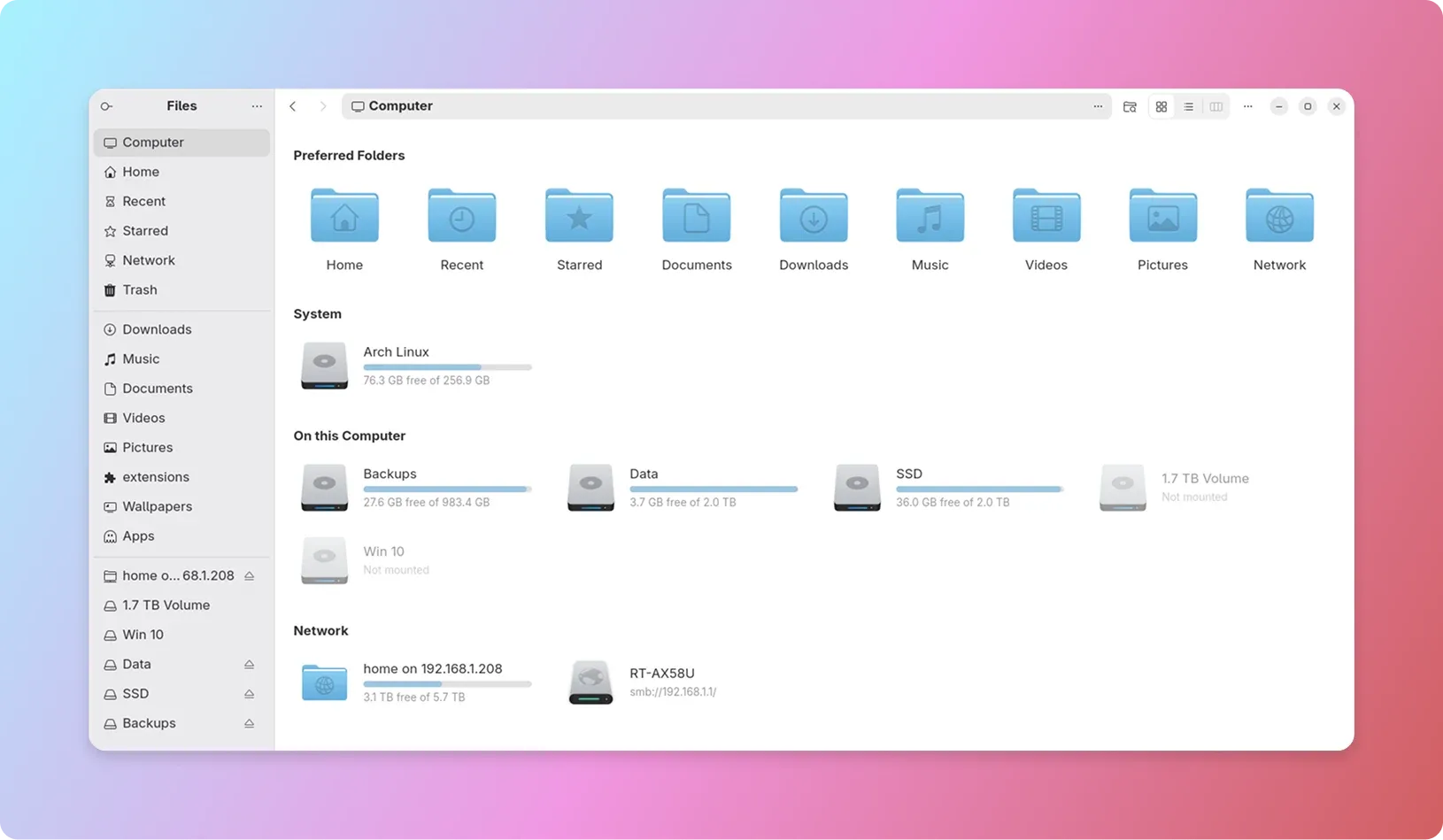
Instead of scattering drives and network locations across different places, it puts all your drives, partitions, removable media, and network mounts into a single, organized page. It also comes with a handful of useful features that make Nautilus much more customizable than it is by default.
While bringing back a dedicated Computer view is its primary purpose, My Computer goes beyond that. It adds a few quality-of-life improvements that make Nautilus even more flexible.
Let’s have a look at its features.
A dedicated Computer view
The most noticeable change is the new Computer entry that appears at the top of the Nautilus sidebar.
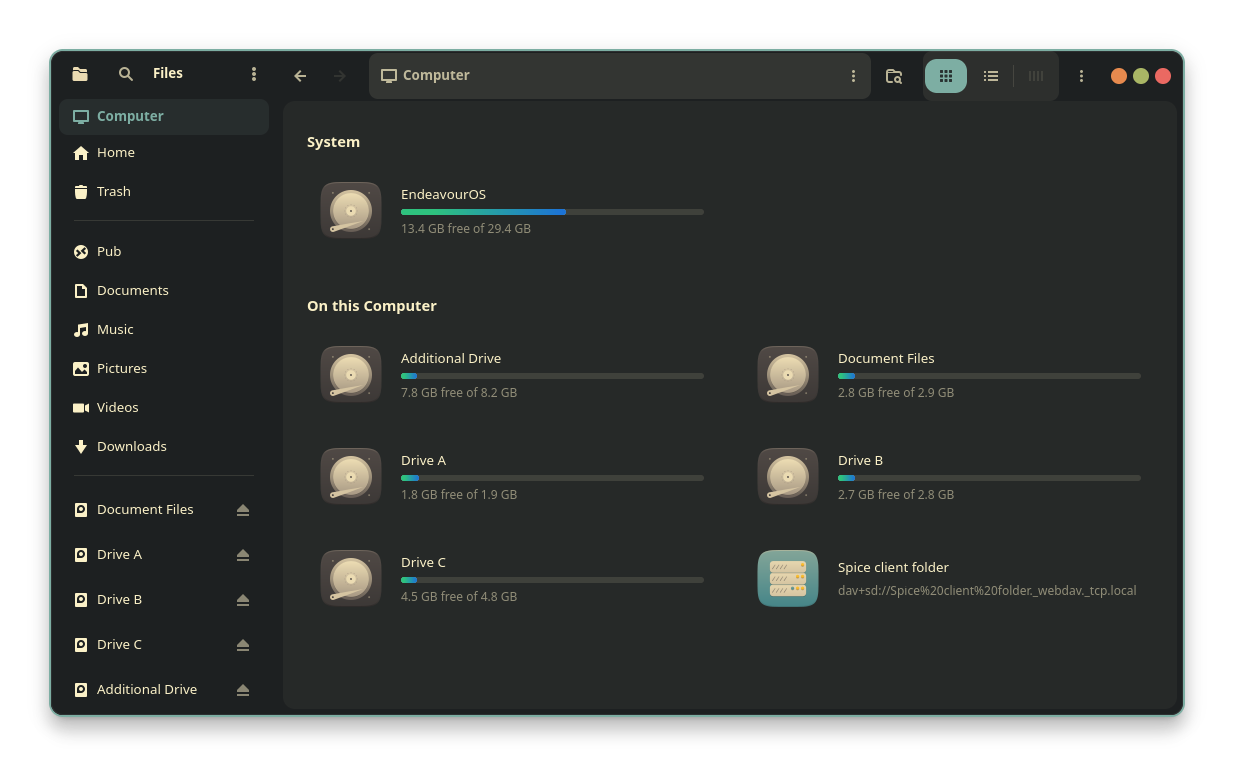
Clicking it opens a dedicated page where all your drives, partitions, removable media, and network locations are neatly organized.
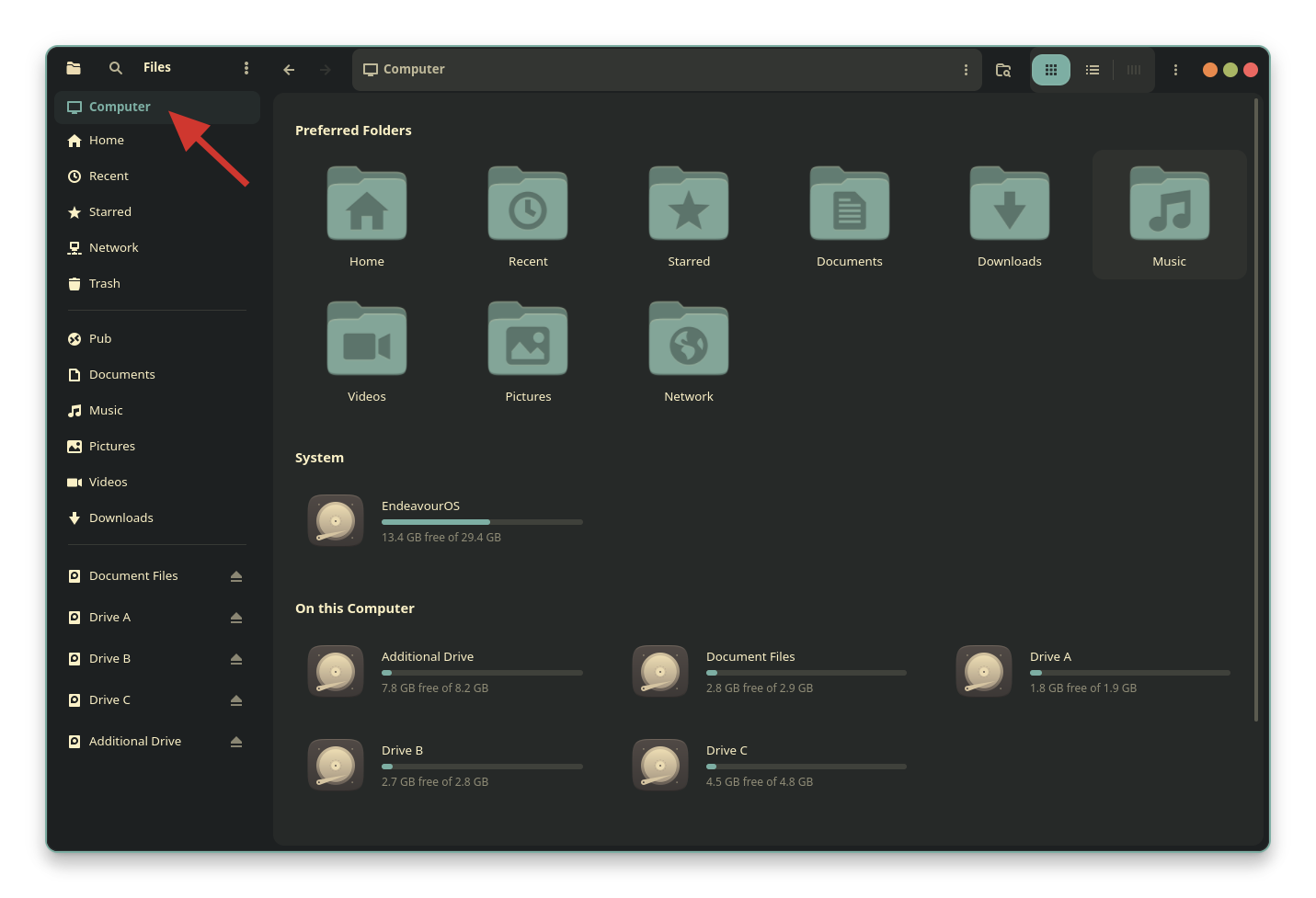
You can even make Nautilus open in this view every time it starts.
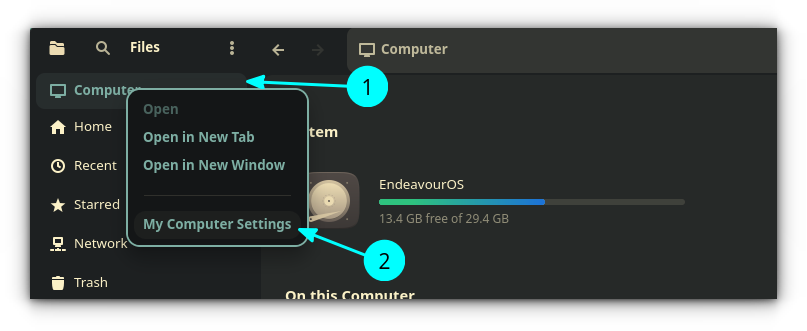
Simply right-click the Computer entry in the sidebar and select My Computer Settings.
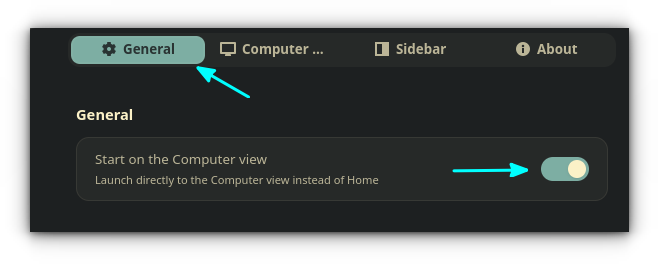
Under the General tab, enable Start on the Computer View.
Customize what appears in the Computer View
The Computer page is fully customizable.
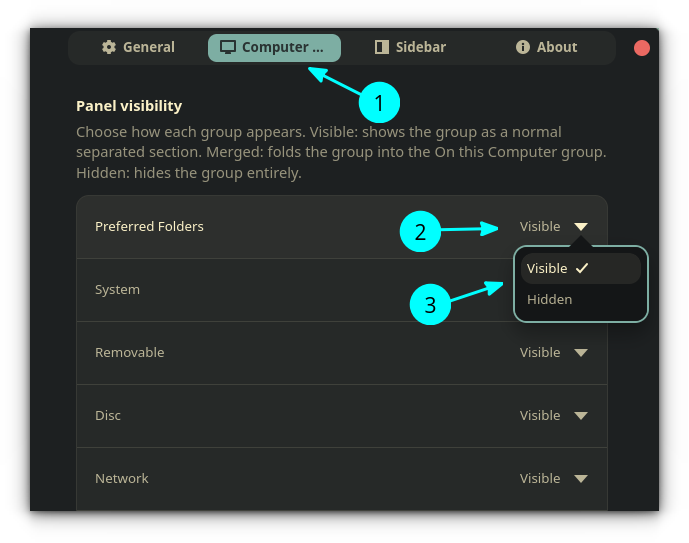
If you don’t want certain sections, such as Preferred Folders, Network, or Removable Media, you can simply hide them. This lets you tailor the page to match your workflow.
For example, you can turn it into a dedicated drives overview by hiding everything except storage devices.
I have removed the Preferred Folders and made the Computer page show only Drives and Network Drives in the image below:
Enjoy Miller columns
One of the most interesting additions is support for Miller Columns.
If you’ve used macOS Finder before, you’ll immediately recognize this layout. Instead of opening each folder in a new window or replacing the current view, folders expand into the next column, making navigation much faster.
0:00
Miller Column View
The extension also includes a preview pane. Selecting an image or video displays a thumbnail along with basic information about the file without opening it.
Customize the sidebar
Another feature I like is the ability to customize Nautilus’ sidebar.
Normally, entries such as Recents and Starred cannot be removed. My Computer adds simple toggle switches that let you hide or show these built-in entries.
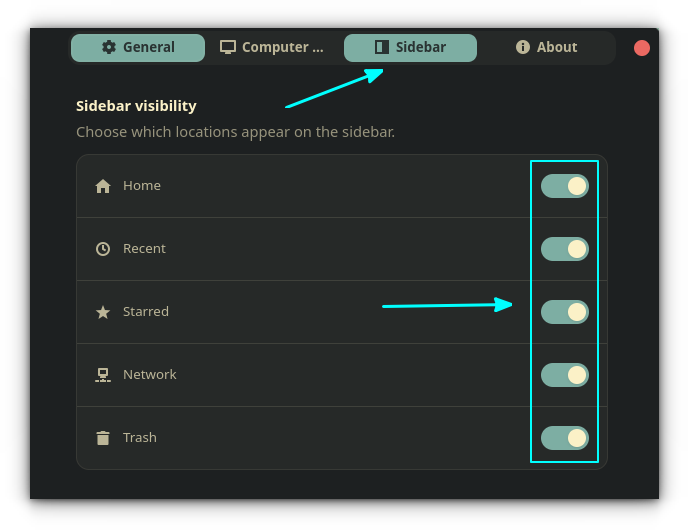
To customize the sidebar, open My Computer Settings and switch to the Sidebar tab.
For example, I hid Recents, Starred, and Network to create a much cleaner sidebar.
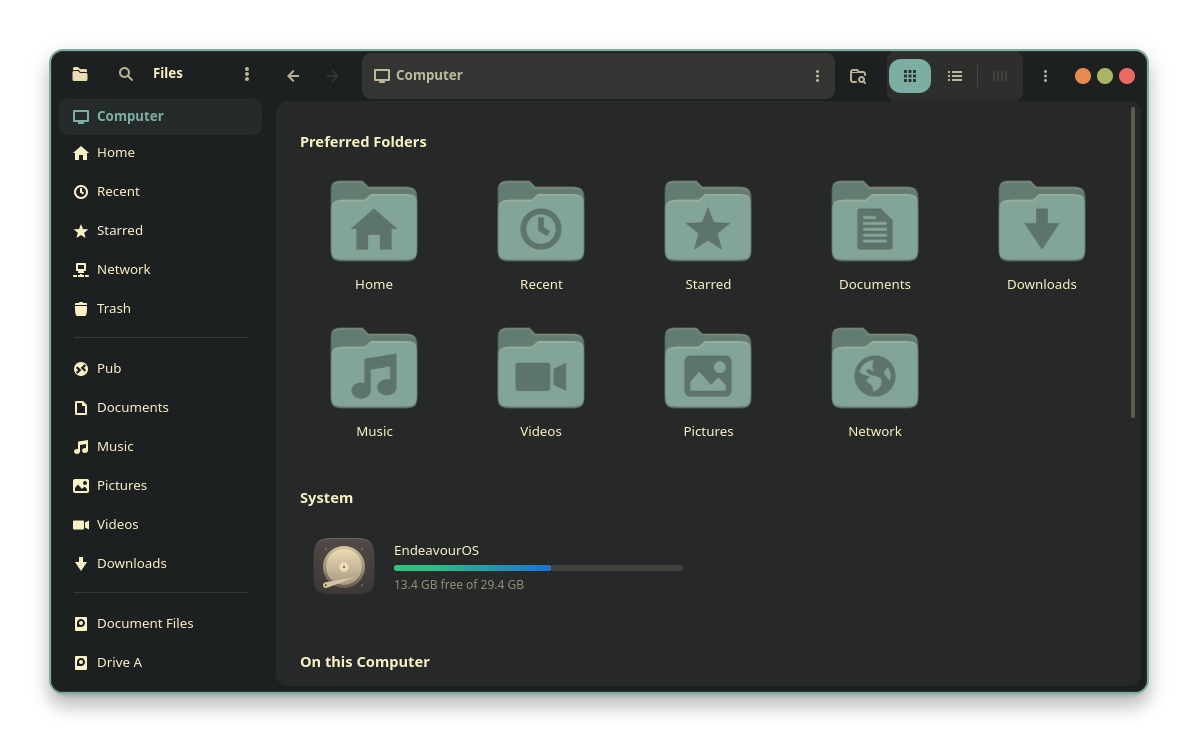
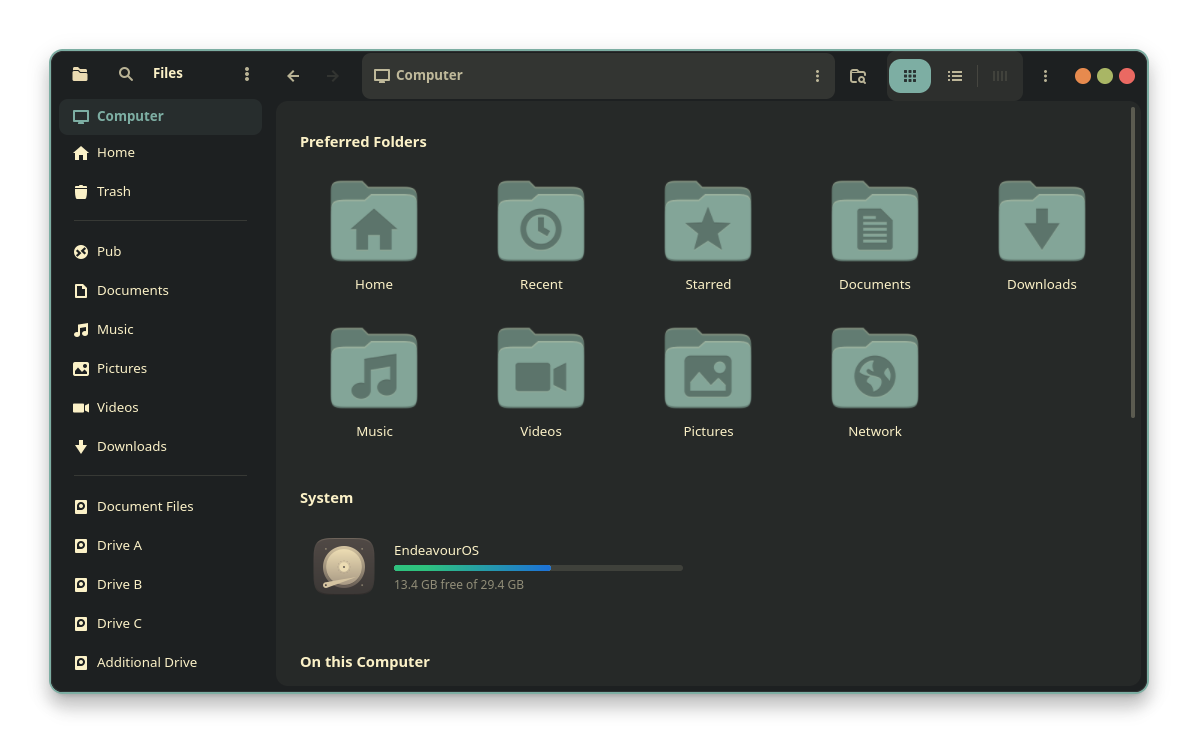
Gallery showing the sidebar before and after disabling built-in items.
Customize storage bar colors
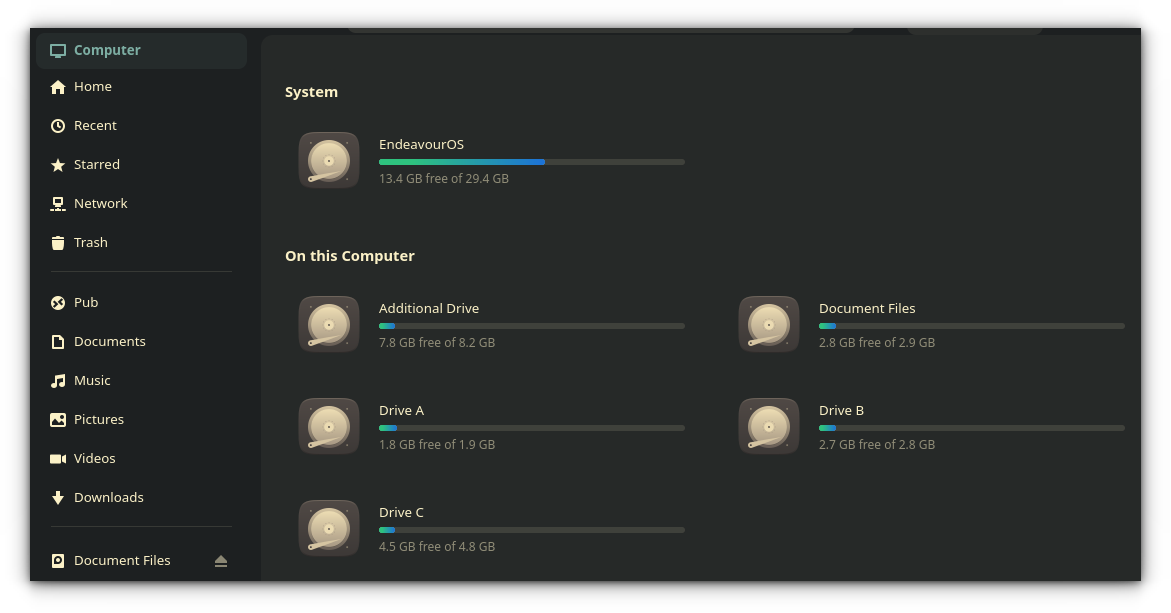
If you like personalizing your desktop, My Computer also lets you customize the storage usage bars shown beside your drives.
Open My Computer Settings, switch to the Computer tab, scroll down to Bar Color, and change Color Mode to Custom Gradient.
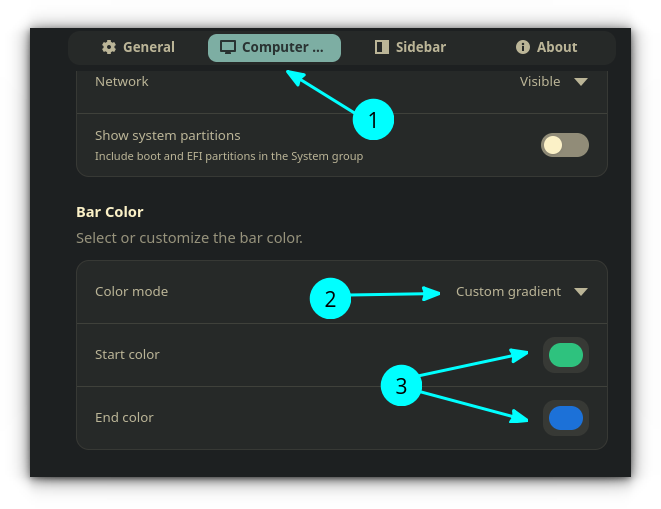
You can then choose two colors to create your own gradient. Here’s how mine turned out.
Install My Computer
My Computer is under active development. Since it is a Nautilus extension rather than a GNOME Shell extension, you’ll need to install it as a system package or use the project’s installer script.
On Ubuntu 26.04 and newer versions, install it from the official PPA:
sudo add-apt-repository ppa:yannmasoch/nautilus-my-computer
sudo apt update
sudo apt install nautilus-my-computer
Fedora users can install it through the project’s COPR repository:
sudo dnf copr enable yannmasoch/nautilus-my-computer
sudo dnf install nautilus-my-computer
If you’re using another distribution, including Arch Linux, the project also provides a universal installation script:
curl -fsSL https://raw.githubusercontent.com/yannmasoch/nautilus-my-computer/main/install.sh | sh
Wrapping Up
My Computer brings back several features that many long-time GNOME users have missed over the years. While it doesn’t recreate the old Other Locations page exactly, it offers a practical alternative by gathering everything into a dedicated Computer view.
The addition of Miller Columns is another nice to have feature. It’s a navigation style I’ve wanted to see in Nautilus for quite some time. Elementary OS’ file manager has offered a similar feature for years, but I never found a reliable way to use it on GNOME until now.
If you’re happy with Nautilus’ current sidebar-centric approach, you may not feel the need for this extension. But if you miss having a dedicated Computer page or want more control over the file manager’s interface, My Computer is definitely worth trying.
Would you install it, or do you prefer Nautilus the way it is? Let me know your thoughts in the comments.

Source: It's FOSS