How to Enable Audio / Video Thumbnail Preview in Ubuntu 26.04

Missing the small image preview for your audio and videos files in file manager? Here’s how to re-enable this function in Ubuntu 26.04 LTS.
As you probably know, the thumbnail images for audio and video files in the previous Ubuntu releases are generated by Totem video player.
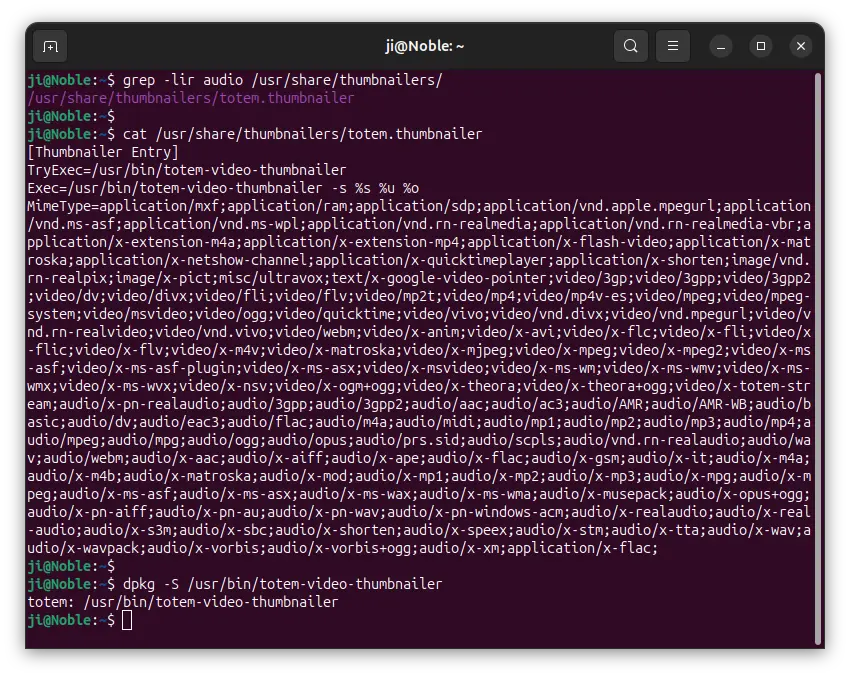
audio and video thumbnails are handled by totem video player in Ubuntu 24.04
GNOME, the default Ubuntu desktop, since version 49 introduced Showtime to replace Totem as the default video player. It however lacks the audio/video thumbnailer solution.
As a workaround, the gst-thumbnailer was added as a GNOME Core project, which is responsible for generating thumbnails for audio and video files.
Ubuntu 26.04 is the first Ubuntu release that ships with the gst-thumbnailer library. But if you installed Ubuntu 26.04 with the “Default selection” mode that contains only basic utilities, then the thumbnailer library is excluded!
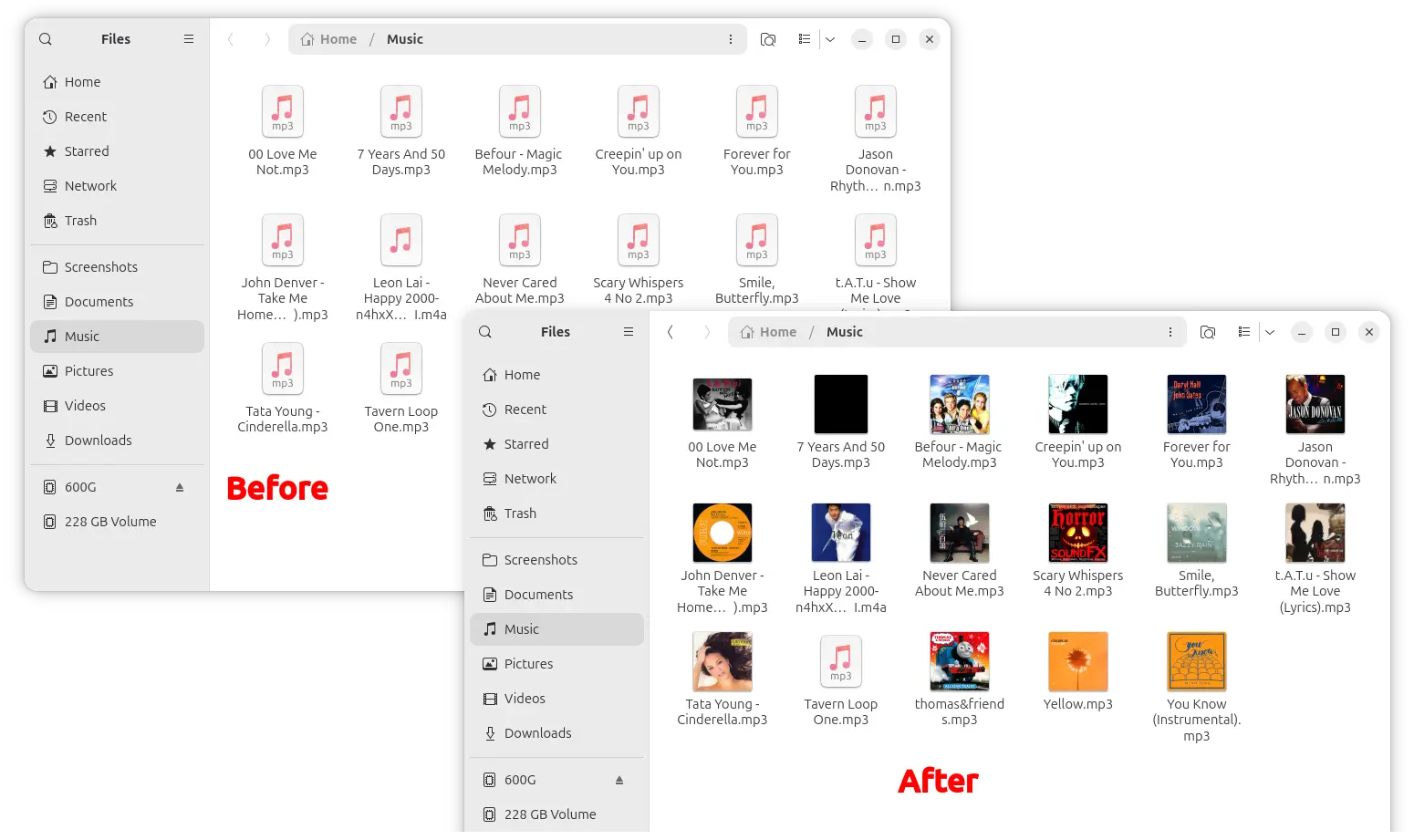
audio/video thumbnails work after installed gst-thumbnails library
This is a bug as someone reported it here. And, it’s marked to be fixed in the next Ubuntu 26.04.1 planned to be released next month.
Enable (fix) Audio / Video Thumbnail in Ubuntu 26.04
Without waiting for the next point release, you may manually install the gst-thumbnailer library to enable the thumbnail previews.
To do so, press Ctrl+Alt+T to open up a terminal window. Then, run the commands below one by one:
- First, refresh package cache:
sudo apt update
- Then, install the thumbnailer packages:
sudo apt install gst-video-thumbnailer gst-audio-thumbnailer
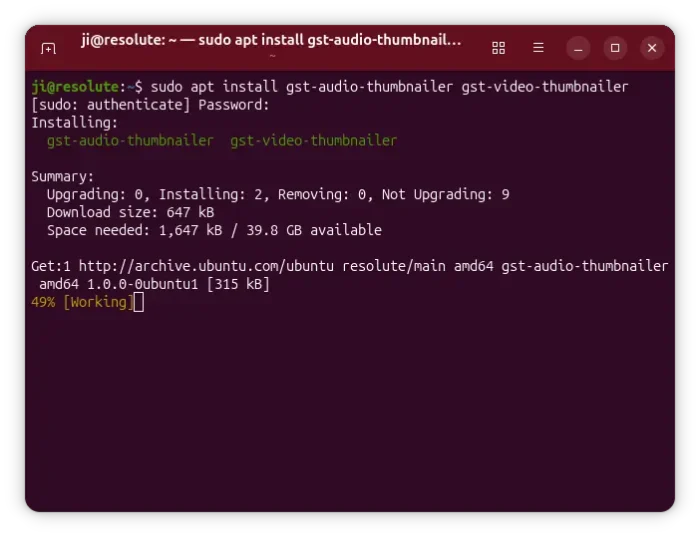
After that, run the commands below to clear thumbnail caches:
rm -rf ~/.cache/thumbnails/
Finally, re-open your file manager to see if the thumbnail preview works.
If you prefer, you may install the ffmpegthumbnailer package instead which also works and supports even more file formats.
sudo apt install ffmpegthumbnailer
However, as mentioned above Ubuntu 26.04.1 will ship gst-thumbnailer by default. If you want to use the non-default one, then you may try moving (or coping) the desired .thumbnailer from /usr/share/thumbnailers directory to ~/.local/share/thumbnailers, which however works for current user only.
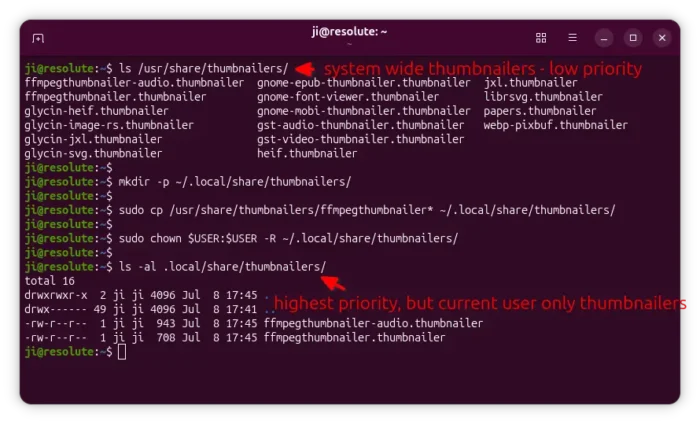
Also, remember to clear caches to apply changes.
Source: UbuntuHandbook