How to Install the Previous 25.10 Folder Icons in Ubuntu 26.04
For those who don’t like the new default folder icons in Ubuntu 26.04, here’s a step by step guide shows how to restore to the previous 25.10’s folder icons.
Ubuntu 26.04 LTS introduced new folder icons for the default GNOME Desktop. Instead of using subtle tints, the new icons are fully adapted to system accent colors.
Some, including me, however don’t like the new folder icons and prefer the previous ones. So I’m here to tell how to restore!
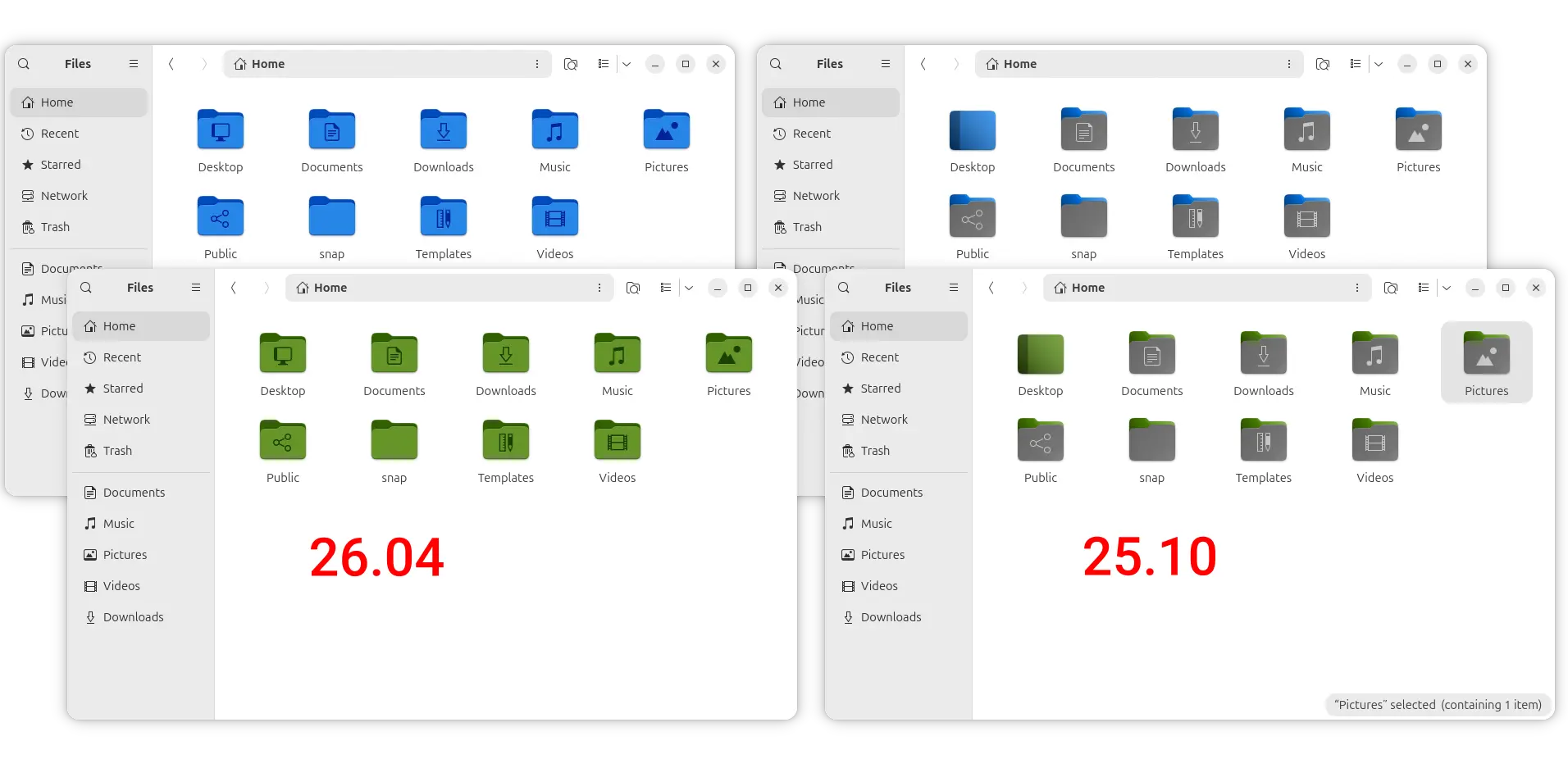
Method 1: Install the Icon Theme from Ubuntu 25.10 (Easy)
The easiest way to get back the previous folder icons is simply install the old icon theme for 25.10.
Not only for folder icons, this method will also override the app icons, icons on panel and menus etc locations, though they look almost same between the 2 versions (except new video player and Resources app icons).
1. First, click the link below to download the Ubuntu 25.10’s default icon theme:
For choice, you may go to this page, and select download the default icon theme for Ubuntu 24.04 or even 22.04.
2. After downloaded the icon theme package (.deb), assume you saved it in the default user Downloads folder, press Ctrl+Alt+T to open terminal and run command to install it:
sudo apt install ~/Downloads/yaru-theme-icon_25.10.3-0ubuntu1_all.deb
After successfully installed the package, you’ll see the old folder icons few moments later after re-open (or navigate folder) Files (aka Nautilus file manager).
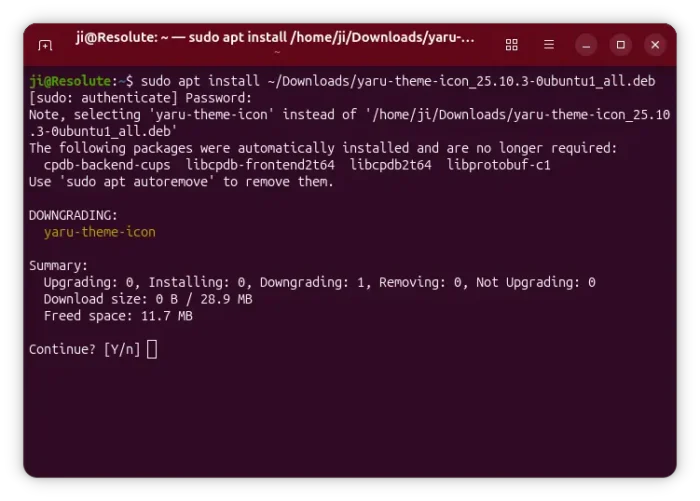
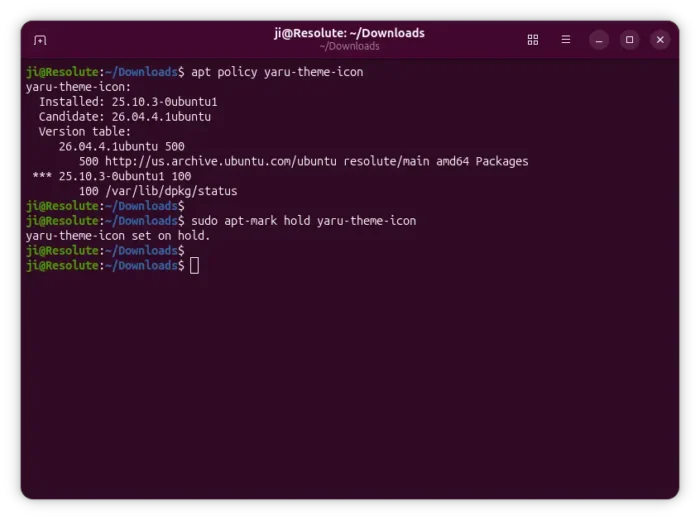
3. To prevent it from automatically installing back the new icon theme, run the command below to lock the theme package:
sudo apt-mark hold yaru-theme-icon
Method 2: Override the Folder Icons Only
If you want to just replace folder icons with the old ones, while leaving app icons and all others unchanged, then you may try overriding the icon files.
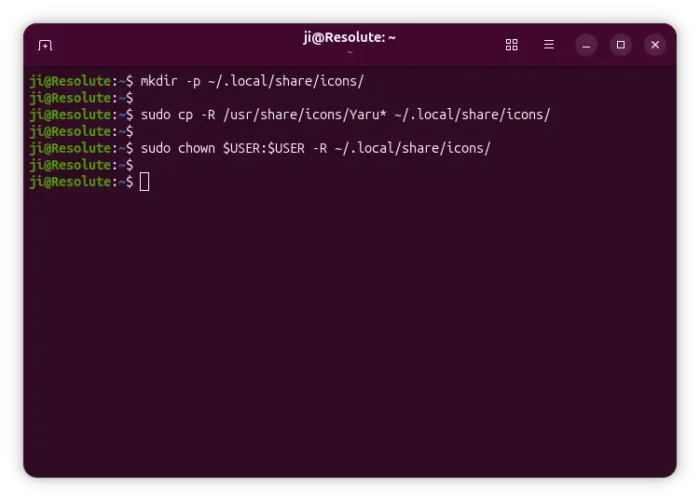
1. First, open terminal (Ctrl+Alt+T) and run command below to copy the default icon theme to user’s local directory:
- Run command to create the local icon theme directory, in case it does not exist:
mkdir -p ~/.local/share/icons
- Copy the default Yaru icon theme to local directory:
sudo cp -R /usr/share/icons/Yaru* ~/.local/share/icons
- Finally, change the ownership to yourself:
sudo chown $USER:$USER -R ~/.local/share/icons
After that, your Ubuntu will take use the icons in this local directory (for current user only) instead of the system one under /usr/share/icons directory.
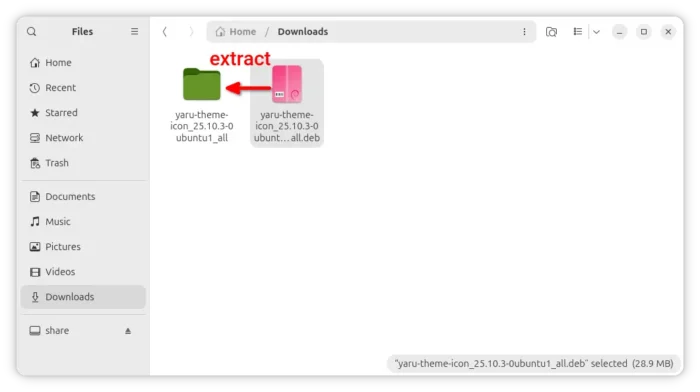
2. Download the Ubuntu 25.10 icon theme from the link in Method 1, then extract.
Run sudo apt install file-roller to install archive manager for being able to decompress .deb package.
3. Finally, go to the extracted folder (“yaru-theme-icon_25.10.3-0ubuntu1_all”) and navigate to its usr/share/icons sub-folder. There you’ll see the default Yaru icons and its variants.
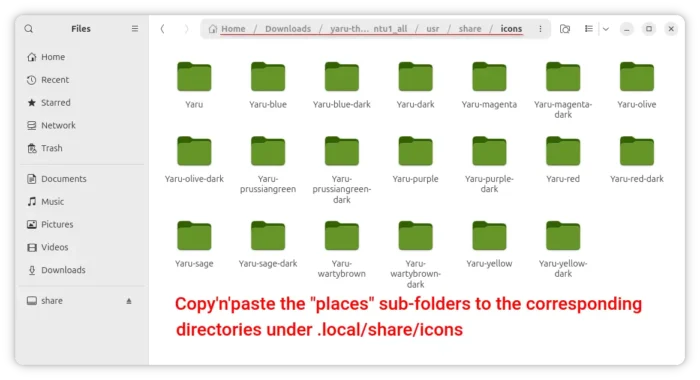
Then, all you need to do is simply copy (or move) all the “places” sub-folders, that contain the folder icons in different sizes, into the corresponding sub-directories under .local/share/icons. They include:
- Yaru/22×22/places
- Yaru/24×24@2x/places
- Yaru/48×48@2x/places
- Yaru-olive/24×24@2x/places
- Yaru-olive/48×48@2x/places
- Yaru-yellow/24×24@2x/places
- Yaru-yellow/48×48@2x/places
- And others (a total of 103 folders)
To make life easy, right-click on blank area in the icons folder and click “Open in Terminal” to open terminal with that folder as working directory:
IMPORTANT: Don’t run the command below from other directory. It will delete your files!!!
Then, run command to auto-find out all files (under current directory) with ‘places’ in path and delete all others:
find ./ ! -regex '^./Yaru.*/\(.*places.*\)?' -delete
NOTE again: DO only run this command within the “$Home/Downloads/yaru-theme-icon_25.10.3-0build1_all/usr/share/icons” directory.
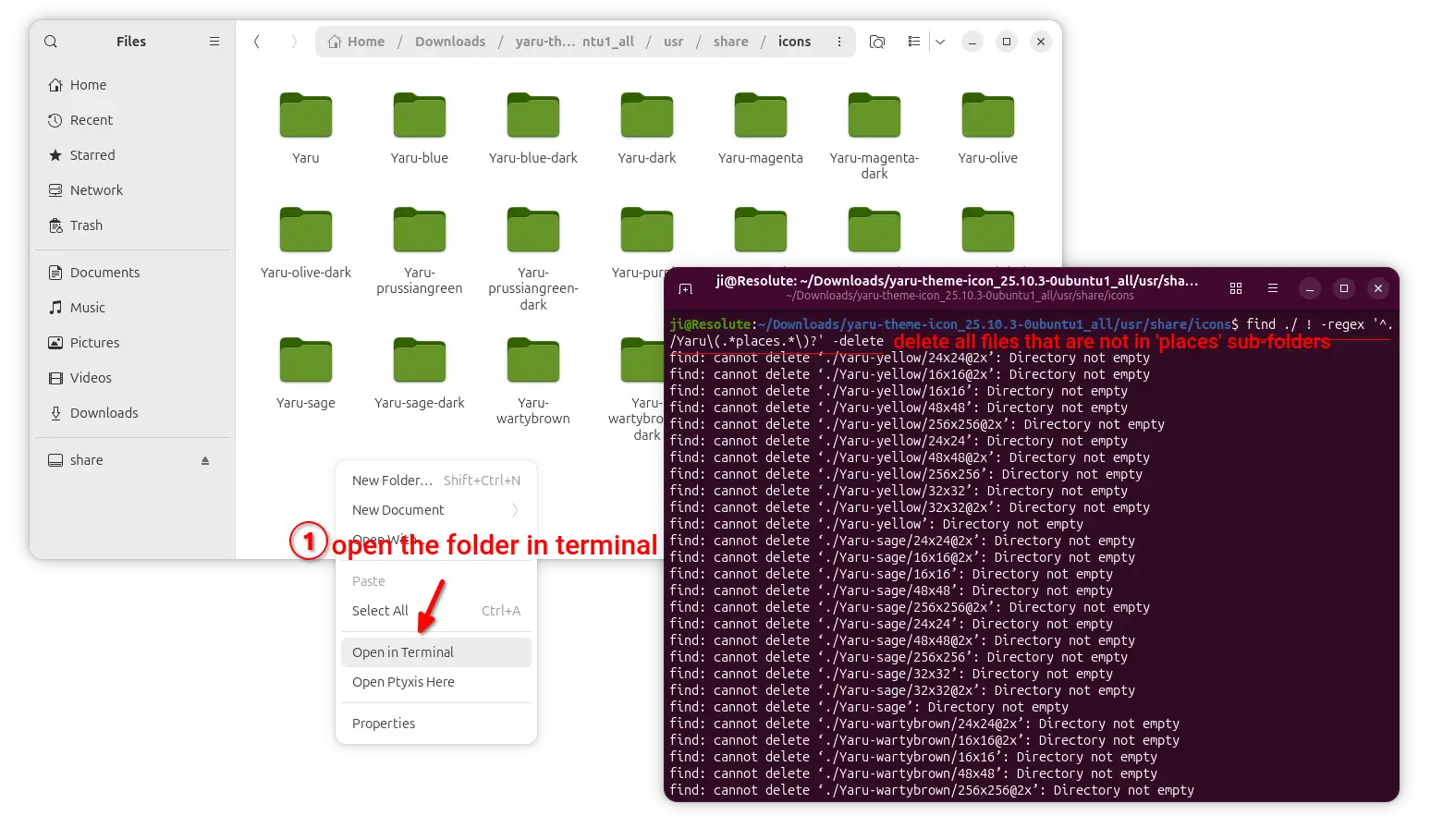
After that, only the icons under “places” sub-folders left. You can finally copy them (all the left directories) to .local/share/icons either using file manager or by running the command below:
cp -R ./Yaru* ~/.local/share/icons
If everything’s done correctly, the folder icon should change few moments later (re-open file manager).
Undo
To undo method 1, simply open terminal (Ctrl+Alt+T) and first run command to un-lock the package:
sudo apt-mark unhold yaru-theme-icon
Then, install back the new theme package:
sudo apt install yaru-theme-icon
For the method 2, simply delete the local theme folders by running command:
rm -R ~/.local/share/icons/Yaru*
Source: UbuntuHandbook