Shotcut 26.1 Released with Hardware Decoder for Export & Preview
After few weeks of Beta testing, Shotcut video editor announced version 26.1 today.
The new version of this free open-source Qt and MLT based video editor finally introduced hardware decoding support for more workflows.
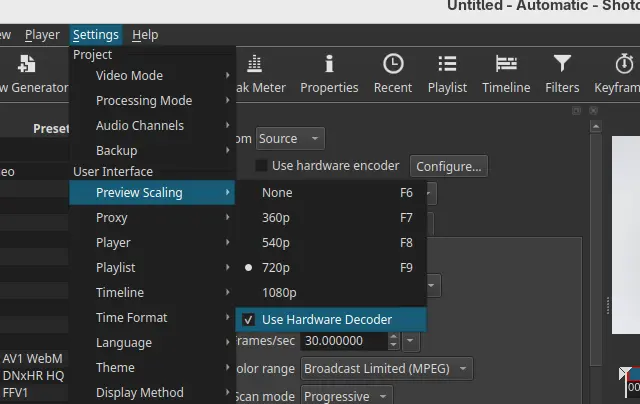
Preview Scaling, the feature that lowers the resolution of video shown in the preview monitor, now has hardware decoding support.
The feature is enabled by default, except for Linux users with NVIDIA graphics card. It uses VA-API on Linux, Media Foundation on Windows, and Video Toolbox on macOS to offload CPU tasks to GPU, which can improve battery life and keep your computer cooler.
However, it does not have a significant speed boost according to the release note (unless using Linear 10-bit CPU processing mode). And, it does not seem to help much with seeking and scrubbing as proxies are still the key for that.
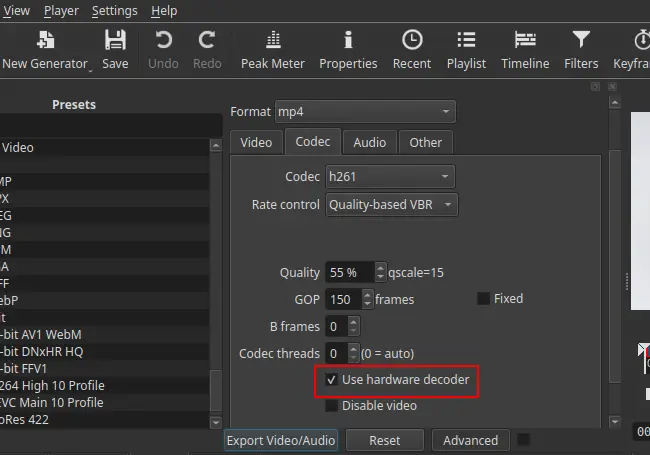
Besides preview scaling, the export process has also features hardware decoding support.
Export video is often known as the process of rendering or encoding. But video editor usually needs to decode the original video clips and changes you made (filters and cuts) before re-encoding.
By enabling hardware decoder for export, it also reduces CPU usage but it can sometimes increase the export time (according to release note but don’t know why), so the feature is disabled by default.
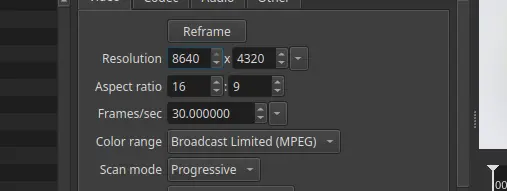
Other features in the release include Blend Mode, a filter that can override the way a clip blends with the the bottom video track, and track option for the Linear 10-bit GPU/CPU processing mode. And, it increased the maximum resolution in Video Mode and Export to 8640 for 8K VR180 video.
Other changes include:
- Ability to convert projects between GPU and CPU processing modes.
- Add Chinese (Simplified) translation.
- Add back Screen Recording option on Linux and macOS.
- Changed “Timeline > Add Generator” and “New Generator > Add To Timeline” to not seek.
- Change bulk proxy generation to update clips.
- And more!
How to install Shotcut 26.1
The official release note, and installer packages for Linux, Windows, macOS, as well as the source tarball are available in the link below:
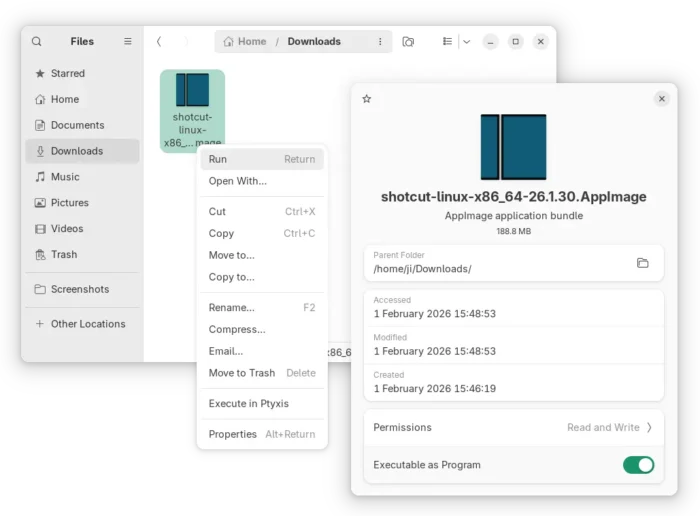
For Linux, either select download the AppImage package from the link above, add executable permission, finally click run to launch the video editor.
Tips: Ubuntu 22.04+ needs to run sudo apt install libfuse2 to install the required library first.
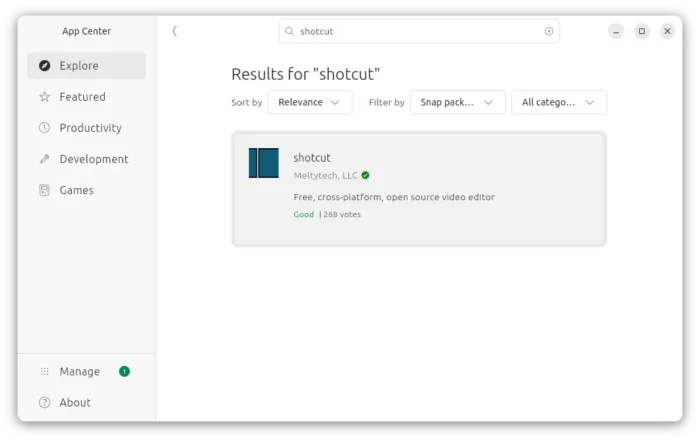
Or, Ubuntu may simply launch App Center (or Ubuntu Software), then search & install the Snap package:
While both the packages above supports only AMD/Intel, there’s also an official Flatpak package that works on both amd64 and arm64 (RasPi, SnapdragonX) platforms.
Source: UbuntuHandbook